
The 'Update Client Details' app includes various Custom Labels. If you wish to modify any text on the app i.e. Success/Error/Email message, etc., simply navigate to the corresponding Custom Labels and edit the text to fulfill your needs. Here are the precise steps for editing all custom label text.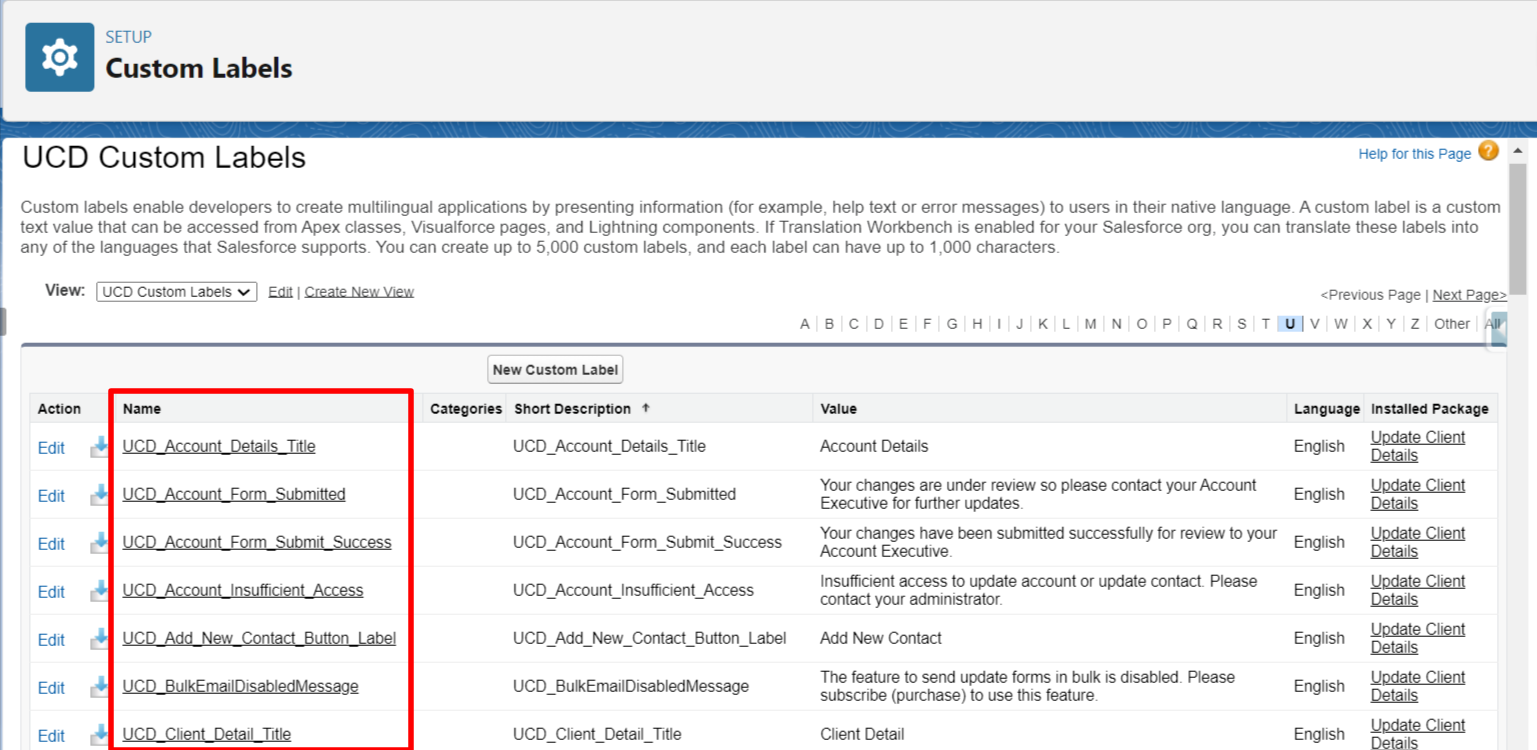
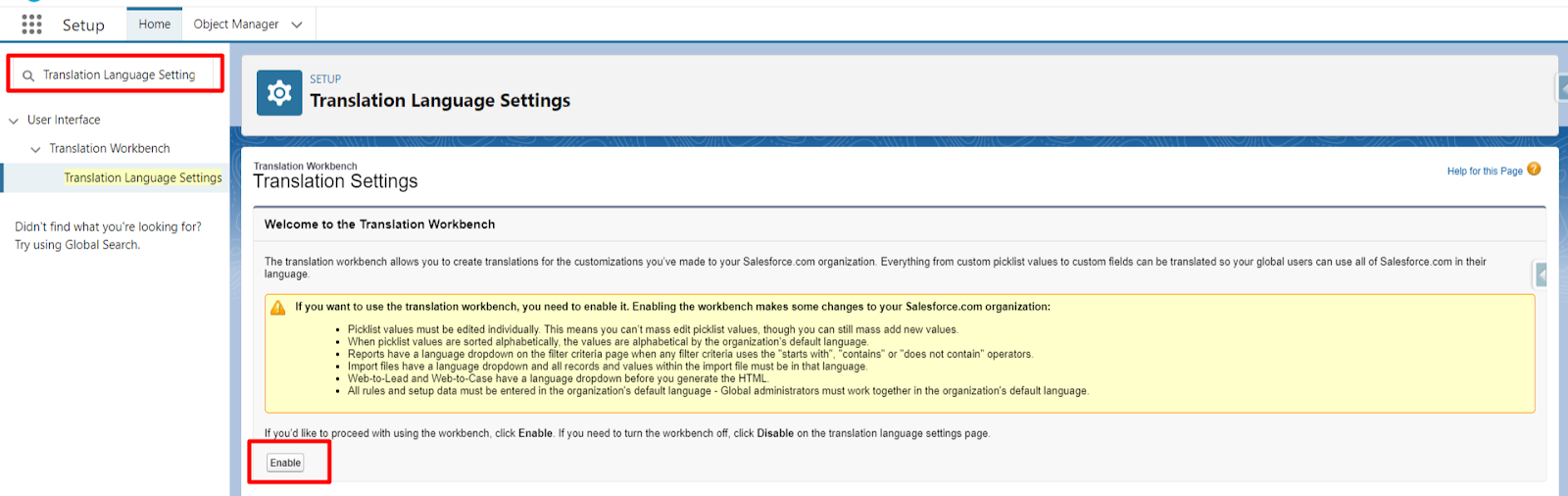
Step-1: Enable the “Translation Language Settings” form Setup to use the New Local Translations Option as shown in the image below -
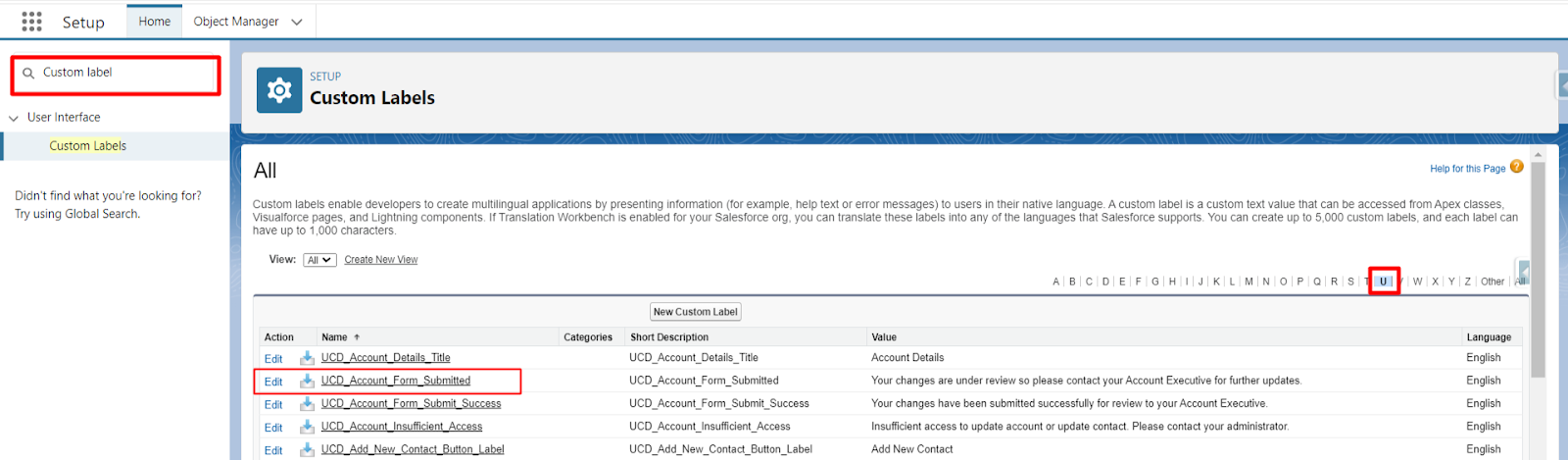
Step-2: In the Quick Find Box, search for Custom Labels and click on it, and select the following custom label - UCD_Account_Form_Submitted as shown in the image below -
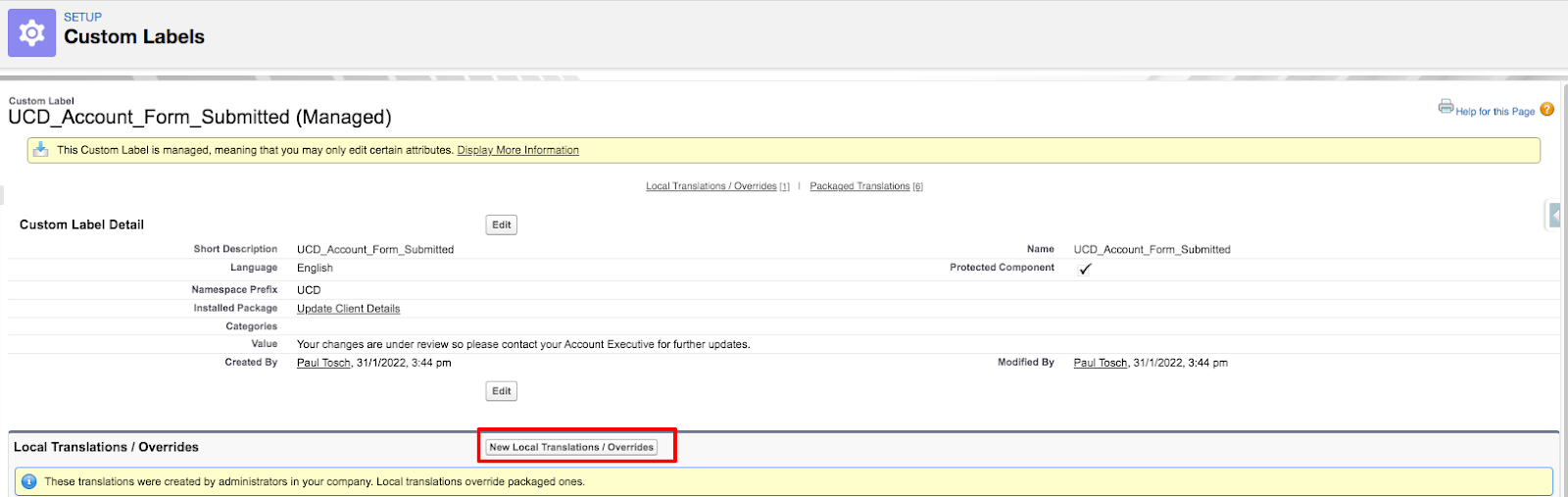
Step-3: Now Click on the New Local Translations / Overrides button as shown in the image below -
Step-4: A New Translation page is opened, where you need to choose the language and enter the Translation Text.
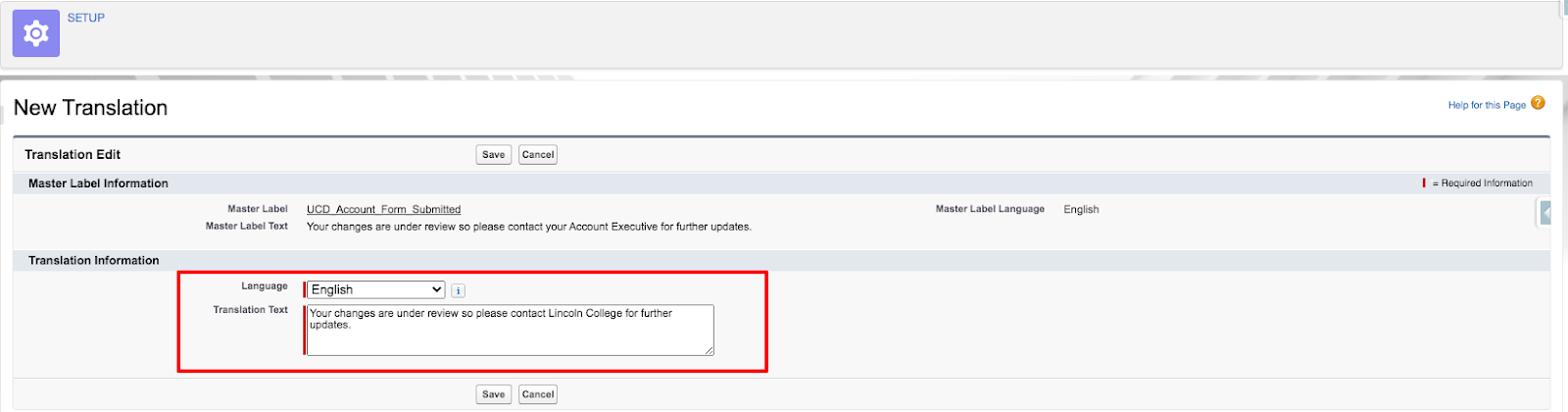
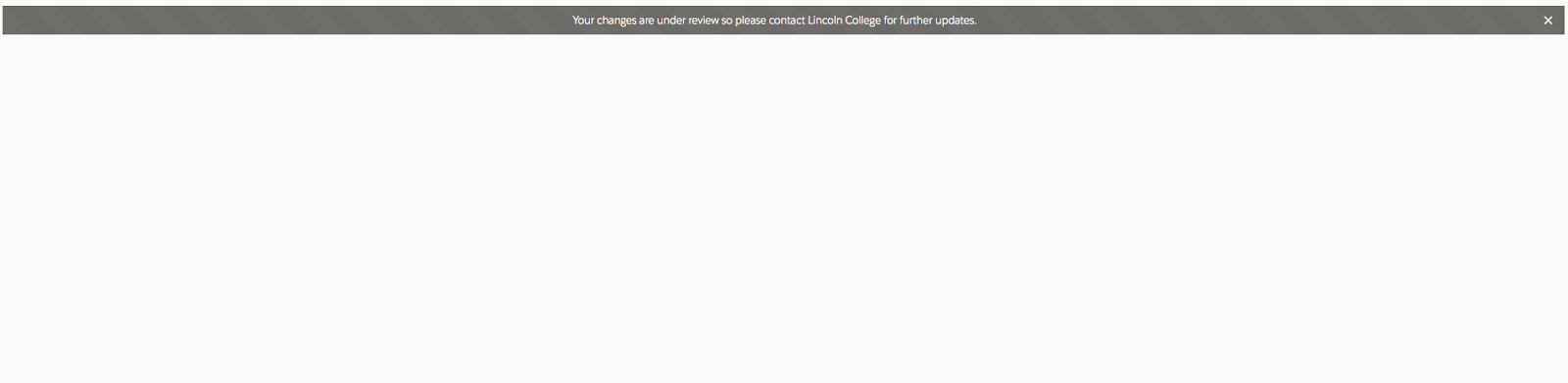
Step-5: Set the new label as you like and save it. The message will be changed to your new message on the form now.
Note: If you're using multi-language, then you need to create the new Translation under this label for different languages, which will then override the previous ones.
P.S. Discover Update Client Details, the easy way to keep client information up to date in Salesforce. Find it on AppExchange - https://appexchange.salesforce.com/appxListingDetail?listingId=a0N3A00000EcsATUAZ