
You can filter the files before uploading to Azure using the "Filter Files by adding SOQL filter conditions" feature. Follow these steps:
- Go to the "Migrate Files/Attachments To Azure" Tab.
- Look for the "Migrate Now" section.
- Under the "Migrate Now" section, you will find the option for "Filter Files by adding SOQL filter conditions" for both files and attachments.
- Enter the query in the box and click on the "Search" button.

- A table will be rendered with filtered files only. Here you can easily migrate selected files or all files using the "Migrate All" or "Migrate Selected" buttons.

View of the Page: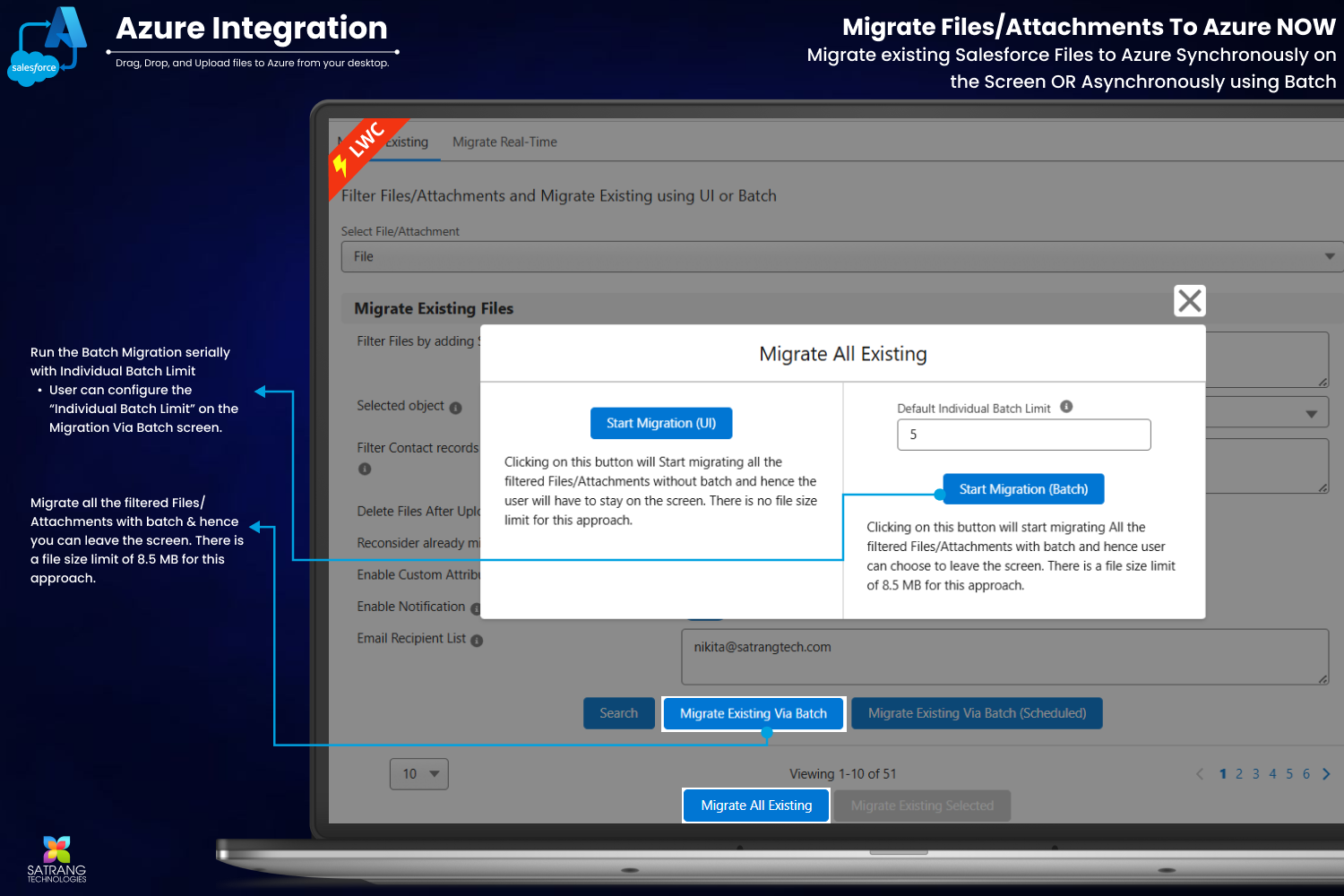
P.S. Discover Azure Integration, the easy way to upload files from any Salesforce record to Azure. Find it on AppExchange: https://appexchange.salesforce.com/appxListingDetail?listingId=c9e71bd6-5bab-4182-a461-b82d4f971183