
User can delete a file after uploading it using the Azure Integration Lightning component by following these steps:
- Go to the specific record where you've added the Azure Integration Lightning Component.
- Click on the "Upload File" button within the component and select the file(s) you want to upload to Azure.
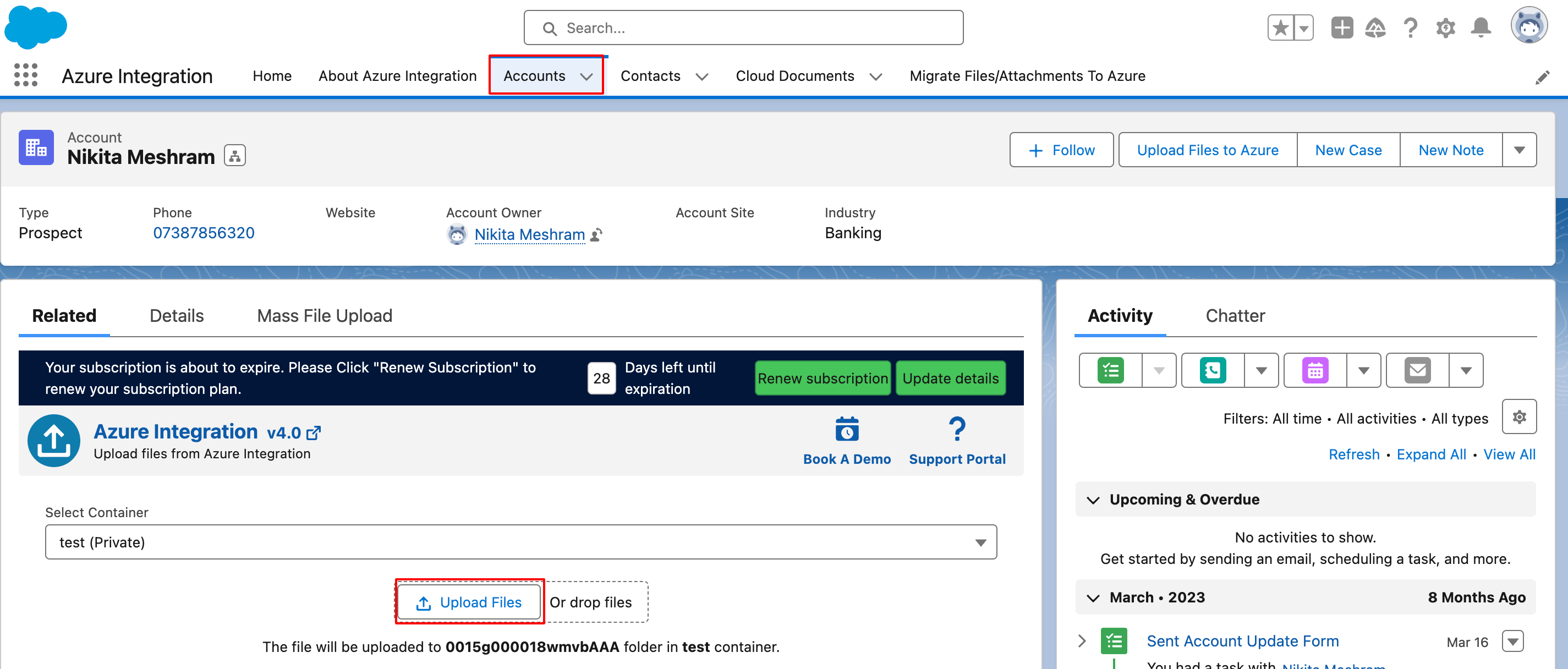
- The component will display a popup window showing the upload status.
- After the file successfully uploads, locate the file in the display.
- In the action column, find and click on the Delete icon associated with the uploaded file.
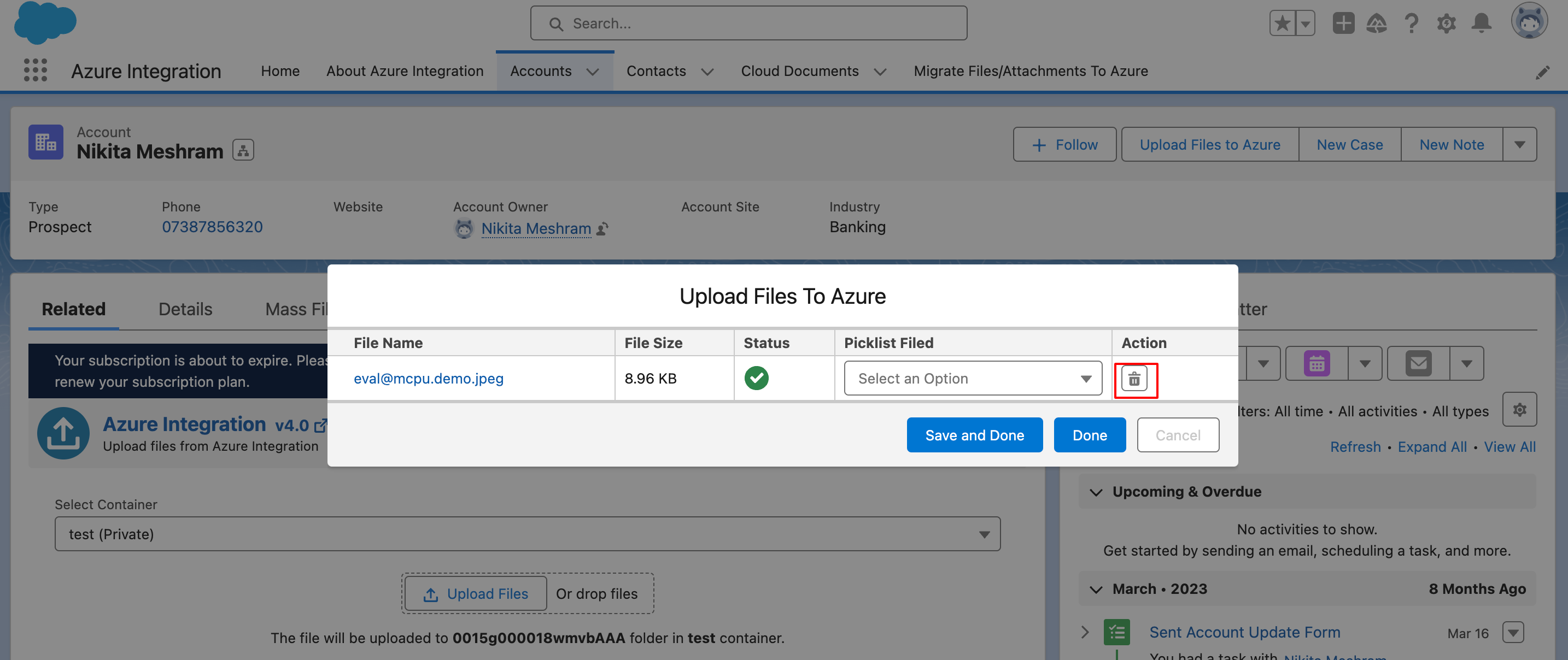
You'll be redirected to a delete confirmation page.
- Click on the "Delete" button to proceed with the deletion.

- A confirmation prompt will appear asking for final confirmation.
- Click "OK" to confirm and complete the deletion process.

Once confirmed, the uploaded file will be successfully deleted from Azure.
P.S. Discover Azure Integration, the easy way to upload files from any Salesforce record to Azure. Find it on AppExchange: https://appexchange.salesforce.com/appxListingDetail?listingId=c9e71bd6-5bab-4182-a461-b82d4f971183