
You can update the master values as well as translations of Record Types using the "Quick Update Translations" app. Follow these steps:
- Open the "Quick Update Translations" app and navigate to the "Quick Update Translations" tab.
- From the "Select Entity to Translate" section, choose "Record Type".
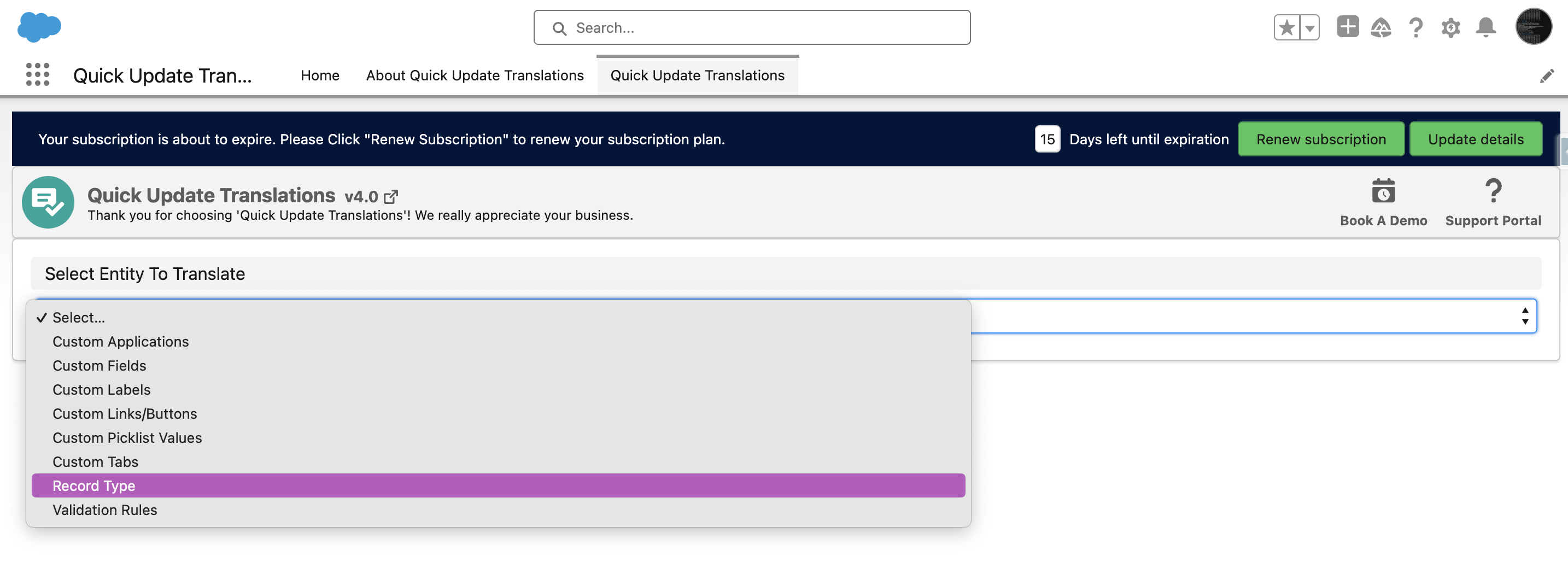
- This will open the "Update Custom Record Types Translations" page.
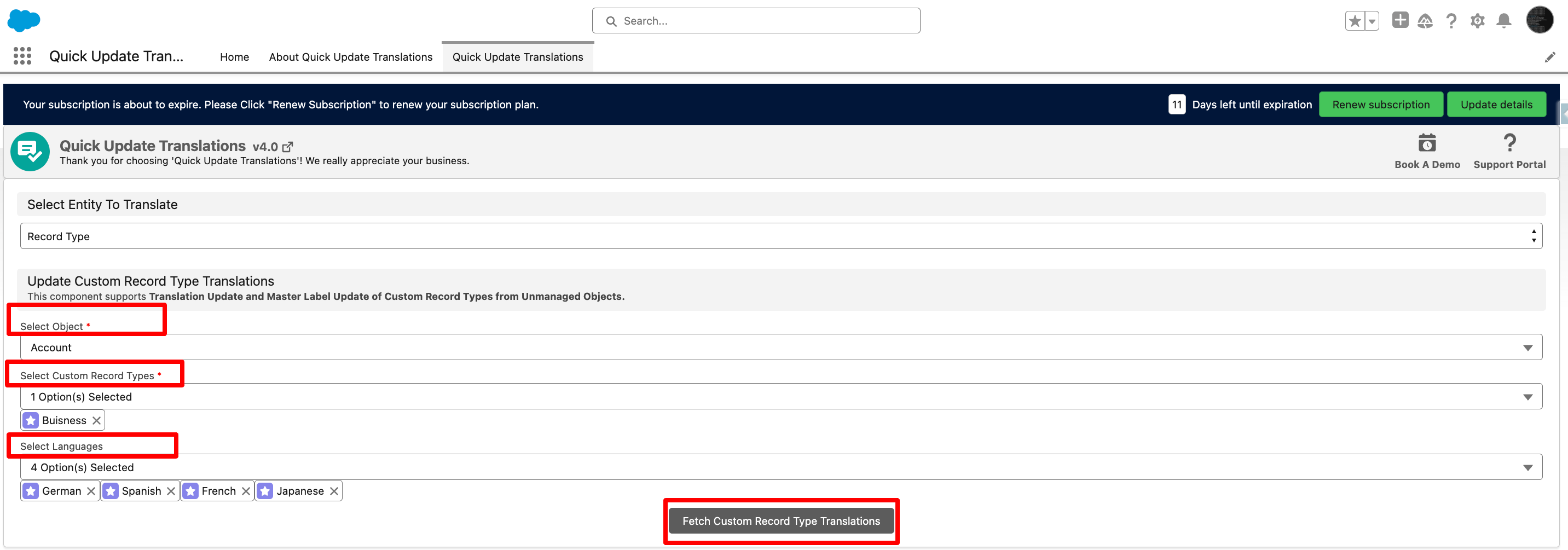
- In the "Select Object" section, select the object for which you want to update the record type labels and translations.
- In the "Select Custom Record Types" dropdown, select the specific custom record types for which you want to update the master labels as well as translations.
- Under "Select Language", choose the languages for which you want to add or update translations.
- Click on the "Fetch Custom Record Types Translations" button.
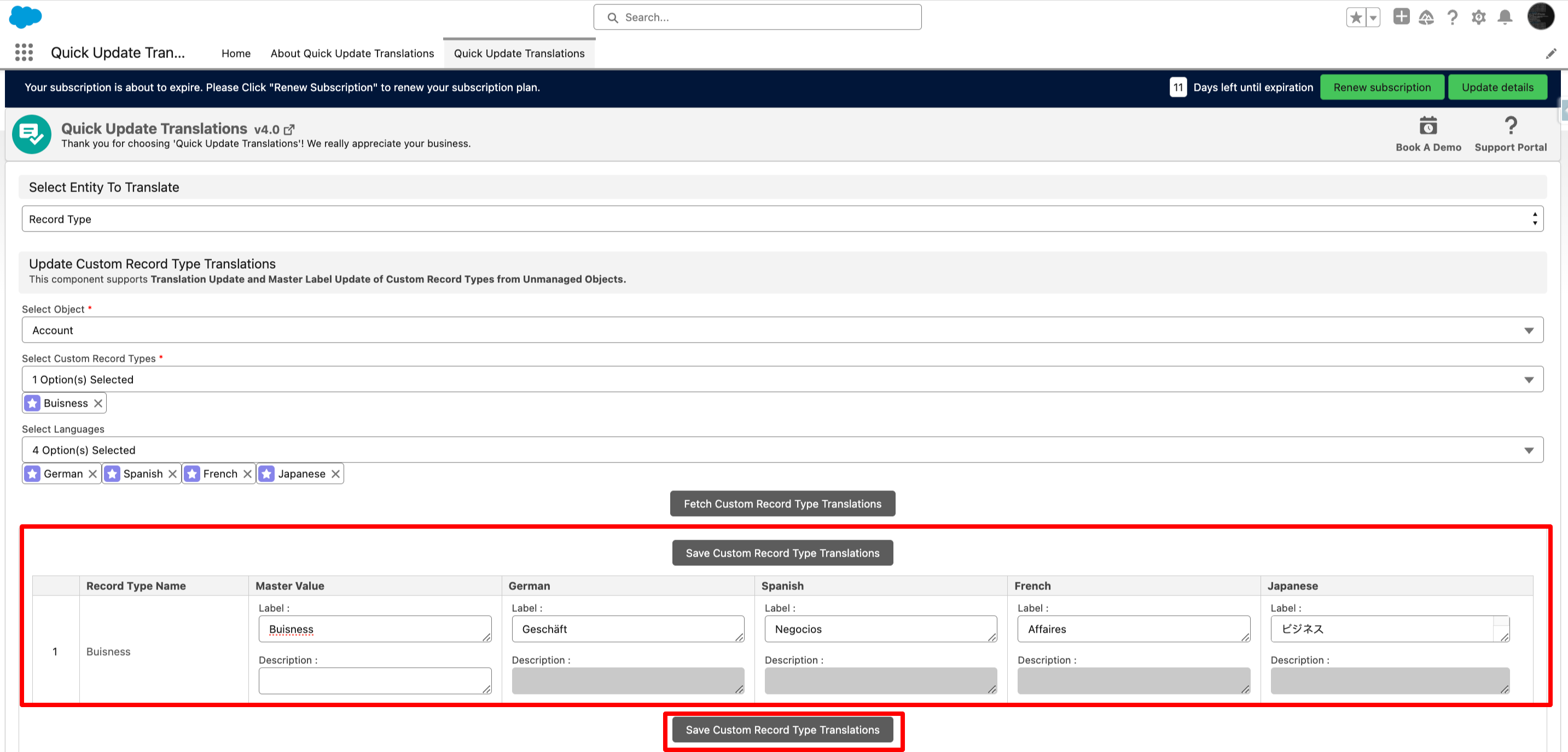
- The page will display a table with the selected custom record types.
- Update the master labels and translations as per your requirements in the table.
- Click on the "Save Custom Record Type Translations" button to save your changes.
- By following these steps, you can easily update custom record type labels and their translations in different languages, ensuring that your Salesforce instance is fully localized and user-friendly for users of various language preferences.
P.S. Discover Quick Update Translations, the simple way to update Labels and Translations in just a few clicks. Find it on AppExchange: https://appexchange.salesforce.com/appxListingDetail?listingId=fa9afbfe-74ff-4027-ac32-2cdfd58184d3