
Yes, it is possible to link cloud documents of Leads with Opportunity and Account on Lead conversion. Follow the steps below:
- From Setup, search for flows in the Quick Find Box, and click on New Flow.
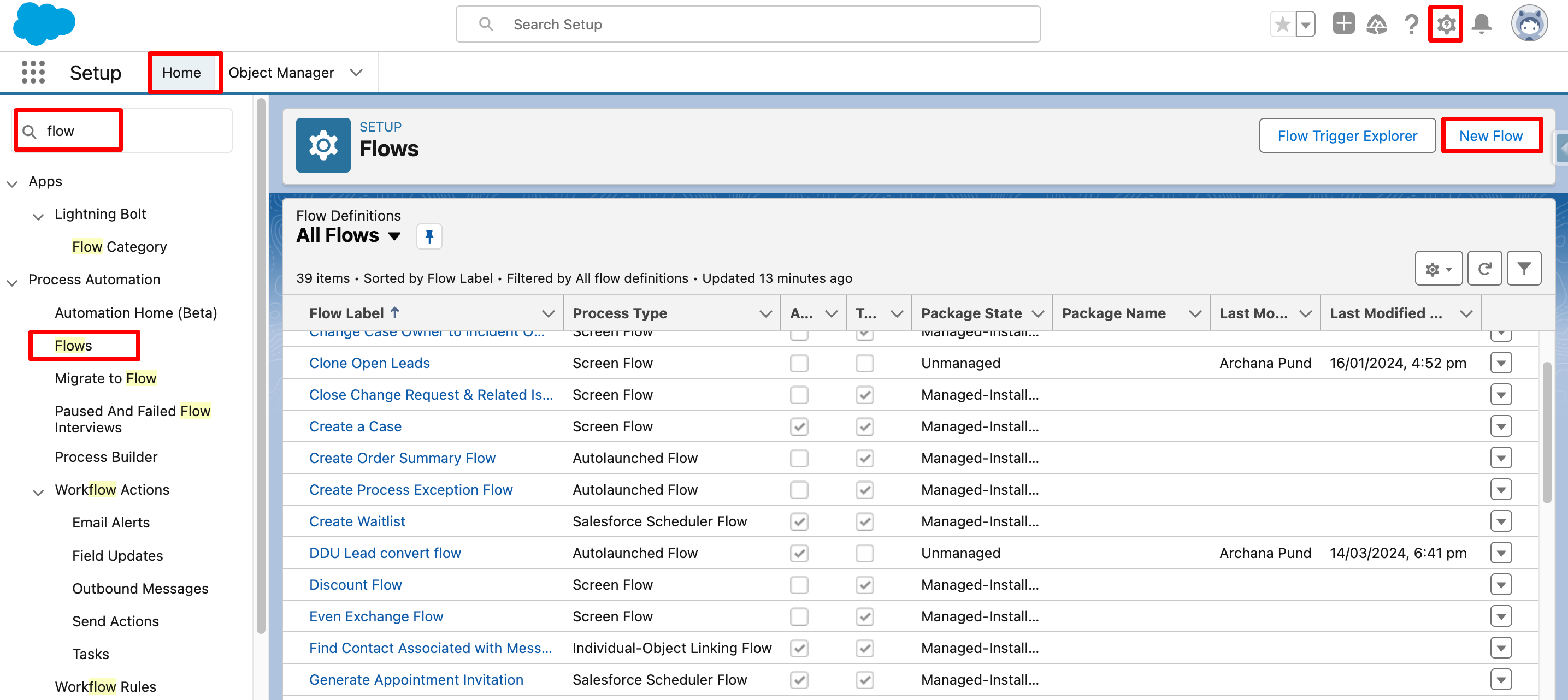
- Select Record-triggered Flow and click on Create
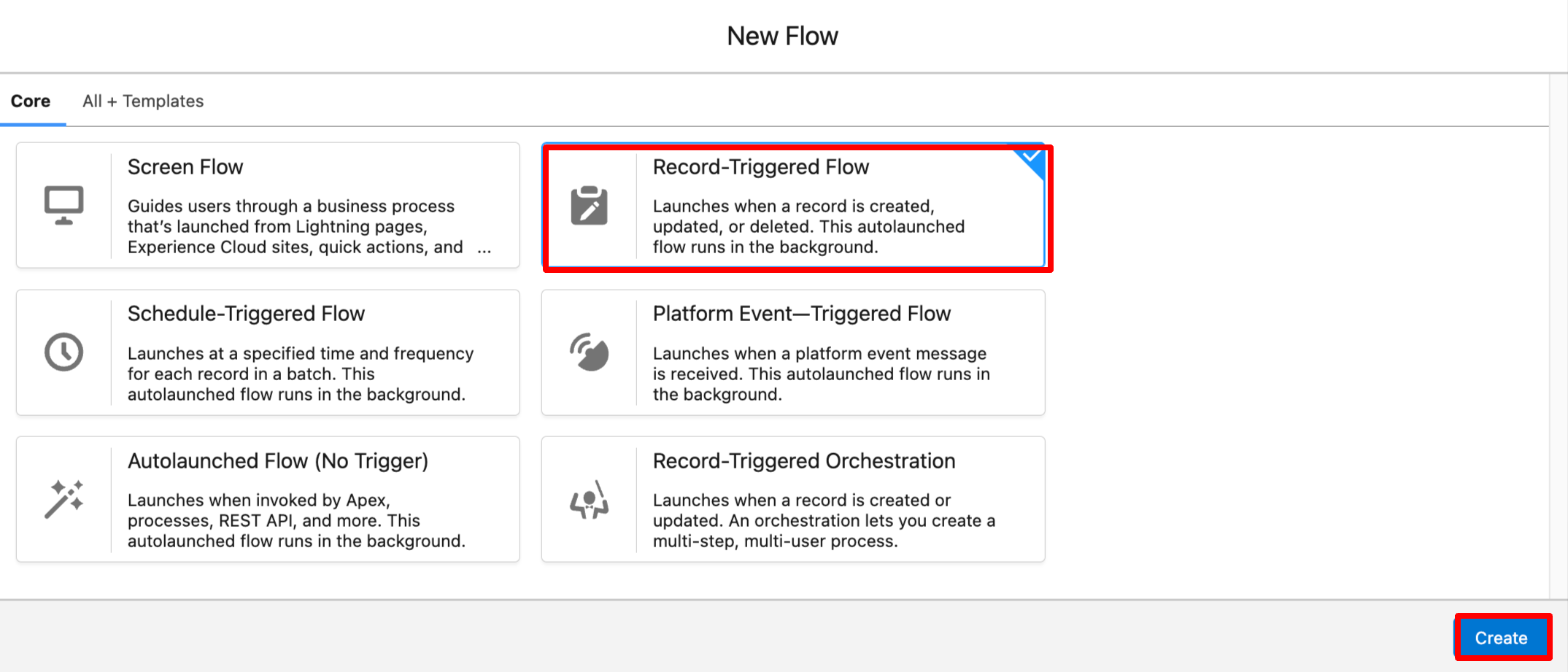
- Select Lead as the object.
- Trigger the flow when a record is updated.
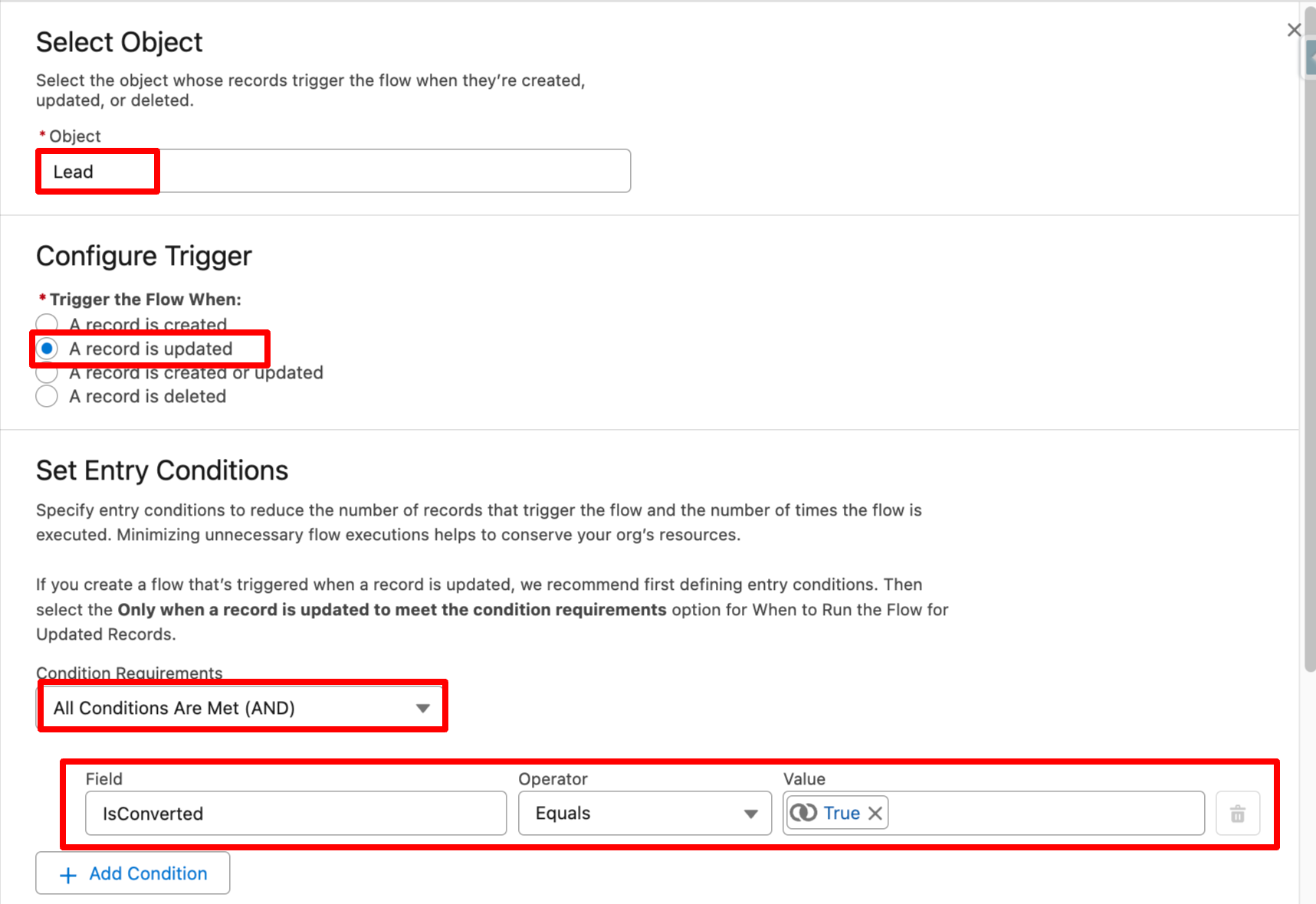
- Set entry conditions to: All conditions are Met, IsConverted = TRUE.
- For "When to Run the Flow for Updated Records", choose "Every time a record is updated and meets the condition requirements."
- Optimize the Flow for Actions and Related Records.
- Click on Done.
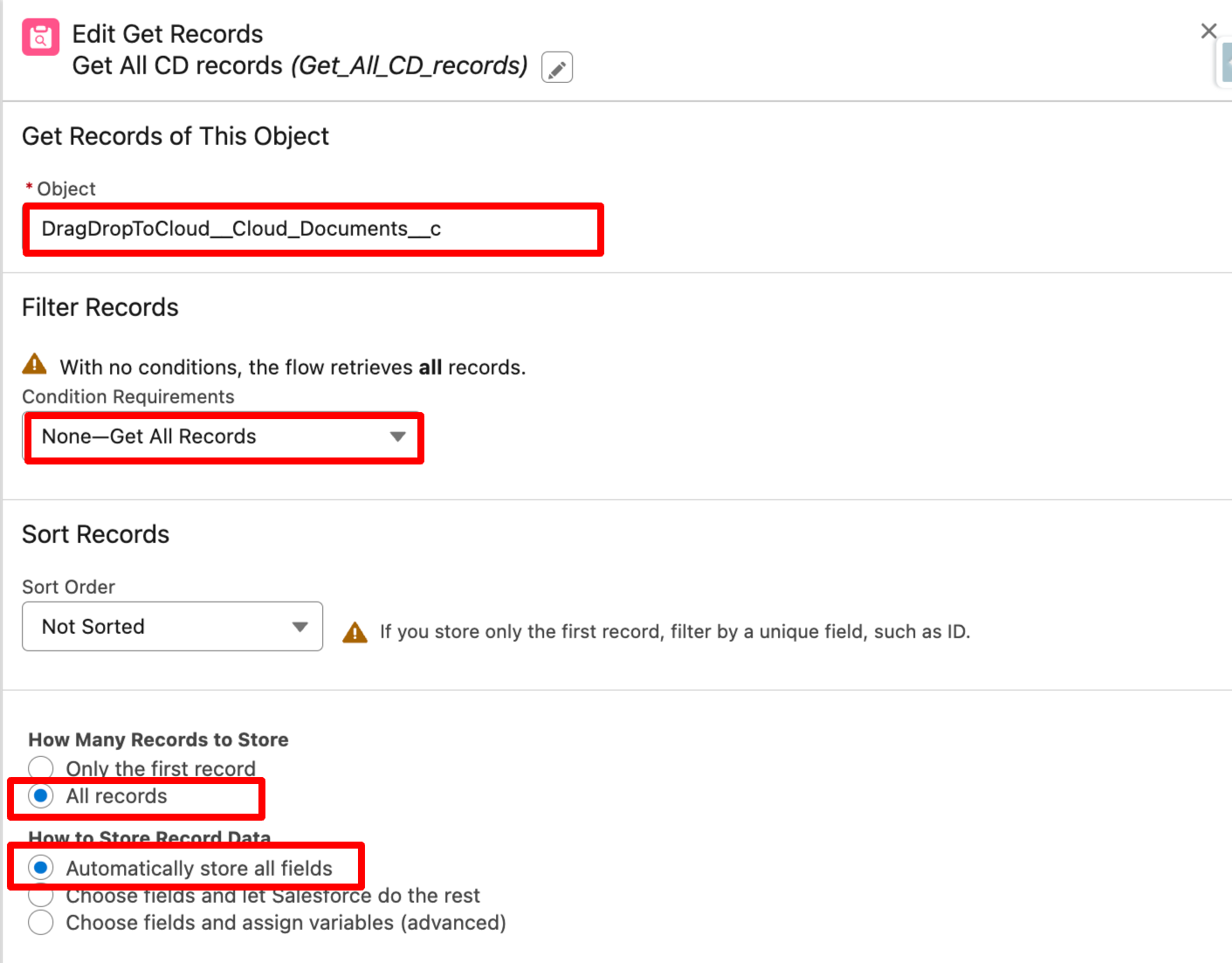
- From Elements, drag the Get Records element to the canvas.
- It will open a New Popup.
- For Object, select DragDropToCloud__cloud_Documents__c object.
- For Filter choose None-Get All Records
- For How many records to store select All Records
- For How to Store Record Data select Automatically store all fields
- For the label, give a name of your choice.
- API Name field will be populated automatically.
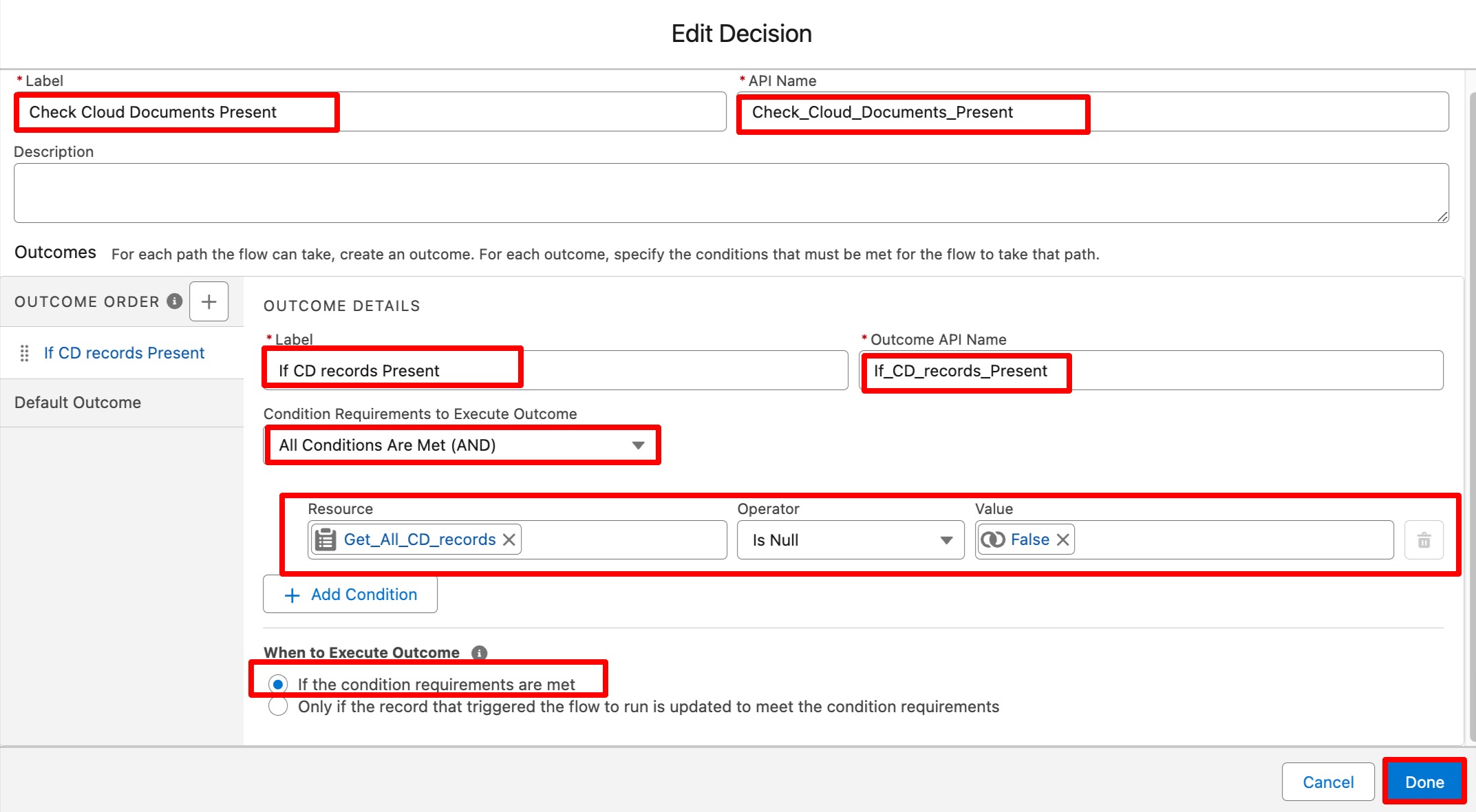
- From Elements, drag the Decision element to the canvas.
- It will open a New Popup.
- For the label, give a name of your choice.
- API Name field will be populated automatically.
- For outcome enter Label and API Name field will be populated automatically.
- For Condition Requirement to Execute outcome select All Conditions are Met(AND)
- Check if the Get All CD records (the Get Records element from the previous step) is not null.
- For When to execute outcome select If the condition requirements are met
- Click on Done
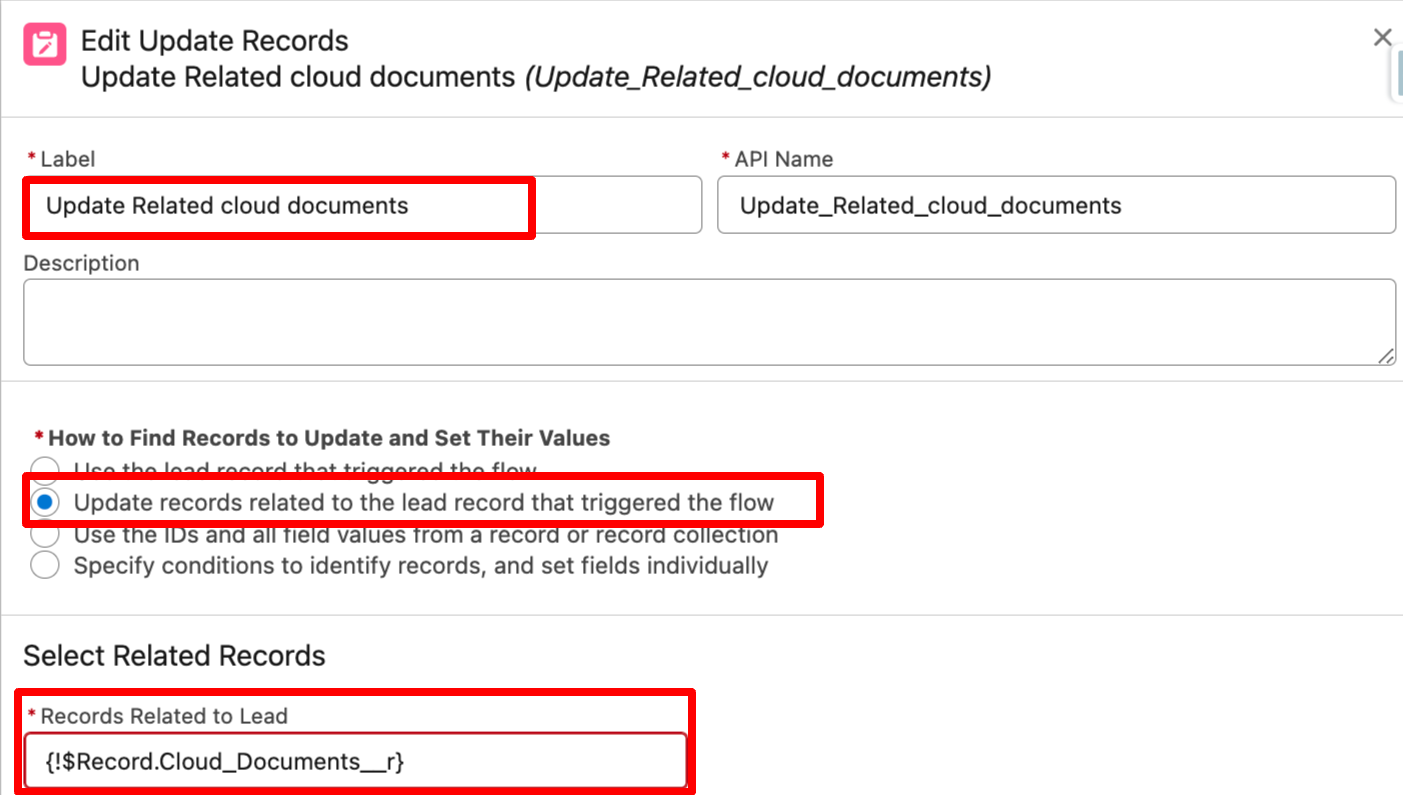
- From Elements, drag the Update Records element to the canvas.
- For the label give a name as per your choice
- API Name field will be populated automatically.
- How to Find Records to Update and Set their Values Choose - Update records related to the lead record that triggered the flow
- Select Related Record - Record.Cloud_Documents__r
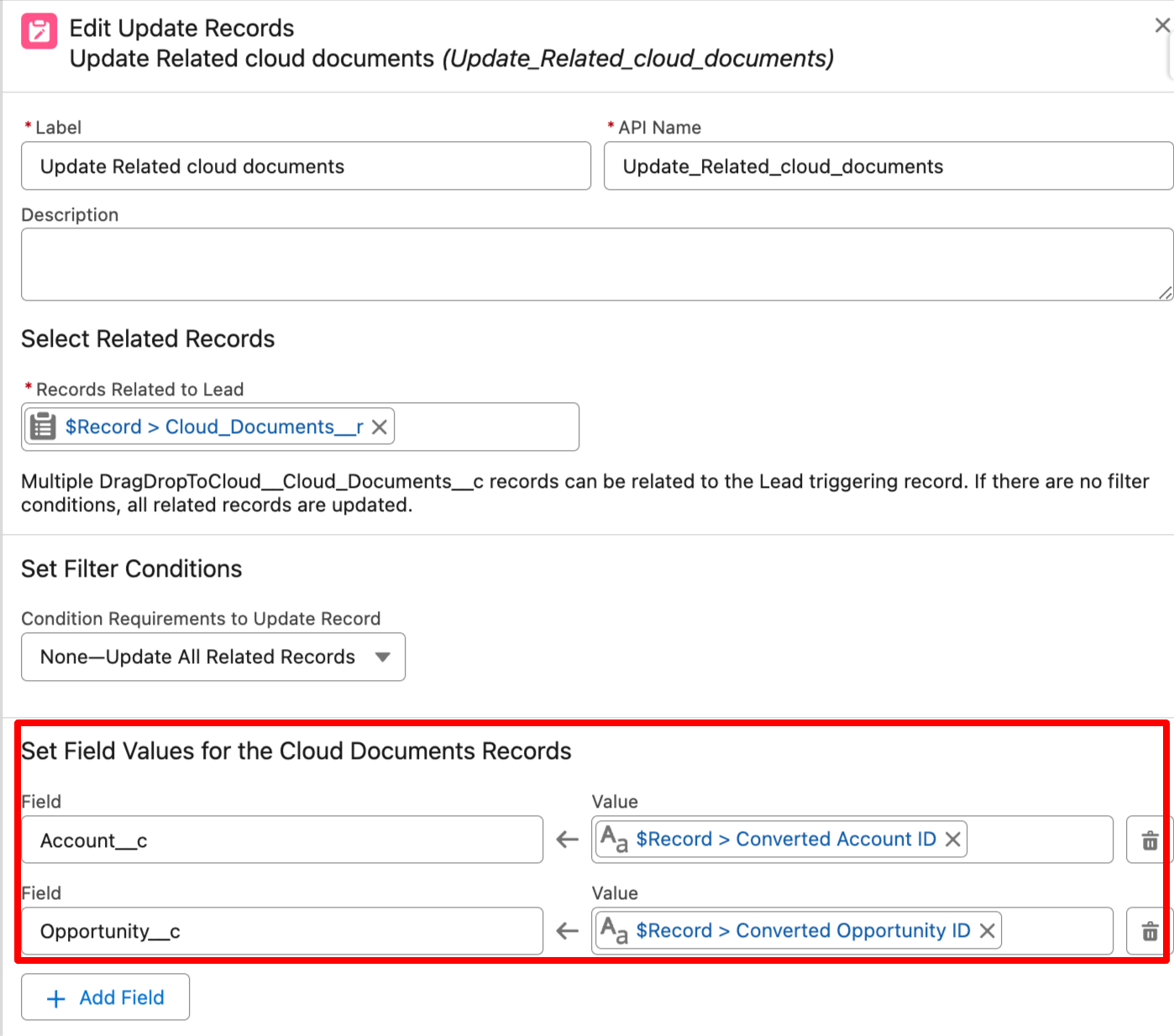
- Set Filter Conditions - None Update all related Records.
- Set Field Values for the Cloud Documents Records - Set below 2 fields:
1. Account__c = Record.Converted Account ID
2. Opportunity__c = Record.Converted Opportunity ID
- Click on Done.
- Connect elements of flow as shown in the below image.
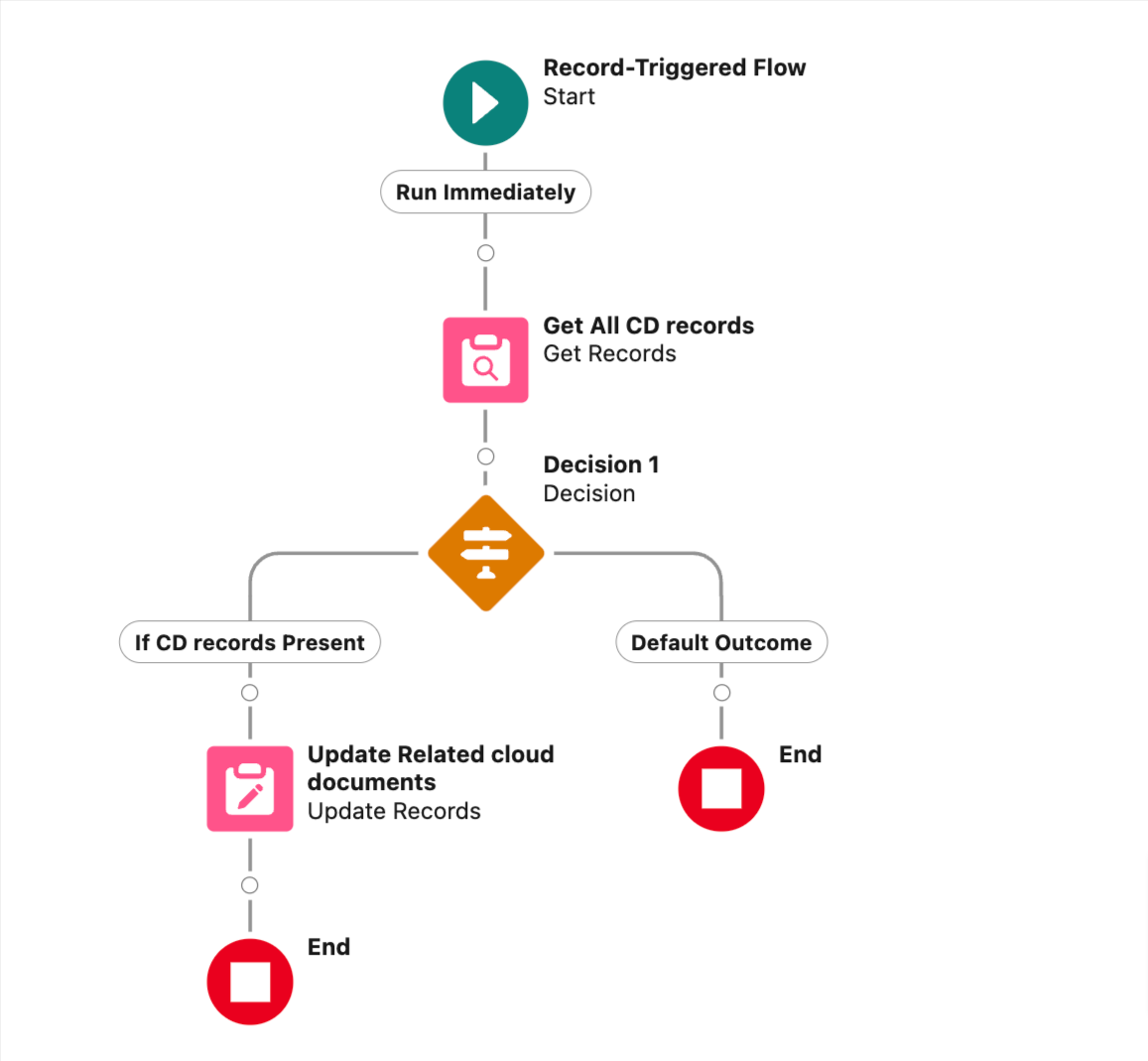
- Save and Activate the Flow.
PS: View Drag, Drop & Upload Files to Amazon S3, a Salesforce AppExchange app for moving files from Salesforce to Amazon S3: https://appexchange.salesforce.com/appxListingDetail?listingId=a0N3000000B5ZPqEAN