
You can delete files/attachments after successful migration. Follow these steps:
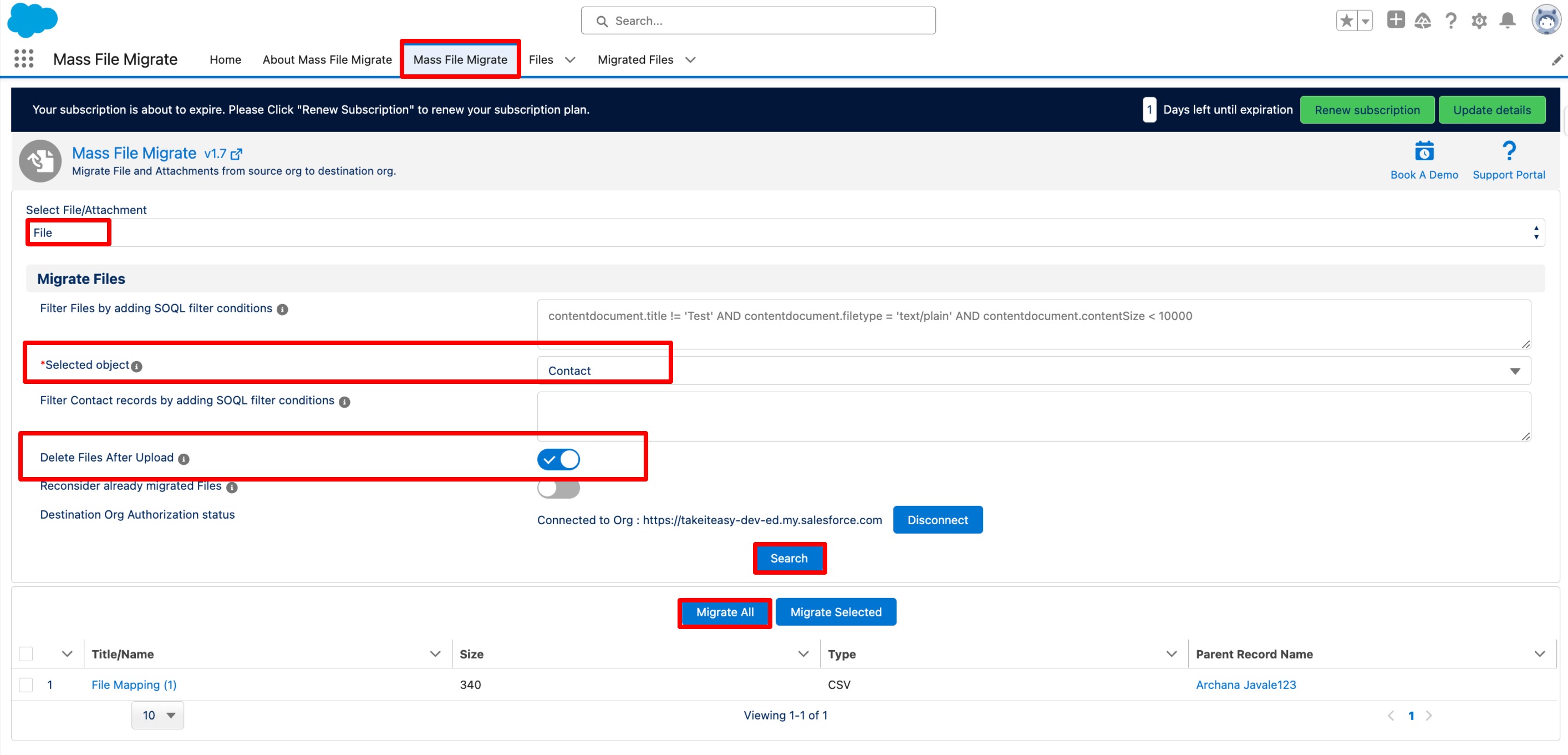
- Navigate to the Mass File Migrate app and select the "Mass File Migrate" tab.
- In the "Select File/Attachment" dropdown, choose a file or attachment according to your requirement.
- Select the object from which you want to migrate files/attachments
- Turn ON the Toggle "Delete Files after Upload".
- Click on the "Search" button.
- A table will render with all files related to the selected object.
- If you want to migrate all files, simply click on "Migrate All".
- If you want to migrate only selected files, click on the "Migrate Selected" button.
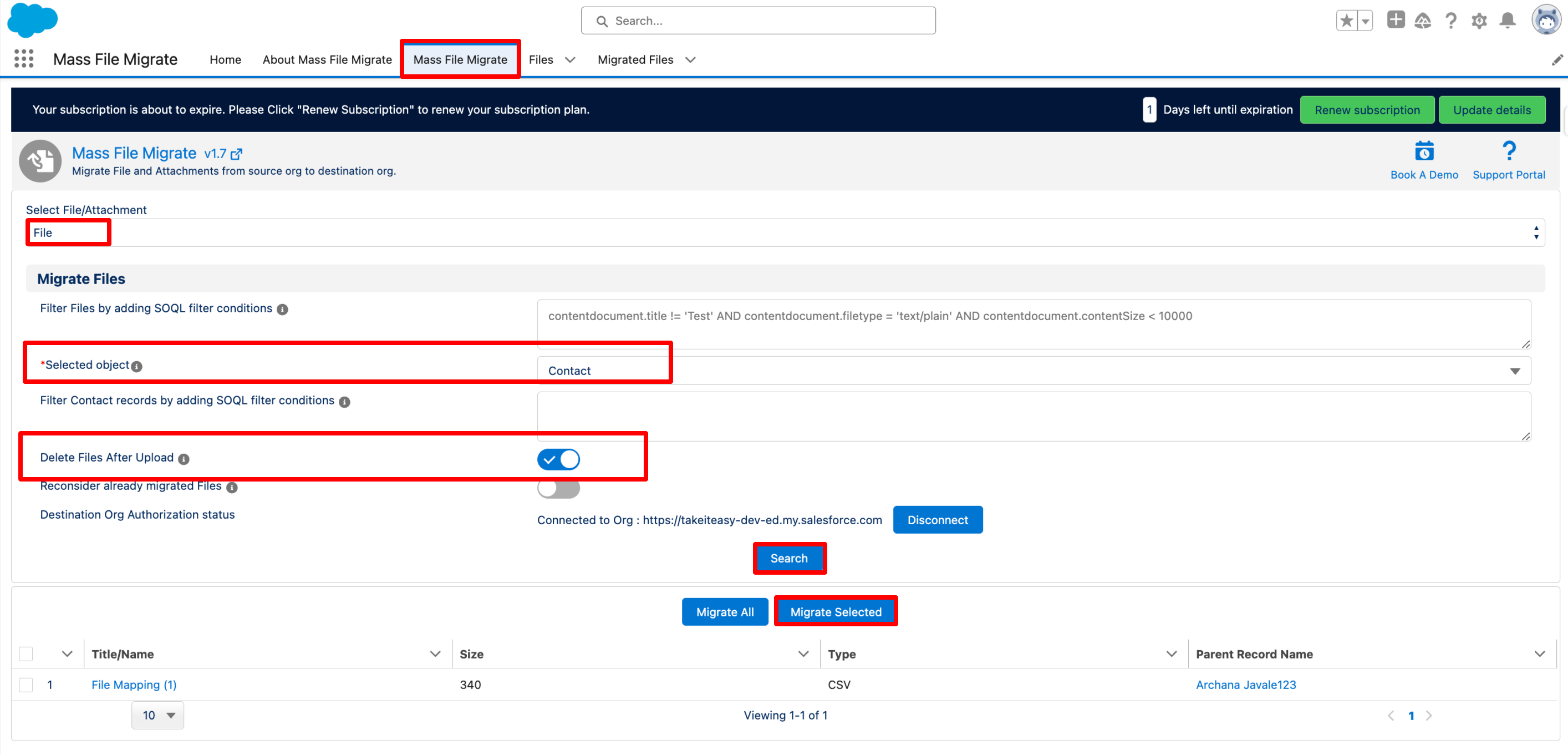
Upon successful migration, you will receive a success message on the screen, and the file/attachment will be deleted from the source org.
PS: View Mass File Migrate Salesforce file migration app on Salesforce AppExchange:
https://appexchange.salesforce.com/appxListingDetail?listingId=e9874a66-2001-4e3d-8a29-3a2ed7f584c4