
You can migrate files and attachments related to Knowledge Articles using the Mass File Migrate app. Follow the steps below:
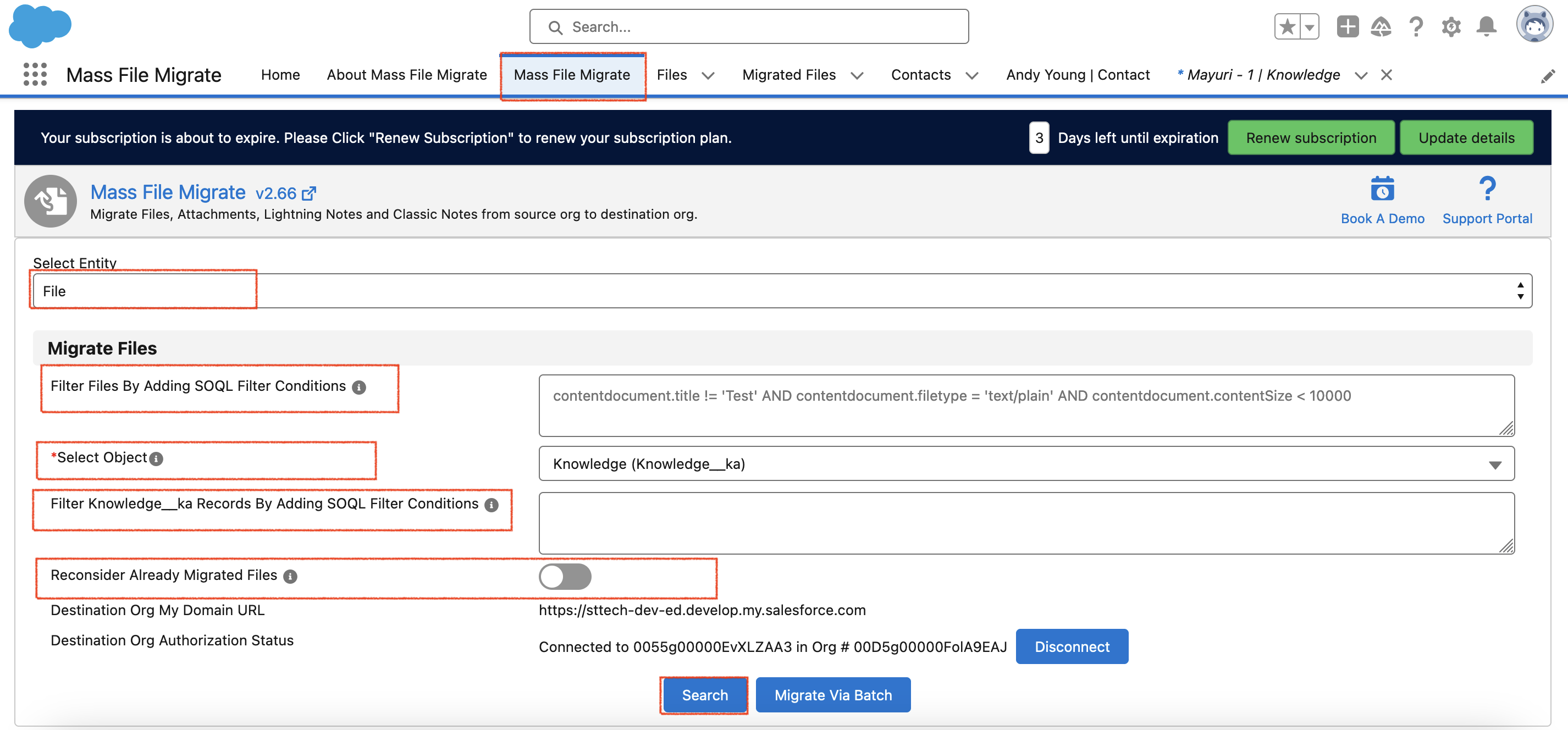
- Go to the Mass File Migrate tab in the app.
- In the "Select Entity" dropdown, choose the option for File/Attachment that you want to migrate.
- If you want to apply filters, you can add a SOQL query in the "Filter Files By Adding SOQL Filter Conditions" section.
- In the "Select Object" field, search for "Knowledge" and select the Knowledge__ka object.
- In the "Filter Knowledge__ka Records By Adding SOQL Filter Conditions " section, add your SOQL query to filter the records as needed.
- If you want to reconsider files that have already been migrated, turn on the "Reconsider Already Migrated Files" toggle and click on "Search."
- A table with files/attachments will be displayed. Select the files you wish to migrate.
- Click on the "Migrate Files" button to start the migration process.

PS: View Mass File Migrate Salesforce file migration app on Salesforce AppExchange:
https://appexchange.salesforce.com/appxListingDetail?listingId=e9874a66-2001-4e3d-8a29-3a2ed7f584c4