
A confirmation prompt now appears before users upload files from the Lightning Upload Screen component.
Admins can configure this setting from the Record Detail Lightning Page.
1. Go to the record page where you have added the “Drag, Drop & Upload Files to Amazon S3” Lightning component.
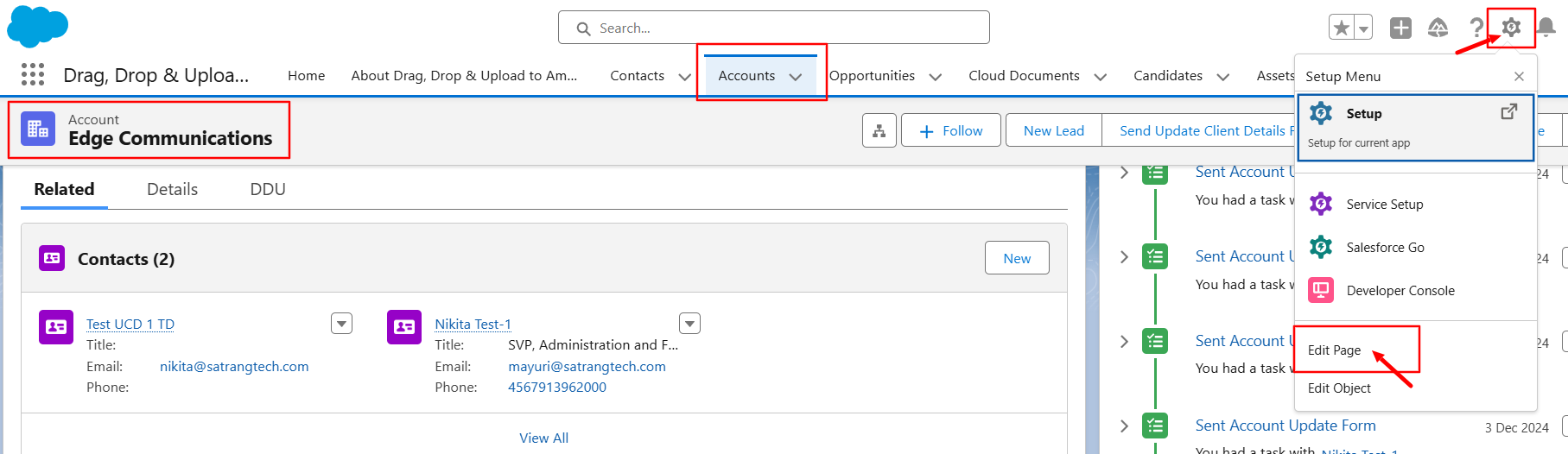
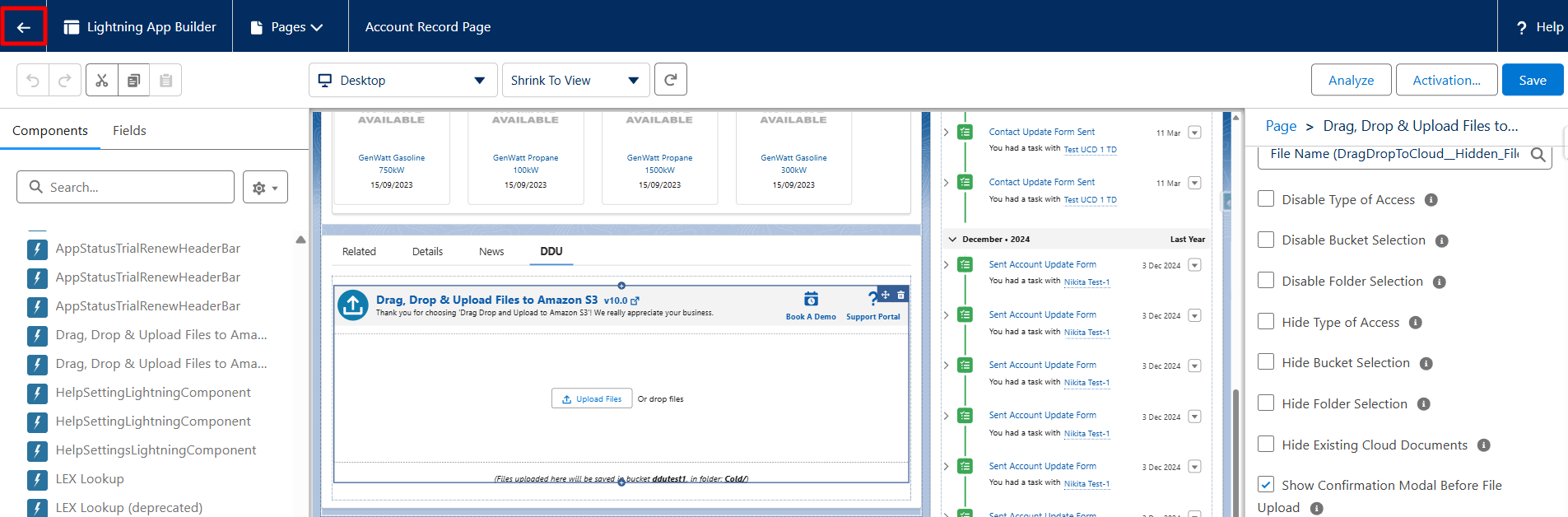
2. Click on Setup and then Edit Page.
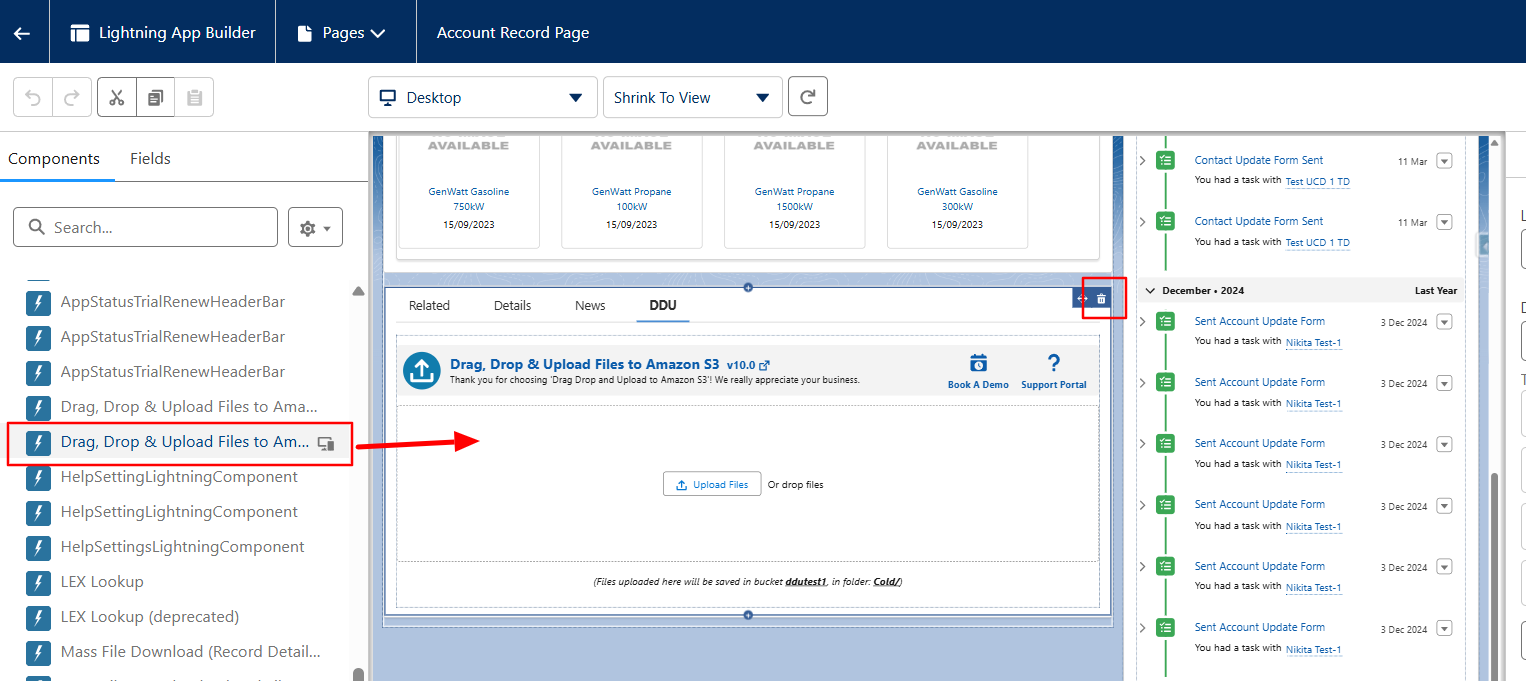
3. Since this is a latest-release feature, you must first remove the component and then add it again to ensure the feature works smoothly.
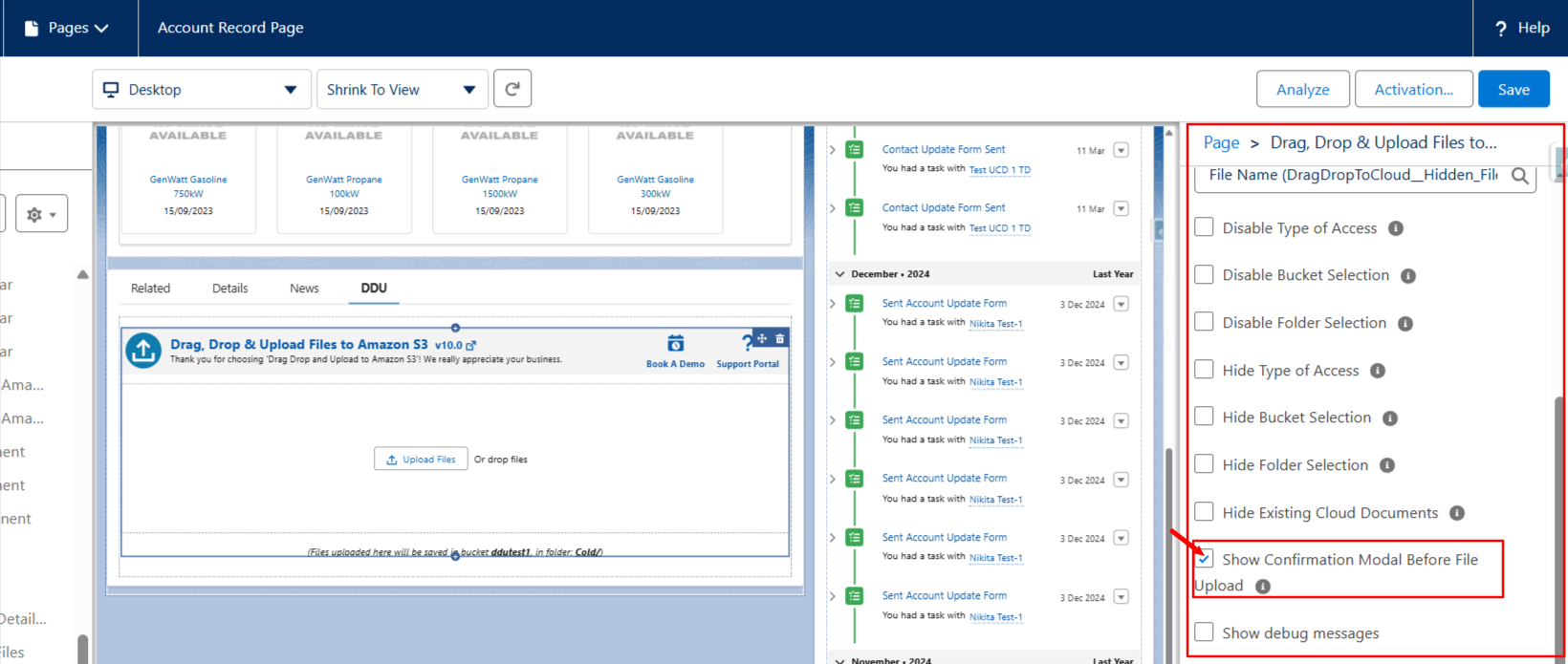
4. On the right side, you will see the configuration options.
5. In those options, check the “Show Confirmation Modal Before File Upload” checkbox.
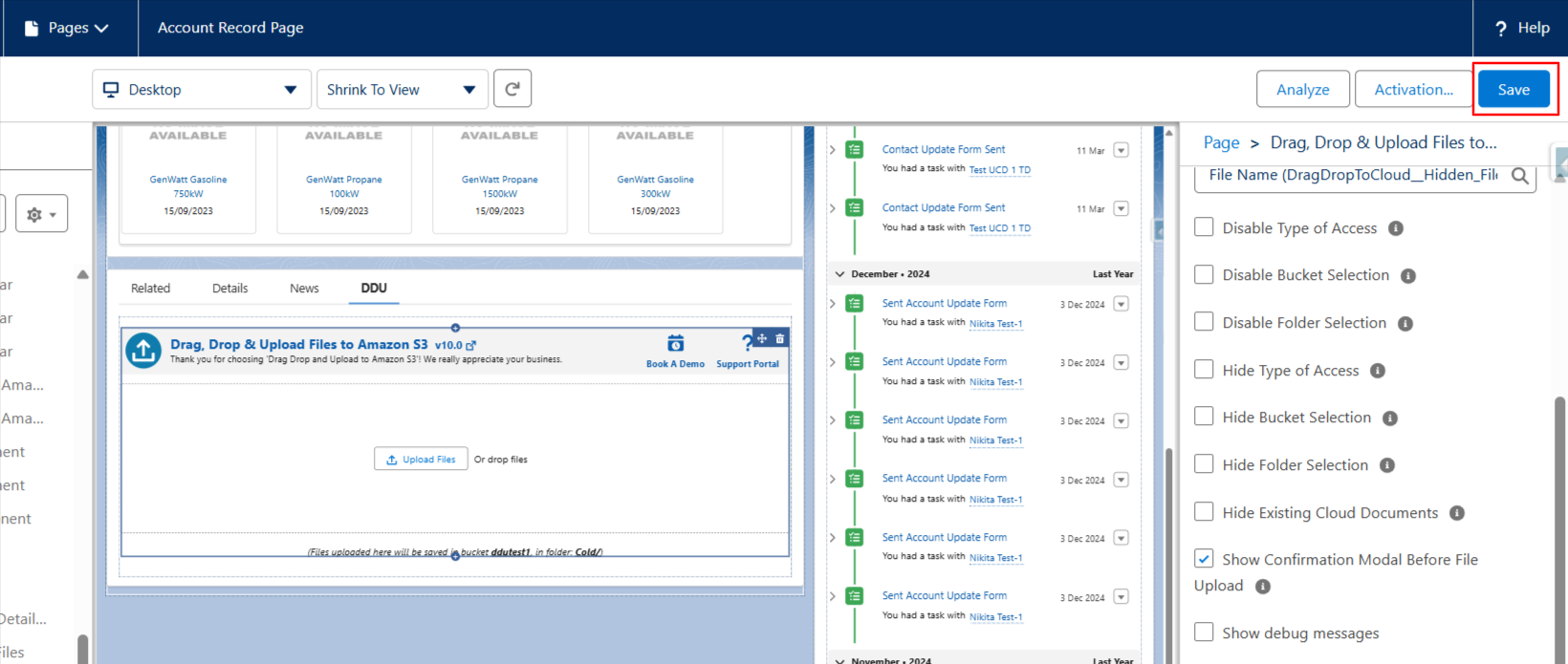
 6. Save the settings.
 7. Go back to the record page.
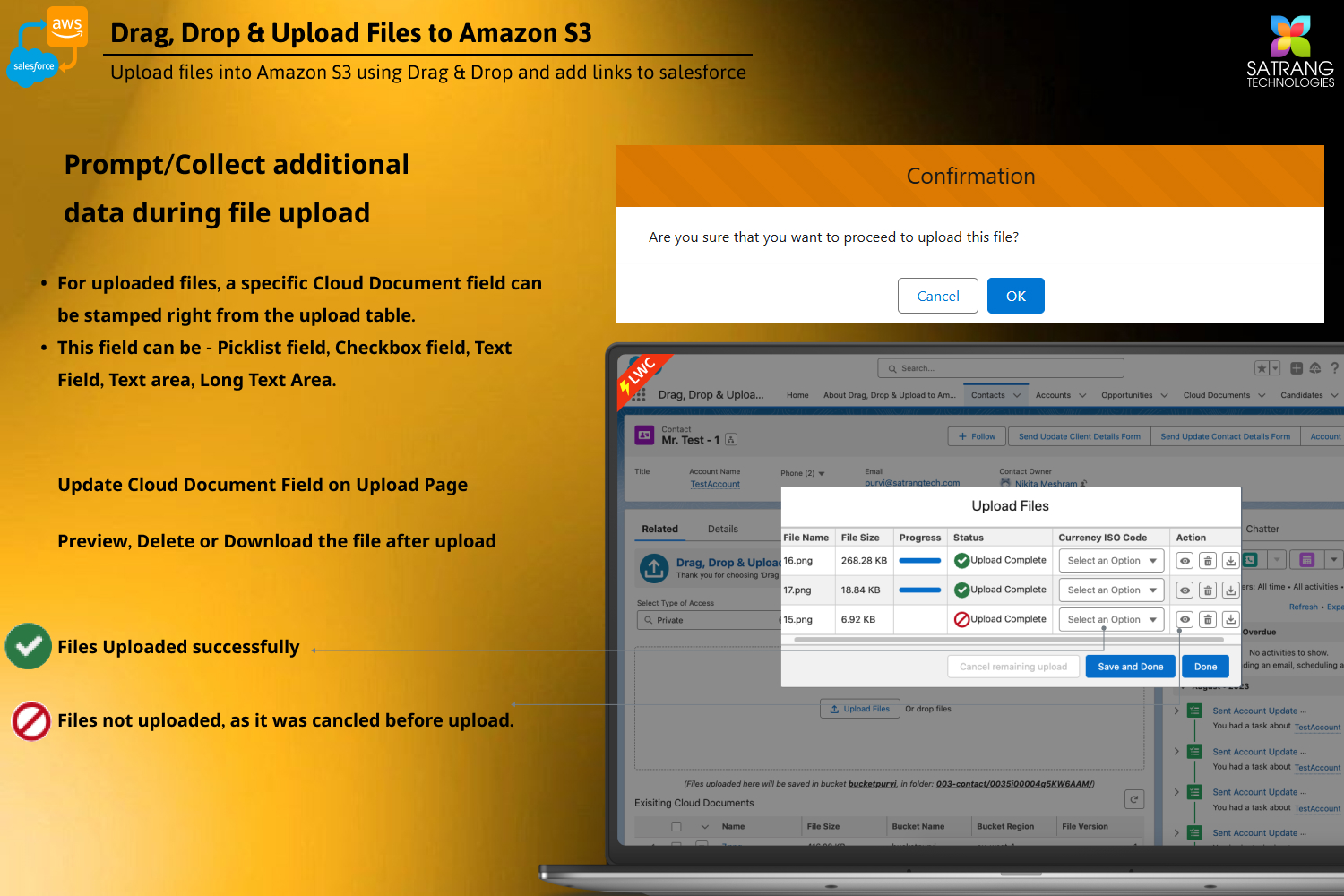
 8. Now, when you upload a file to this component, it will first show the confirmation modal. On that screen, you can click OK or Cancel to proceed further.
PS: View Drag, Drop & Upload Files to Amazon S3, a Salesforce AppExchange app for moving files from Salesforce to Amazon S3: https://appexchange.salesforce.com/appxListingDetail?listingId=a0N3000000B5ZPqEAN