
External users (guest users) can upload files by embedding the LWC Upload Component inside a Screen Flow and exposing that Flow through an Experience Cloud Site. Below are the complete steps to configure it:
Step 1: Create and Configure the Flow
- Go to Setup → Flows
- Click New Flow → Screen Flow
- Add a Screen Element
- Drag and drop the Upload LWC Component onto the screen
Note: Please generate a restricted and secure SAS token from your end and configure it appropriately. Since this access is not managed directly by Salesforce, a SAS token is required to securely enable external user access for upload and list functionality. The minimal required permissions for the SAS token are read, create, and write.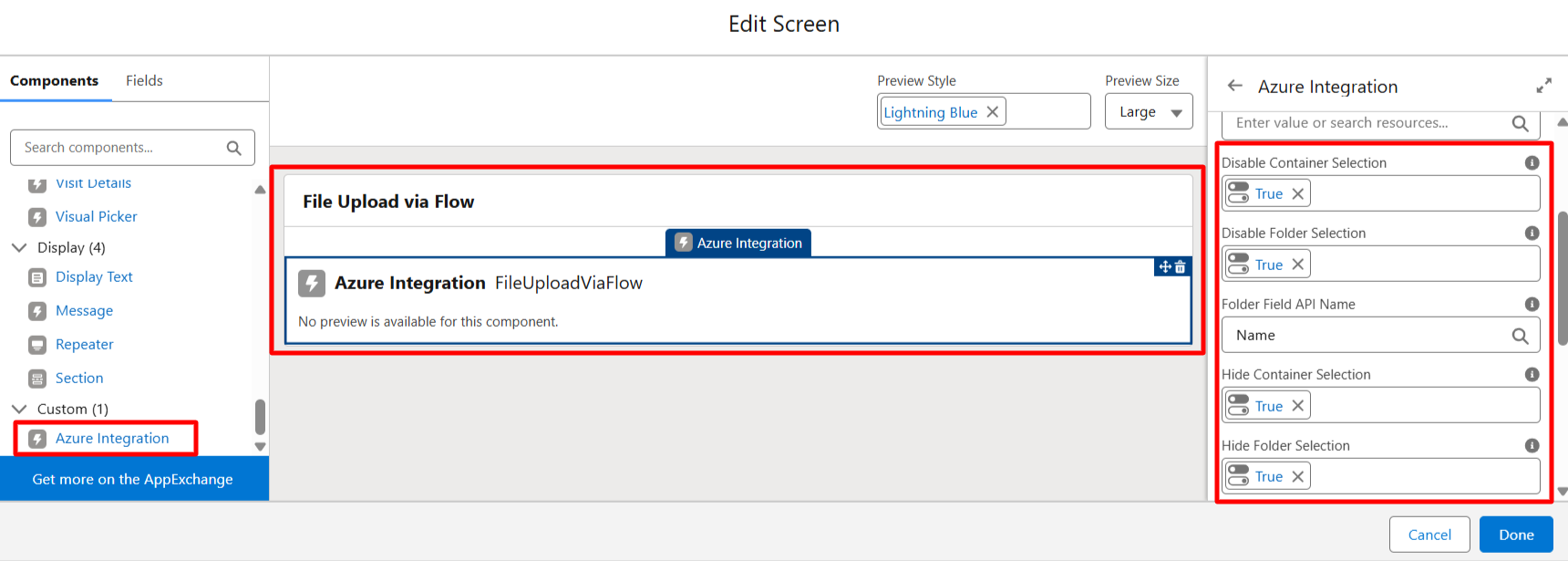
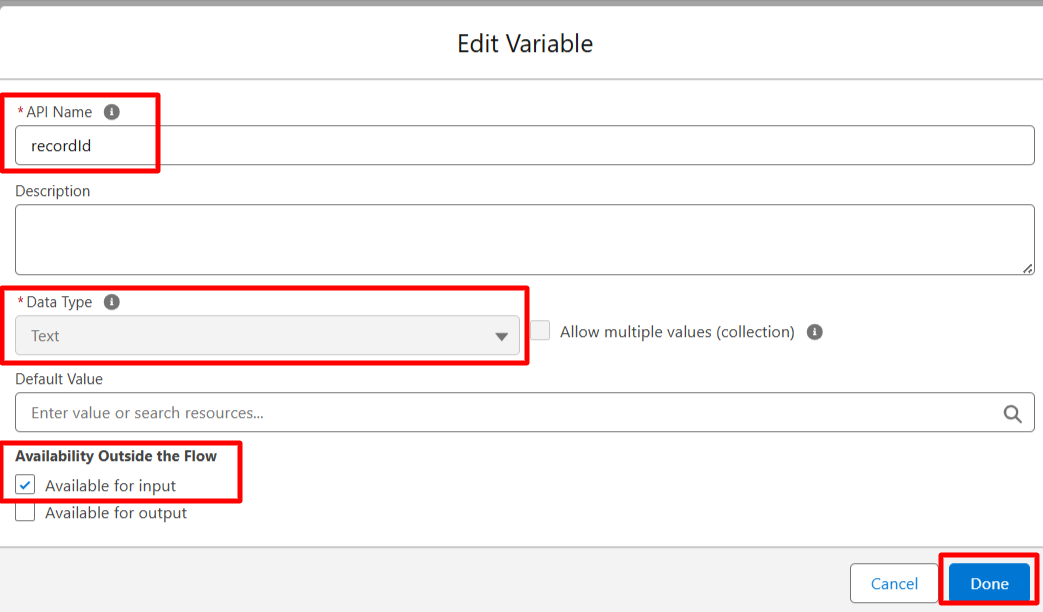
- Create a Text Variable:
- API Name:
recordId - Mark it as Available for Input
- API Name:
- Pass the variable to the component:
{!recordId}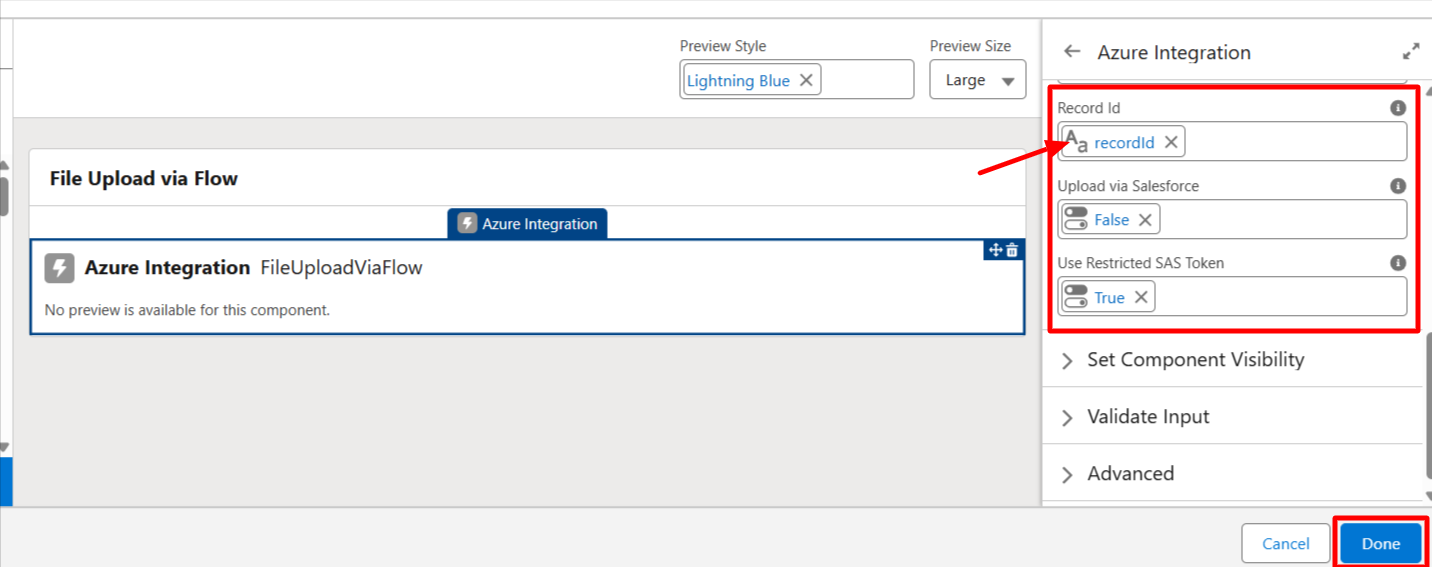
Save and Activate the Flow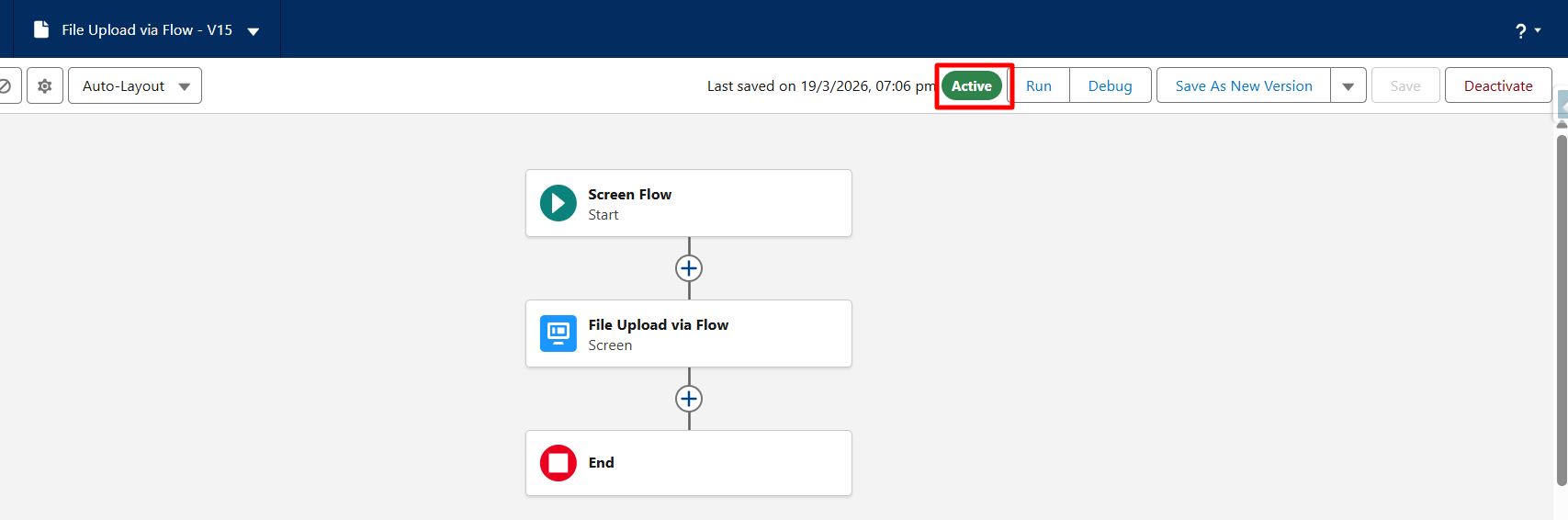
This ensures uploaded files are linked to a specific record.
Step 2: Expose Flow via Experience Cloud Site
- Go to Setup → Digital Experiences → All Sites
- Create or open your Experience Cloud Site
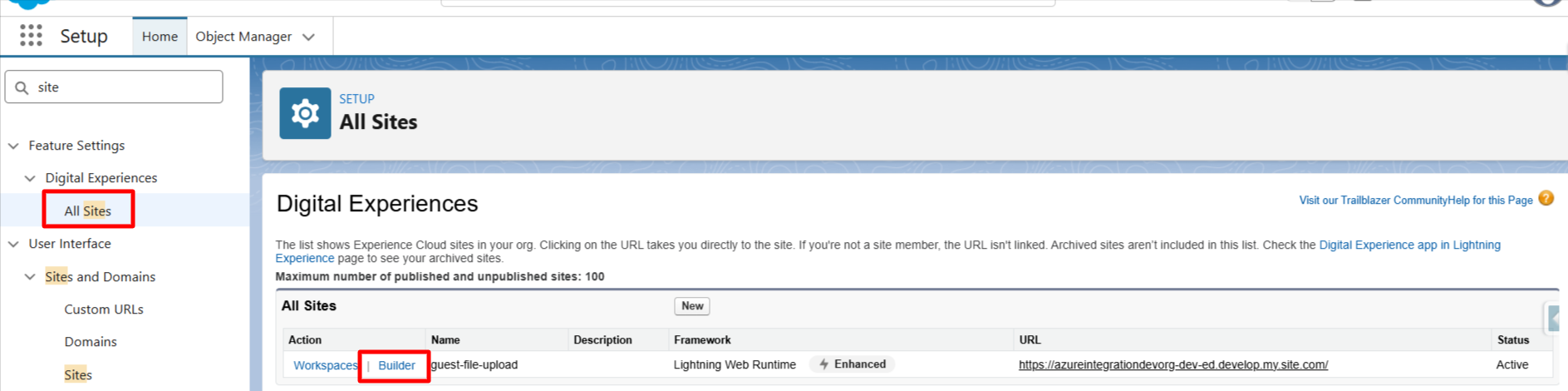
- Open Experience Builder
- Add a page or edit an existing page
- Drag the Flow Component onto the page
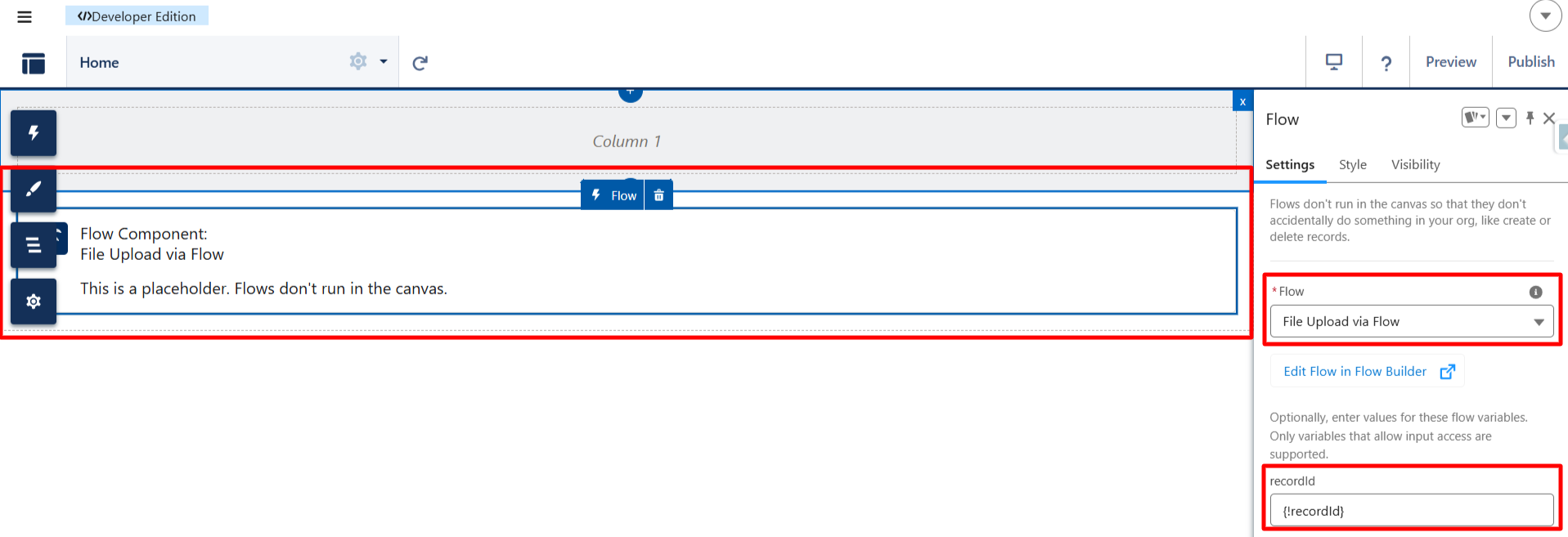
- Select your created Flow
- Publish the site
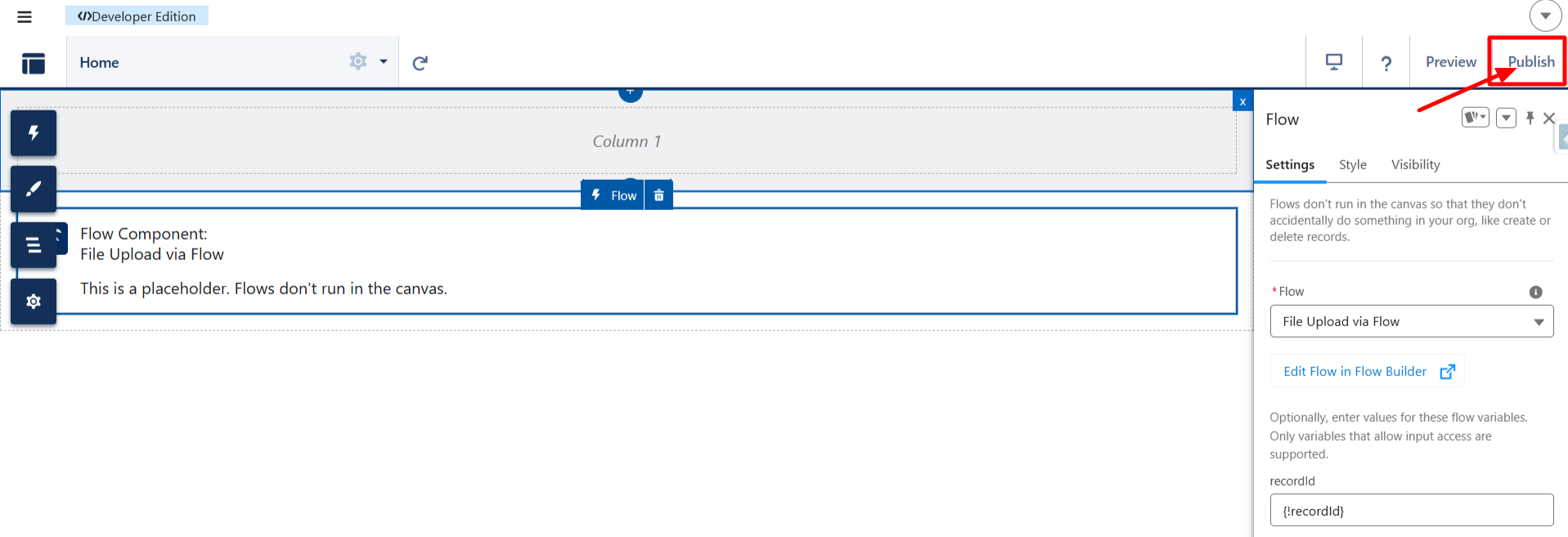
Access URL Example:
https://yourdomain.com/s/upload?recordId=001XXXXXXXX
Passing recordId in the URL is mandatory.
Step 3: Configure Azure Storage (CORS Settings)
- Open your Azure Storage Account
- Go to CORS settings
- Add your published site URL
- Configure:
- Allowed Methods:
GET,POST - Allowed Headers:
* - Exposed Headers:
* - Max Age: e.g., 36
00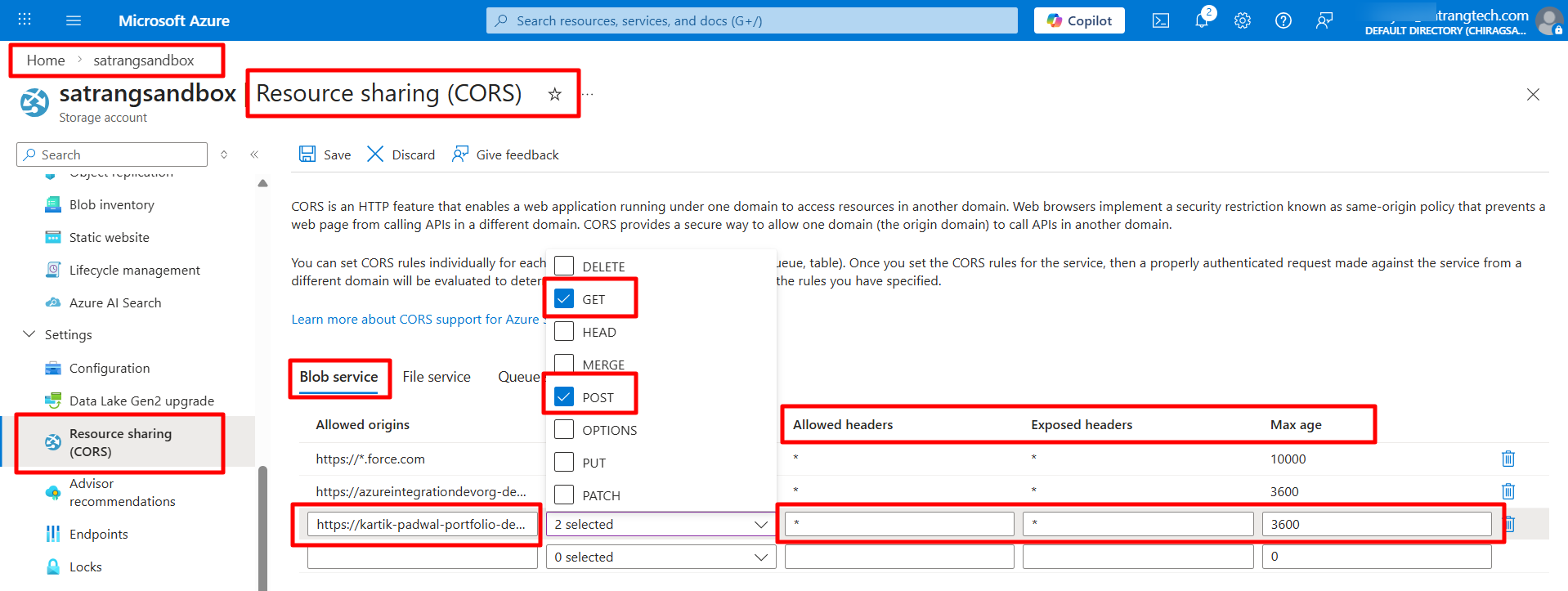
- Allowed Methods:
Step 4: Provide Required Salesforce Permissions
Go to: Setup → Sites → [Your Site] → Public Access Settings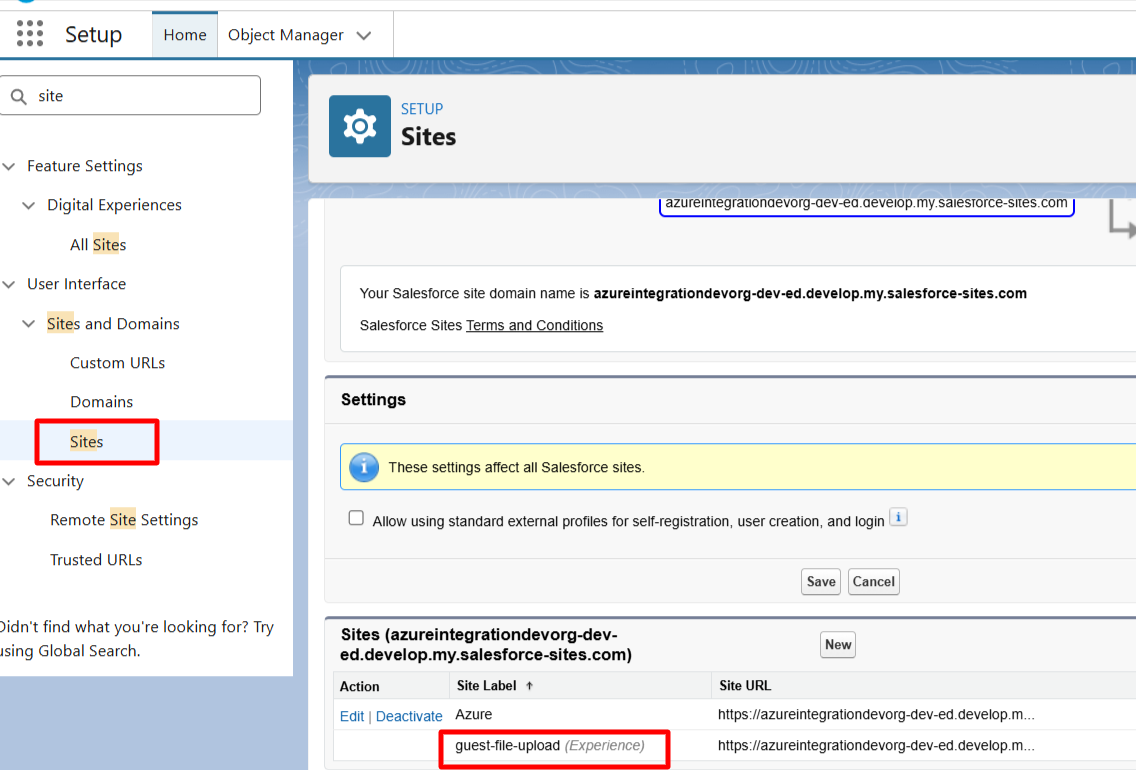
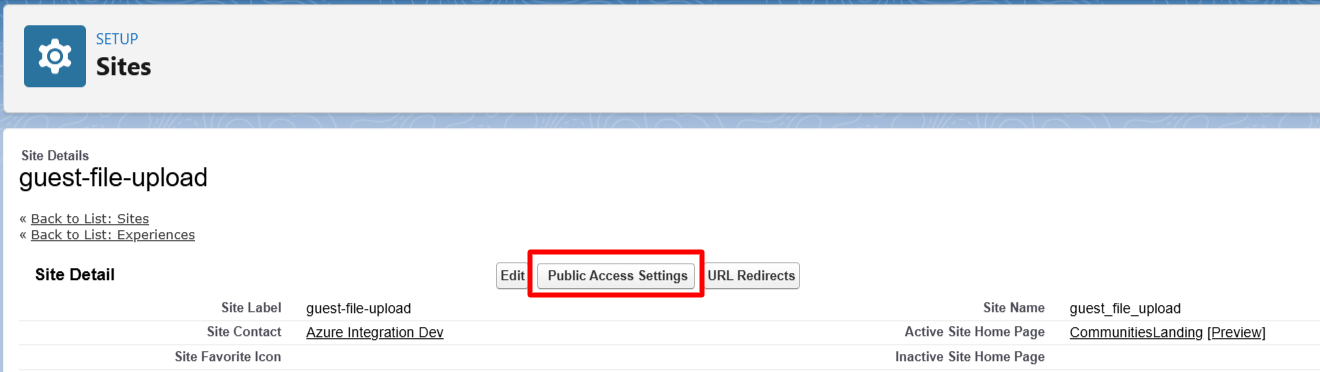
Grant Access to:
Permission Set
- Azure Integration Permission Set (Site Guest)
Flow Access:
- Enable access to the created Flow
Object Permissions:
- Grant Read, Create, and Edit access for the objects that you are going to use (for example: Account, Contact, Case, or any custom object).
- Also, enable Field-Level Security for required fields.
Step 5: Configure Sharing Rules
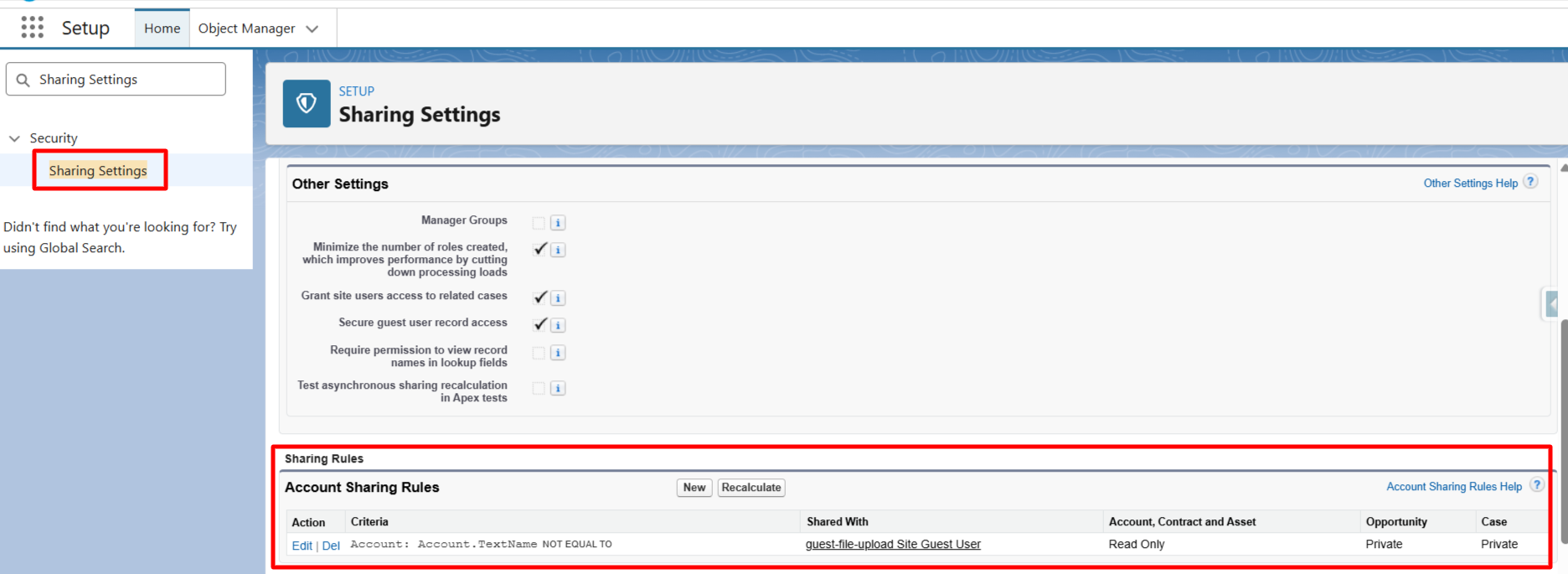
- Go to Sharing Settings
- Create sharing rules for: (Appropriate sharing rules should be established for the underlying object context in which the Flow or website operates, ensuring that the executing user has the required record-level access. if the website is running in the Account record's context, then access should be given to the Account Object))
- Account
- Contact
- Case
- Cloud Document
- Share records with Guest User
- Set access level (Read/Write)
Please Note:
As per Salesforce best practices, using public/external sites for such access is not recommended. Instead, it is advised to use an Experience Cloud (Experience Site) with authenticated users to ensure better security and control. While our application supports external access, we strongly recommend following Salesforce guidelines by using authenticated Experience Cloud users.
More Details: What is a restricted SAS token and why is it useful?