
To migrate audit fields such as createdDate and preserve the original audit field values, the “Set Audit Fields upon Record Creation” permission must be enabled in the destination Salesforce org and assigned to the user who connects to the destination org for the migration.
This permission is required only in the destination org, not in the source org. Enable it before starting the migration.
Steps to enable audit field migration:
- Log in to the destination org.
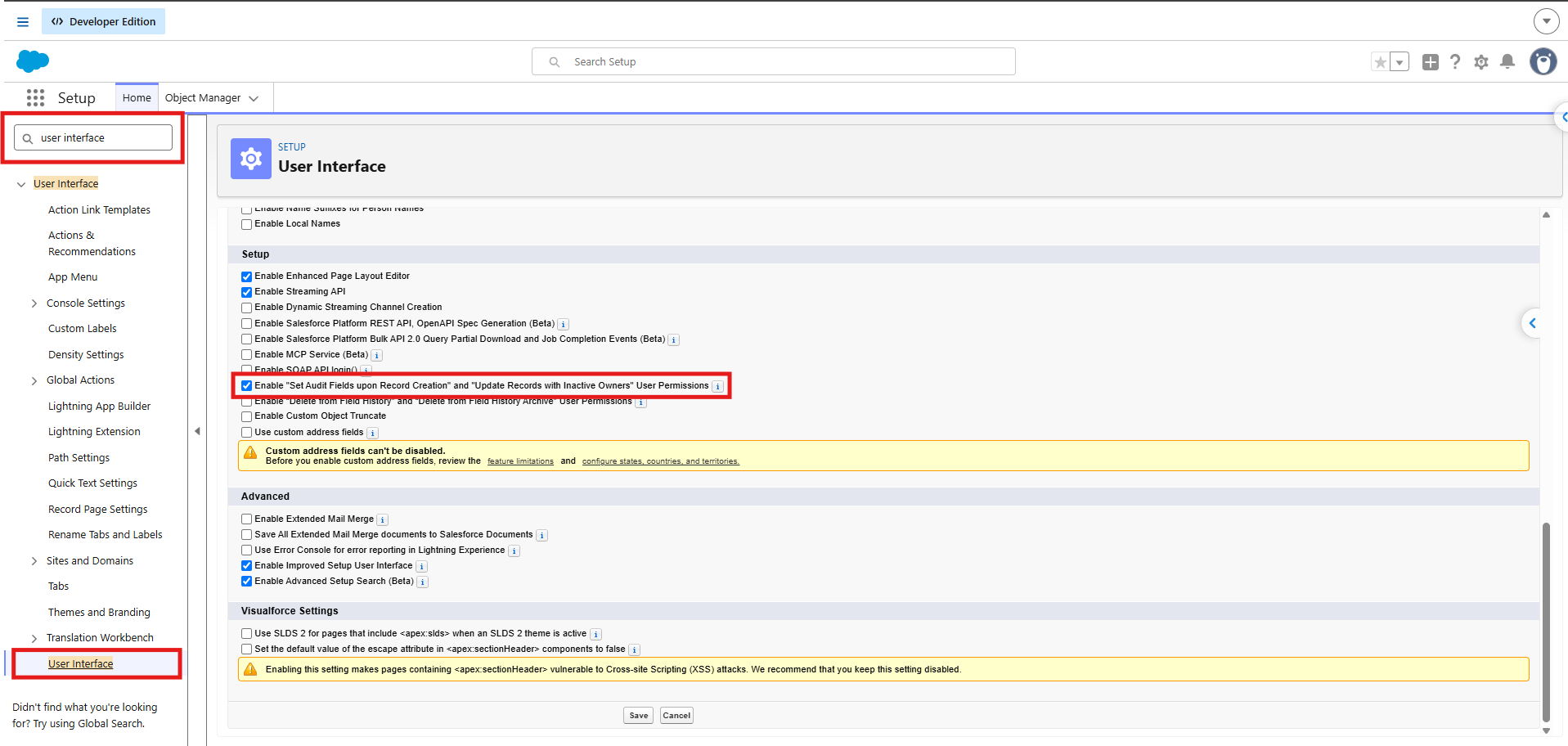
- Go to Setup → Quick Find and search for User Interface. Enable Enable "Set Audit Fields upon Record Creation" and "Update Records with Inactive Owners" User Permissions, if this option is not already enabled.
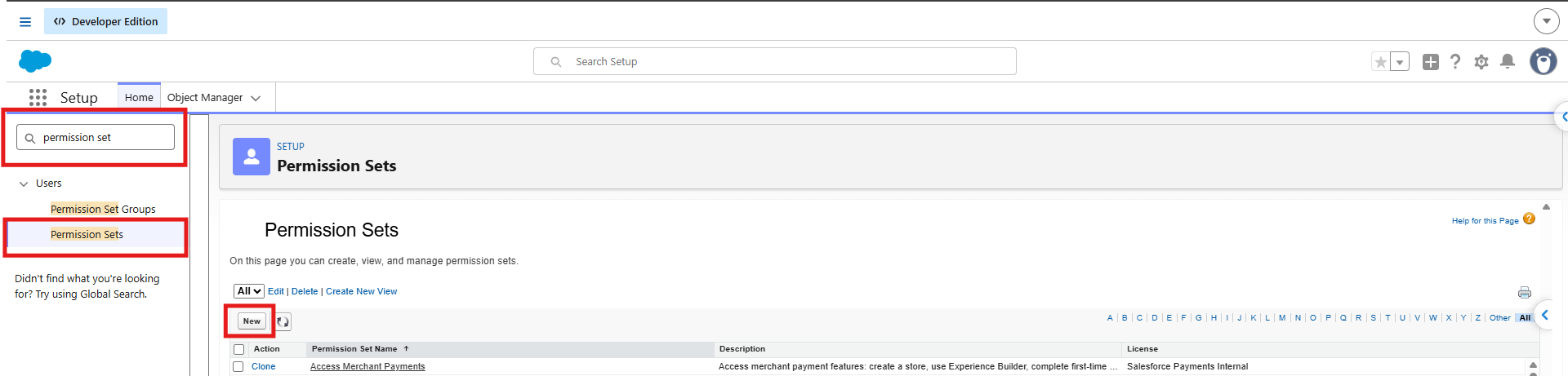
- Go to Setup → Search Permission Sets → New and create a separate permission set for audit field migration.
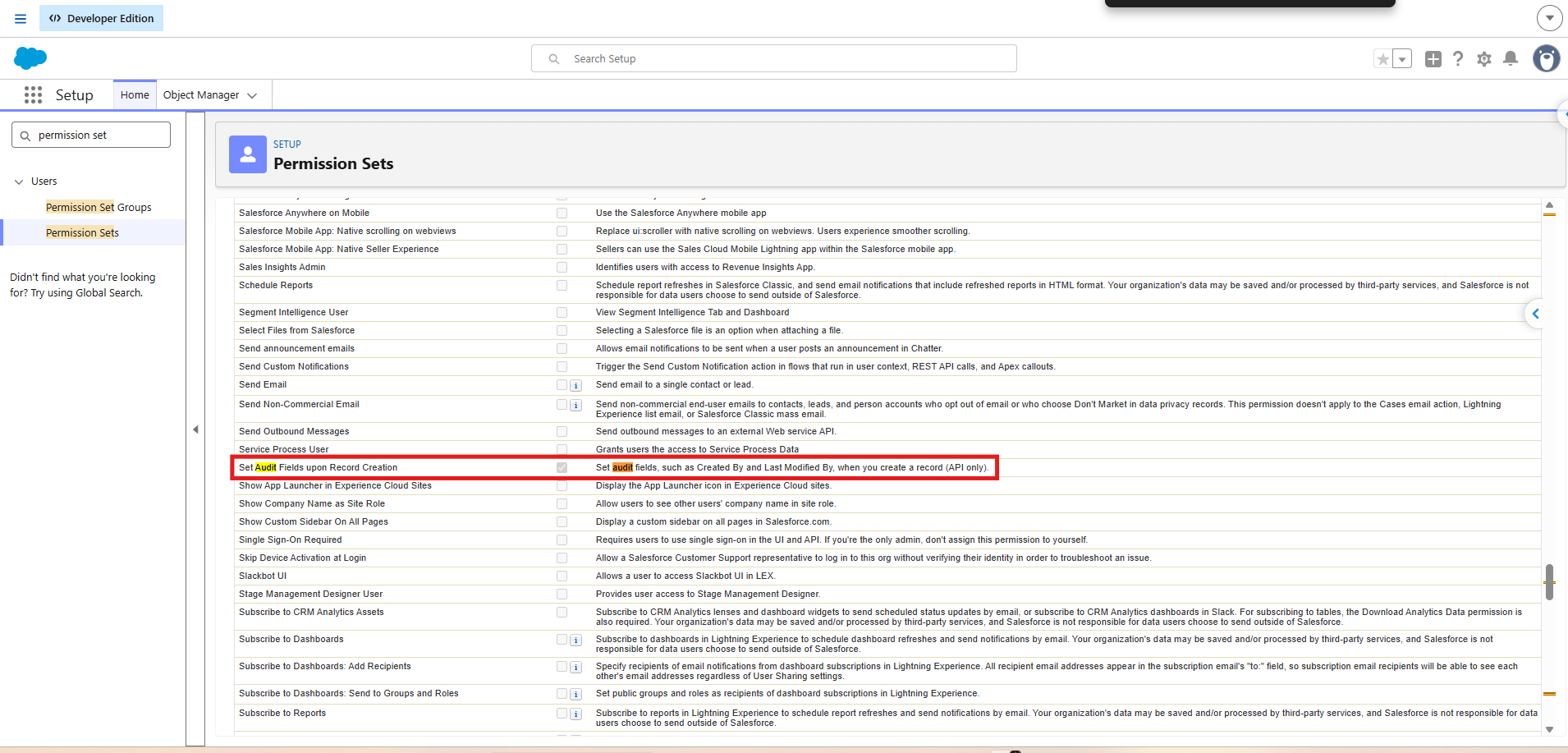
- Open the new permission set, go to System Permissions → Edit, and enable Set Audit Fields upon Record Creation. Save the permission set and assign it to the migration user.
- Ensure the migration user has the required object permissions and access to the relevant field mappings.
- Configure the required audit field mapping and run the migration from Source Org MFM Tab..
- In the destination org, compare the migrated audit field values with the source records to verify that the original values were preserved.
PS: View Mass File Migrate Salesforce file migration app on Salesforce AppExchange:
https://appexchange.salesforce.com/appxListingDetail?listingId=e9874a66-2001-4e3d-8a29-3a2ed7f584c4