
Follow the steps below to migrate Salesforce Classic Notes from the source org to Lightning Enhanced Notes in the destination org using Mass File Migrate (MFM).
Step 1: Create a Classic Note in the Source Org
Log in to the source Salesforce org.
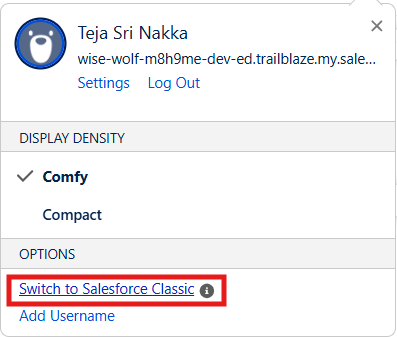
Switch to Salesforce Classic.
Open an Account/ Contact/ Opportunity, or another supported Object.
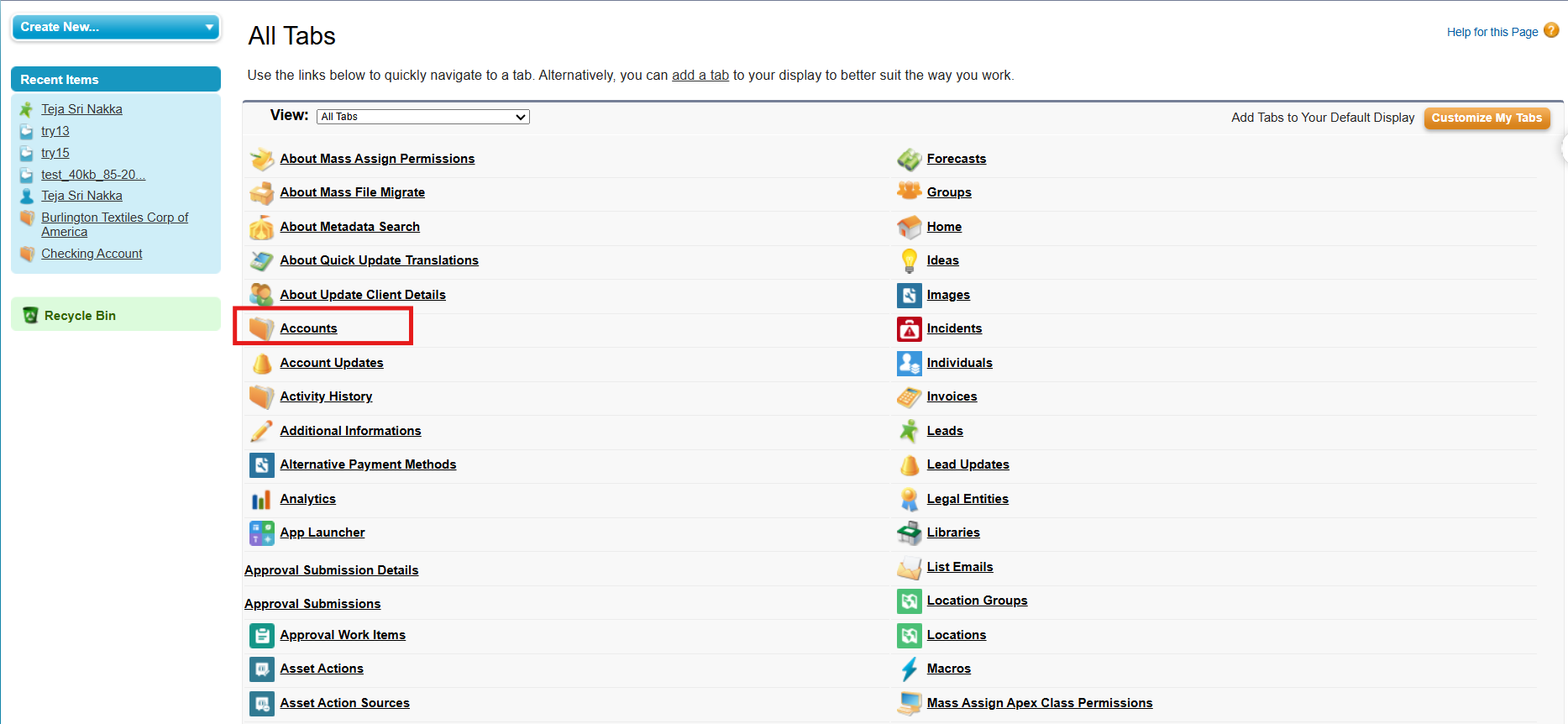
Navigate to the Notes & Attachments related list.
Click New Note.

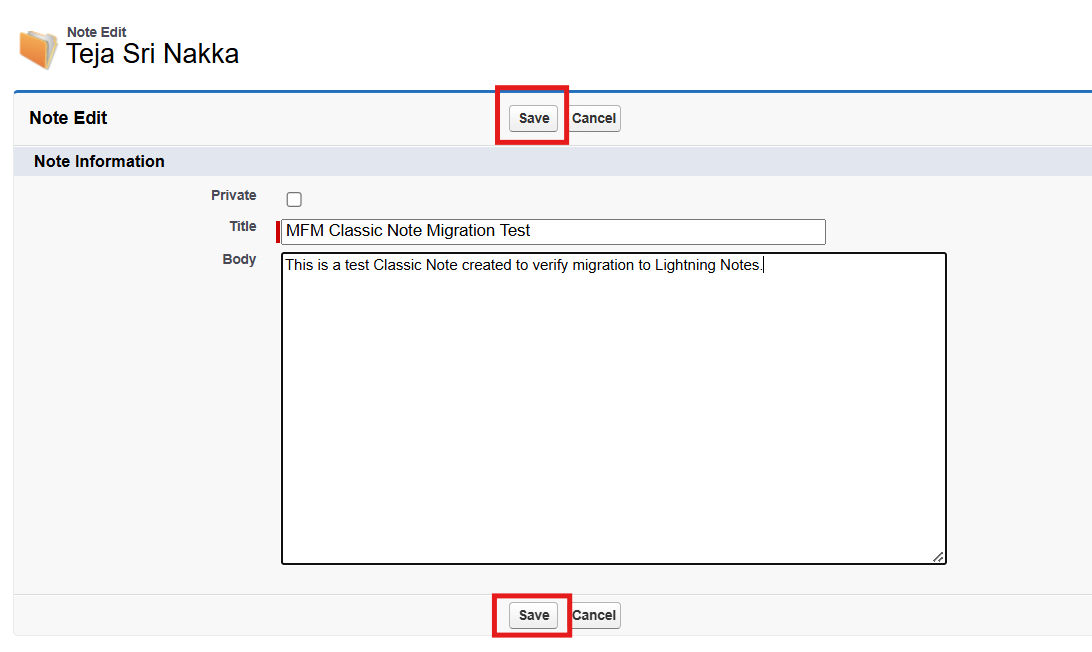
Enter a title and body for the note. For example:
Title: MFM Classic Note Migration Test
Body: This is a test Classic Note created to verify migration to Lightning Notes.
Click Save.
Step 2: Migrate the Classic Note Using MFM
Open the Mass File Migrate tab.
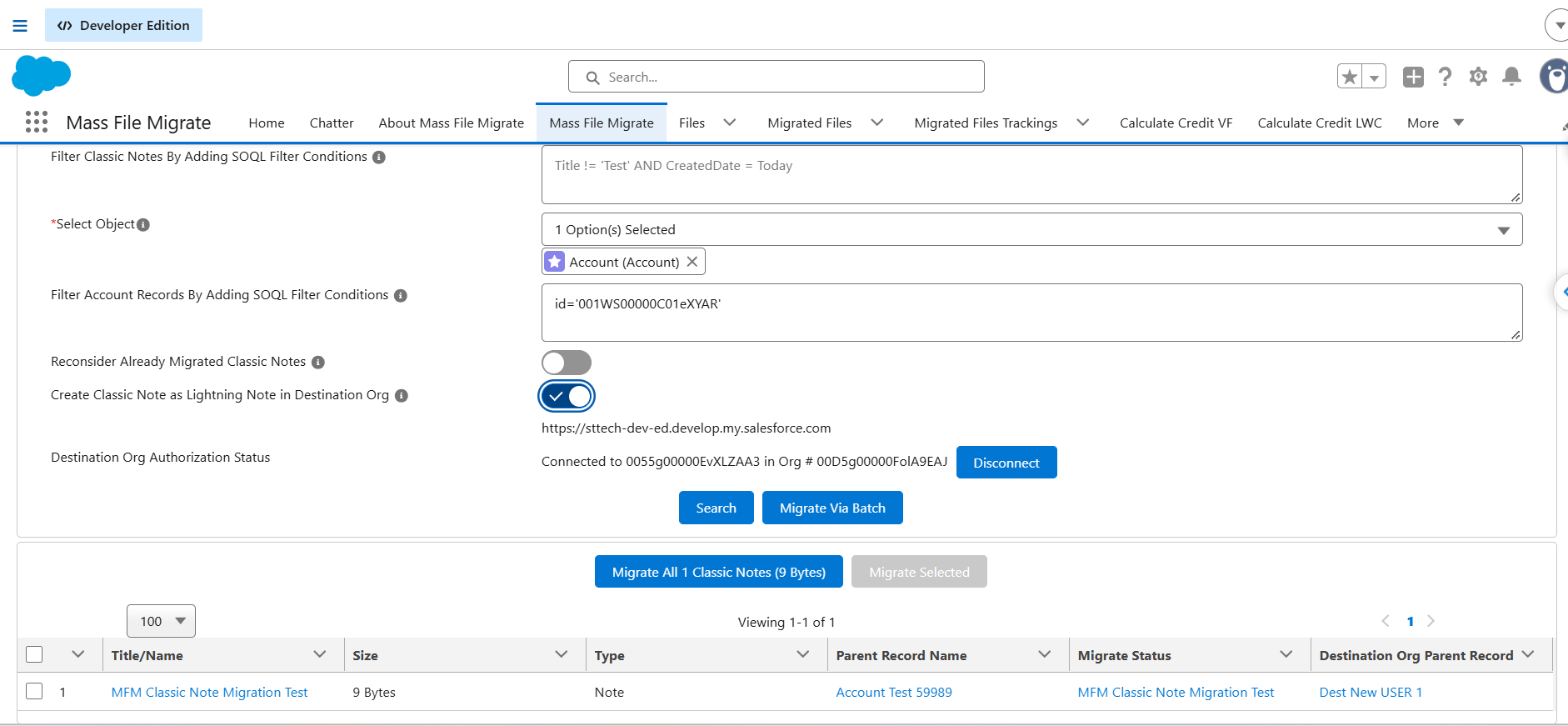
Under Select Entity, select Classic Note.
In Filter Classic Notes By Adding SOQL Filter Conditions, enter the required SOQL filter conditions to identify the Classic Notes you want to migrate.
Under Select Object, select the parent object, such as Account.
In Filter Account Records By Adding SOQL Filter Conditions, enter the required filter conditions to select the parent records. For example, use the Account record ID to select a specific Account.
Enable Create Classic Note as Lightning Note in Destination Org to convert the Classic Notes into Lightning Enhanced Notes in the destination org.
If required, enable Reconsider Already Migrated Classic Notes to include previously migrated notes again.
Ensure that the Destination Org Authorization Status shows that the destination org is connected.
Click Search to retrieve the matching Classic Notes.
Review the displayed notes, including Title/Name, Size, Type, and Parent Record Name.
To migrate all matching notes, click Migrate All Classic Notes. To migrate selected notes, select the required records and click Migrate Selected.
For batch migration, click Migrate Via Batch.
Step 3: Verify the Migrated Lightning Notes in the Destination Org
Option A: Check in MFM
- After migration, check the Migrate Status column in the results grid. It links to the migration record for that note.
- The Destination Org Parent Record column links to the parent record in the destination org that the note was attached to.
Option B: Check in the destination org
- Log in to the destination org.
- Open the parent record (the same record shown in Destination Org Parent Record).
- Find the Notes related list, or open the Related tab.
- Open the migrated note, for example MFM Classic Note Migration Test.
- Check that the title and body match the original Classic Note.
PS: View Mass File Migrate Salesforce file migration app on Salesforce AppExchange:
https://appexchange.salesforce.com/appxListingDetail?listingId=e9874a66-2001-4e3d-8a29-3a2ed7f584c4