
To directly download attachments in the Mass File Download app, follow these steps:
For Downloading All Attachments:
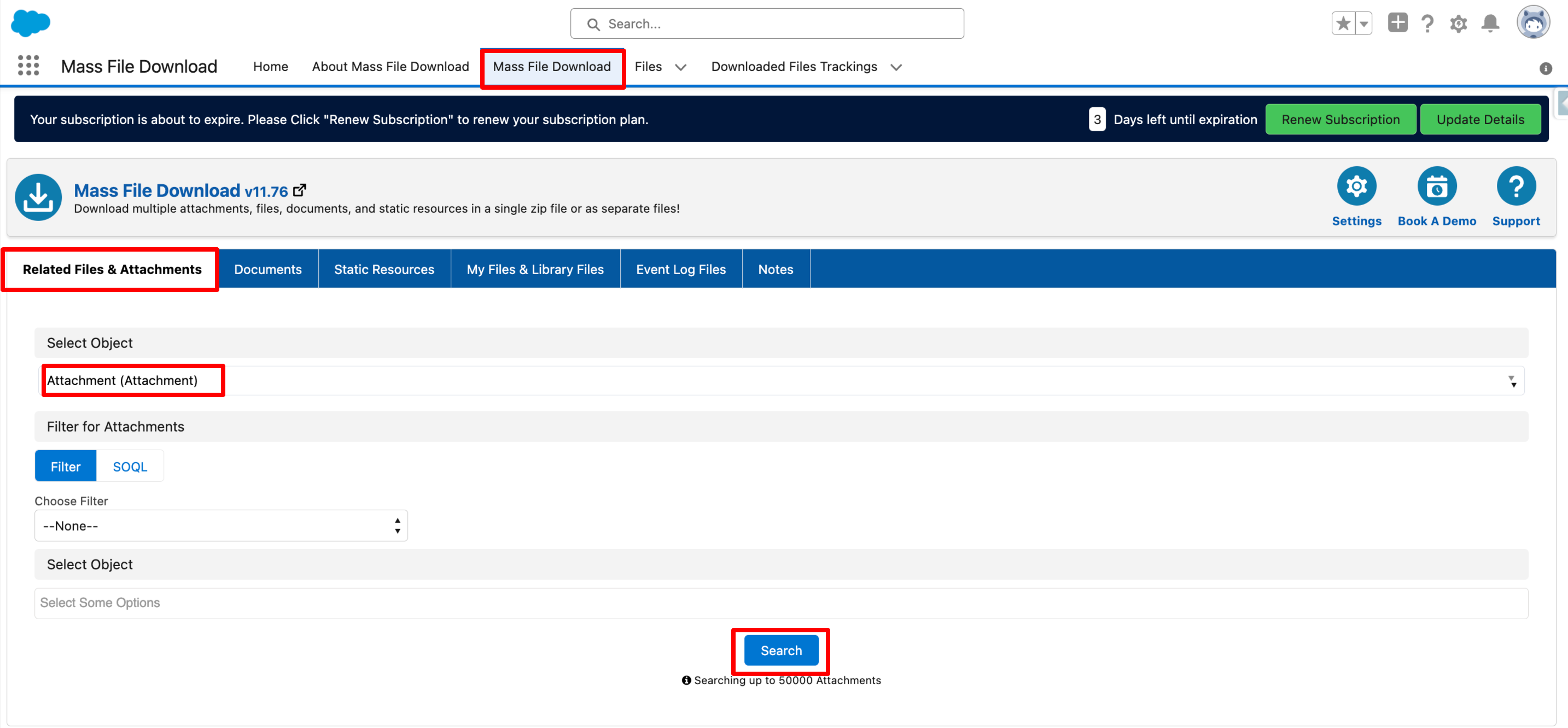
- Go to the "Mass File Download" Tab.
- Under the "Related Files & Attachments" subtab select the Object as "Attachment" and click on the "Search" button.
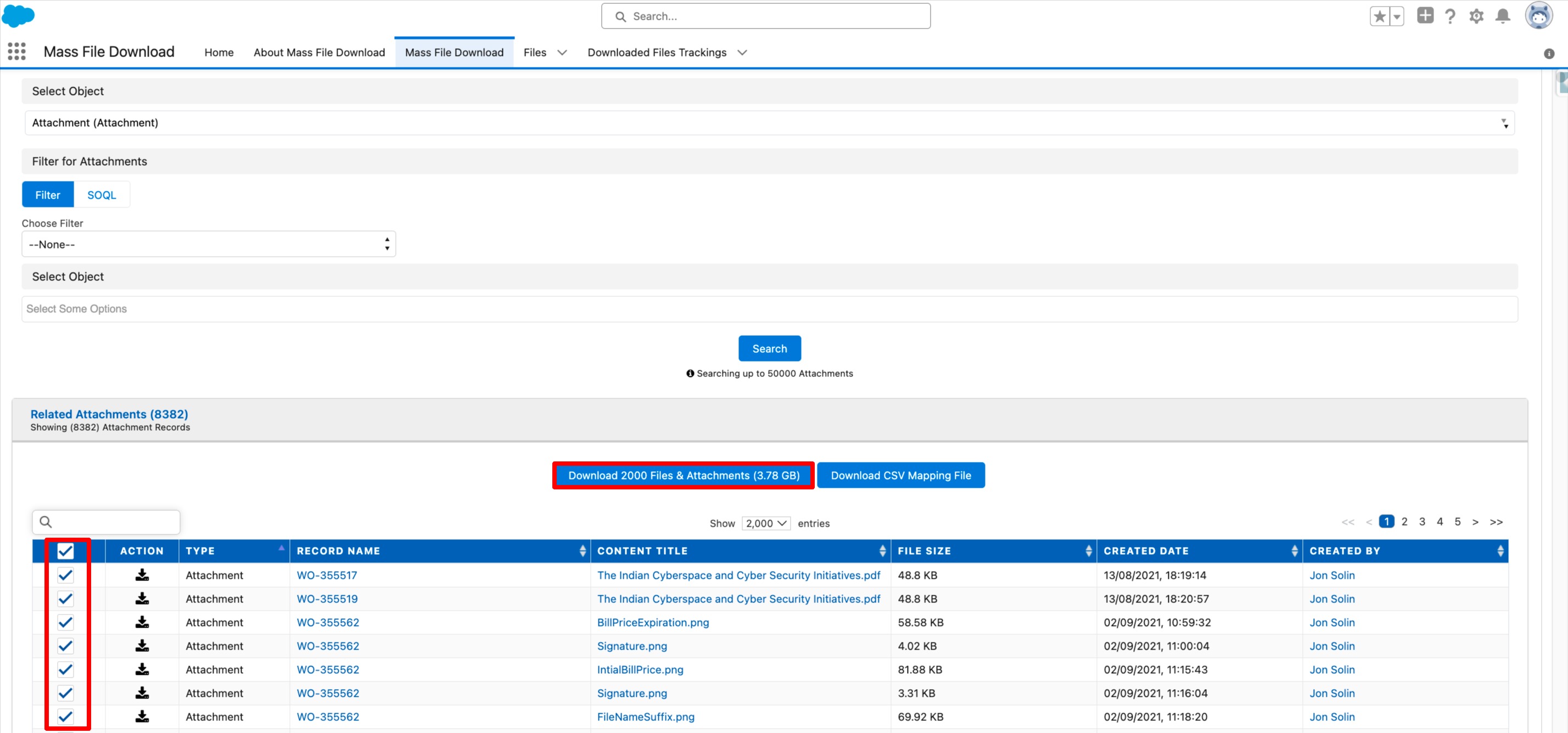
- A table with a list of each attachment will show up. To download all of the selected attachments at once, check the box next to each attachment, then click the "Download Files & Attachments" button.
For Downloading Attachments for a Specific Object:
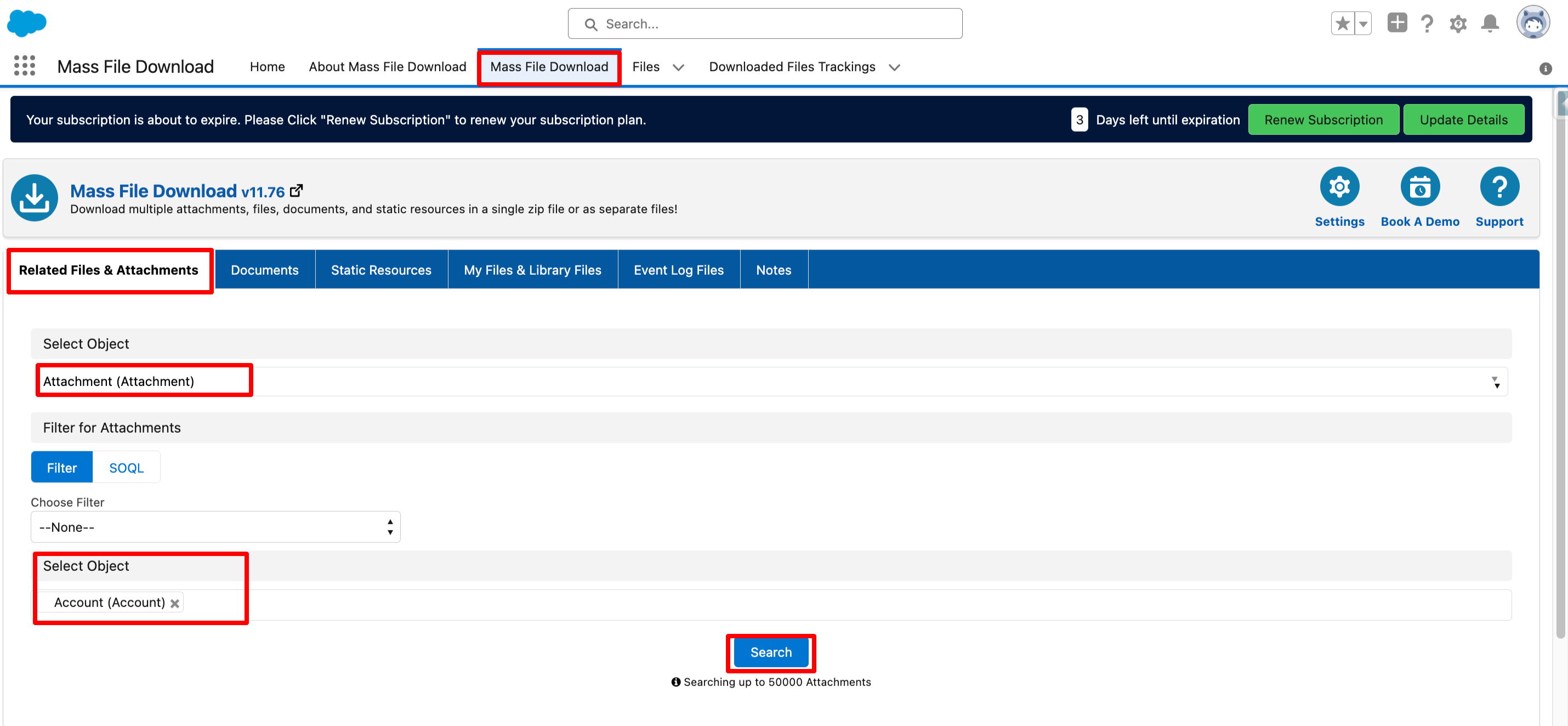
- Go to the "Mass File Download" Tab.
- Under the "Related Files & Attachments" subtab select the Object as "Attachment"
- Again select an object from the "Select Object" drop-down.
- Click on the "Search" button.
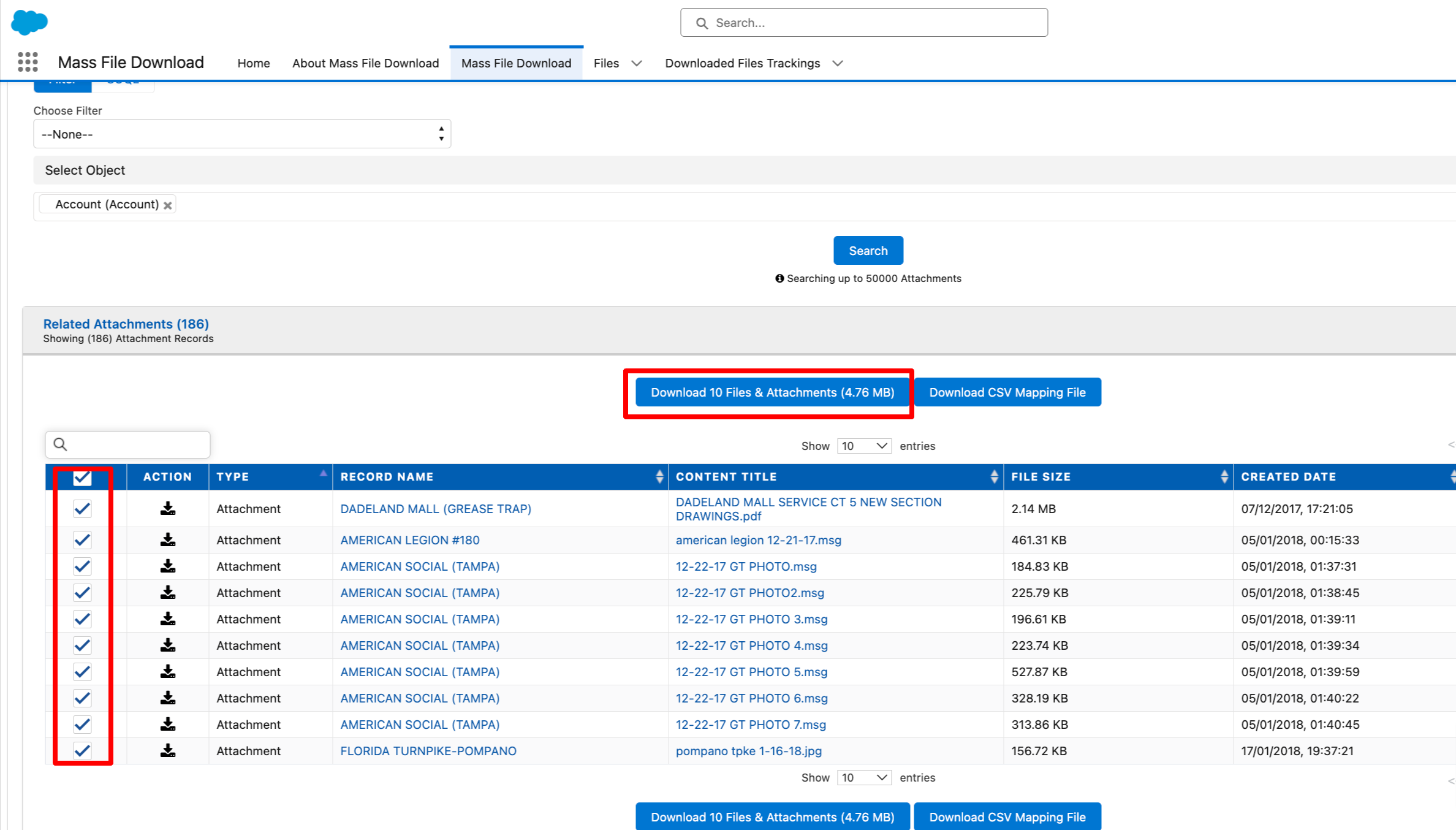
- A table with a list of each attachment for the selected object will show up. To download all of the selected attachments at once, check the box next to each attachment, then click the "Download Files & Attachments" button.
PS: View Mass File Download, Salesforce file download app on Salesforce AppExchange: https://appexchange.salesforce.com/appxListingDetail?listingId=a0N3A00000EcsAOUAZ