
Files can be downloaded to SharePoint, if SharePoint has offline software installed on the machine where the user is downloading so when the download is done in this local SharePoint folder, then that SharePoint software will sync those files online.
If SharePoint Offline Software is downloaded on the machine then take the following steps to change the download location in Google Chrome:
- Click the Chrome menu on the top right-hand corner of the browser next to the URL bar (3 dots).
- Click Settings.
- Scroll down to the Downloads section.
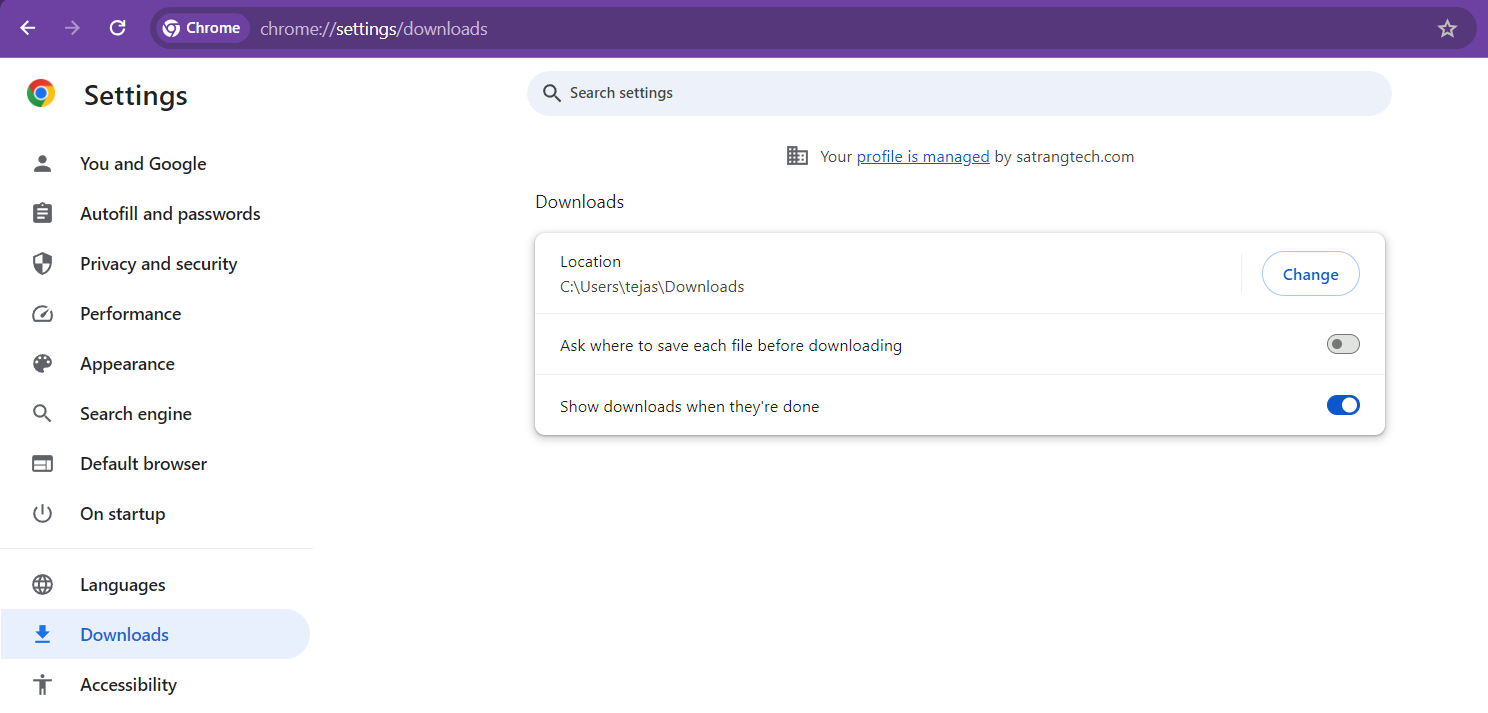
- Do one of the following steps:
- Click the Change button to set a new default location as "SharePoint" and Hit "Select Folder" Button.
- Click Ask where to save each file before downloading to manually select the location each time you download a file.
- Close the Settings tab.
Now, take the following steps to Download Files/Attachments from the "Mass File Download" App:
- Click on the "Mass File Download" Tab.
- Select Object and Search Mode and Hit Search Button.
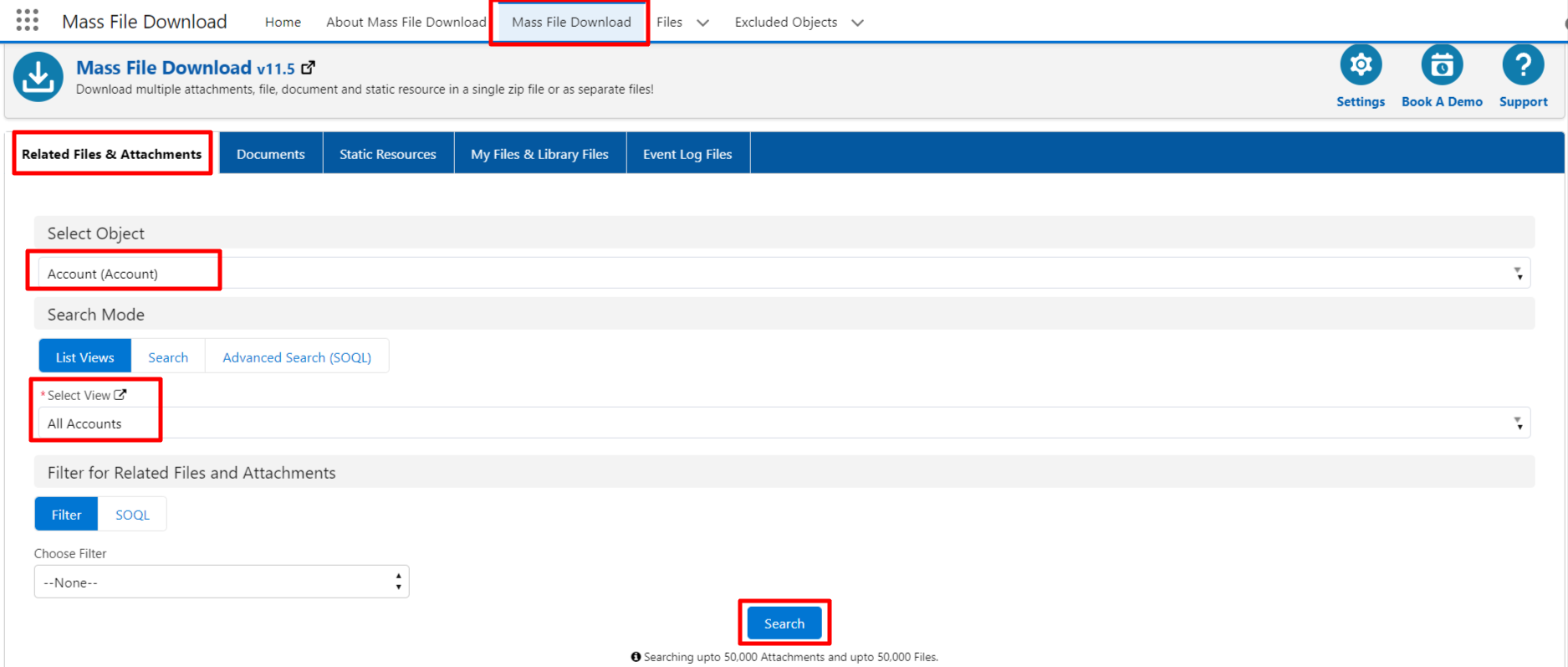
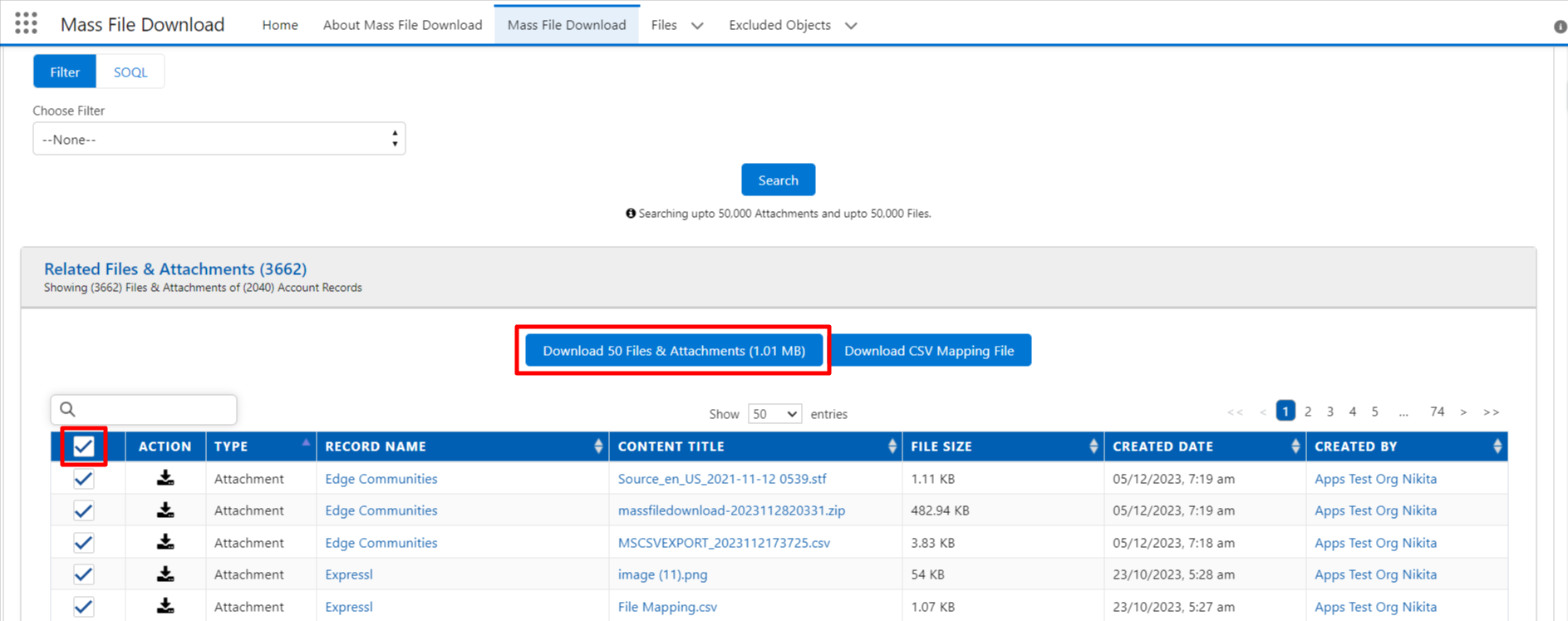
- Select Checkbox and Click on the "Download Files & Attachments" Button.
- It will ask where to save files before downloading Select Local SharePoint and click on the "Save" Button.
- Then the Downloaded File will Stored in SharePoint.
PS: View Mass File Download, Salesforce file download app on Salesforce AppExchange: https://appexchange.salesforce.com/appxListingDetail?listingId=a0N3A00000EcsAOUAZ