
To append the Case ID to the downloaded Case Email Attachments' File and Folder names, We need to create the formula field on the Email Attachment object and add the same field to the downloaded File name's suffix. Please follow the below steps -
1) Create the formula field on the Email Message Object -
- Go to the Setup.
- Click on the Object Manager and go to the Email Message Object.
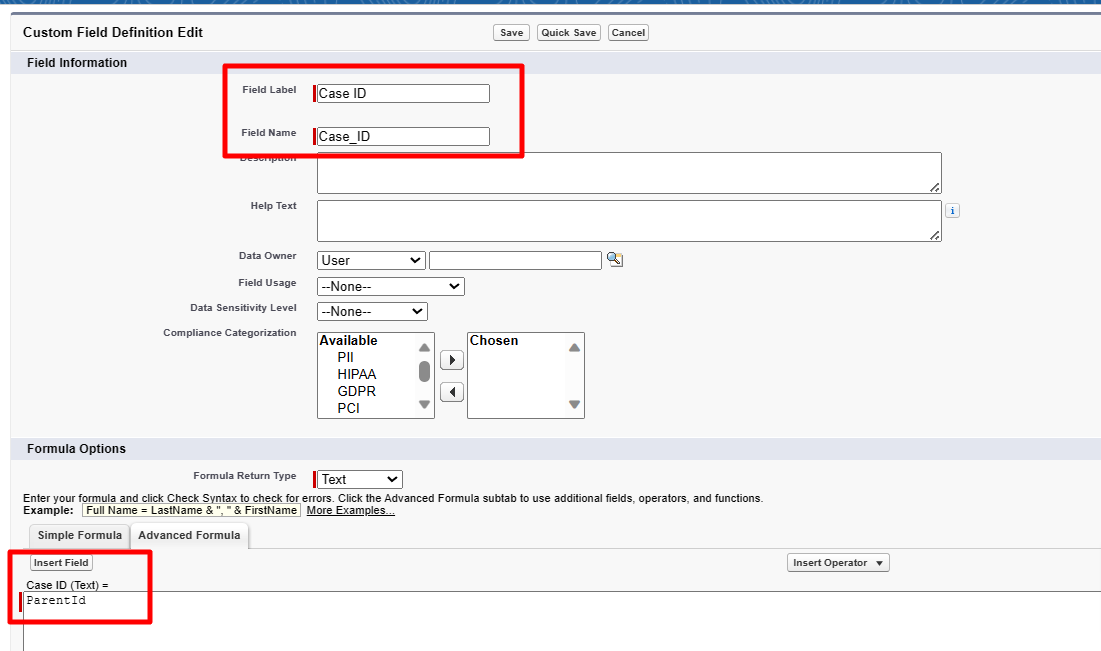
- On the Email Message object, click on the Fields & Relationships --> Click on the NEW button --> In the Field Type selection, choose "Formula." --> For the formula return type, select "Text."
- Give the following label and name to the field -
a) Field Label - Case ID
b) Field Name - Case_ID
c) Add the following formula - ParentId
- Click on the Save Button.
2) Now follow the below steps to bring the following field to the downloaded file name of the Email Message object.
- Go to the App Launcher(by clicking on the 9 dots in the top left) and Search for the "Excluded Object" tab.
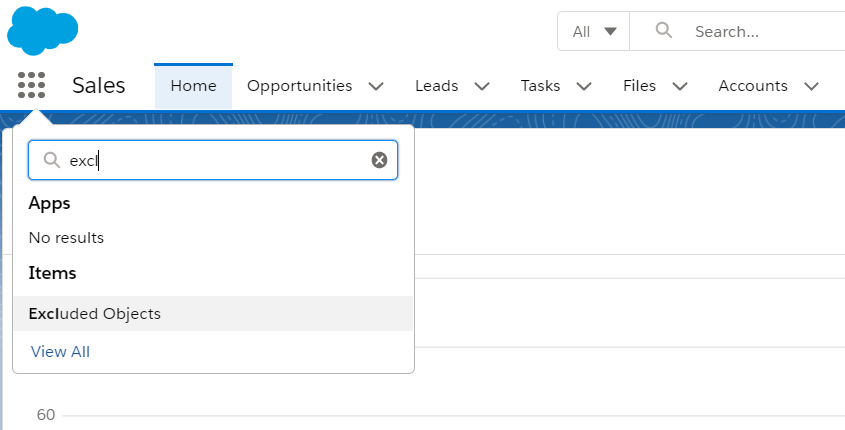
- If no results were found for the "Excluded Object", then you have to create one tab with the same name. Please follow the steps below -
1- Go to the Setup and search "Tabs" in Quick Find. Click on "Tabs" and create a new "Tab" for the object excluded object (Namespace: download files). Follow these steps to create a tab: Salesforce Help to Create a Custom Object Tab
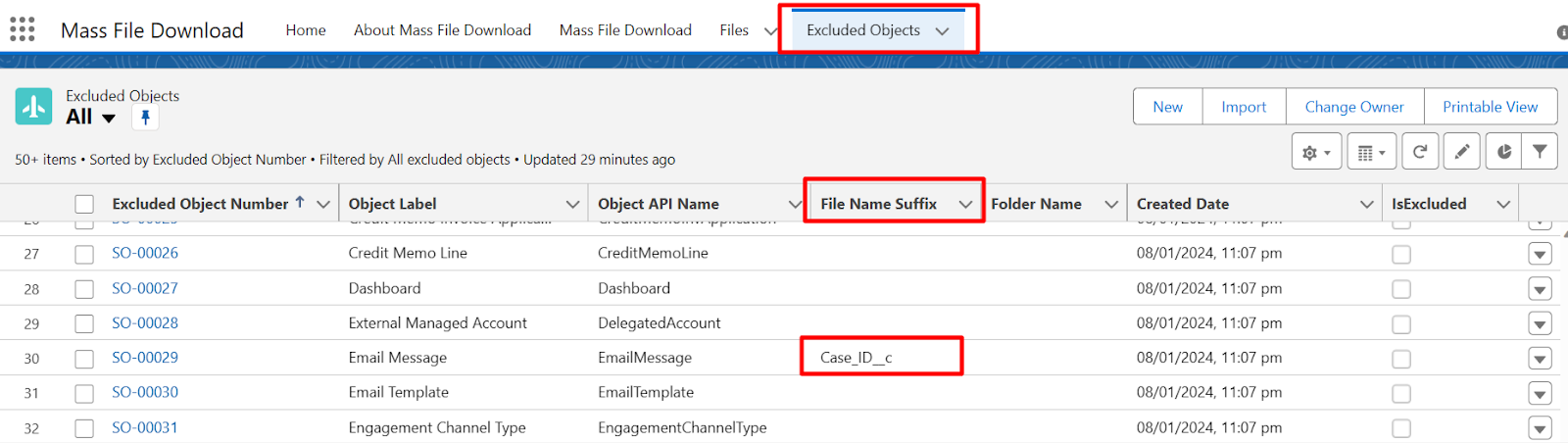
- On the Excluded Object tab, choose the All List view --> Search for the Email Message and edit the File Name Suffix as Case_ID__c API Name of the above-created (formula field) as shown in the below image.
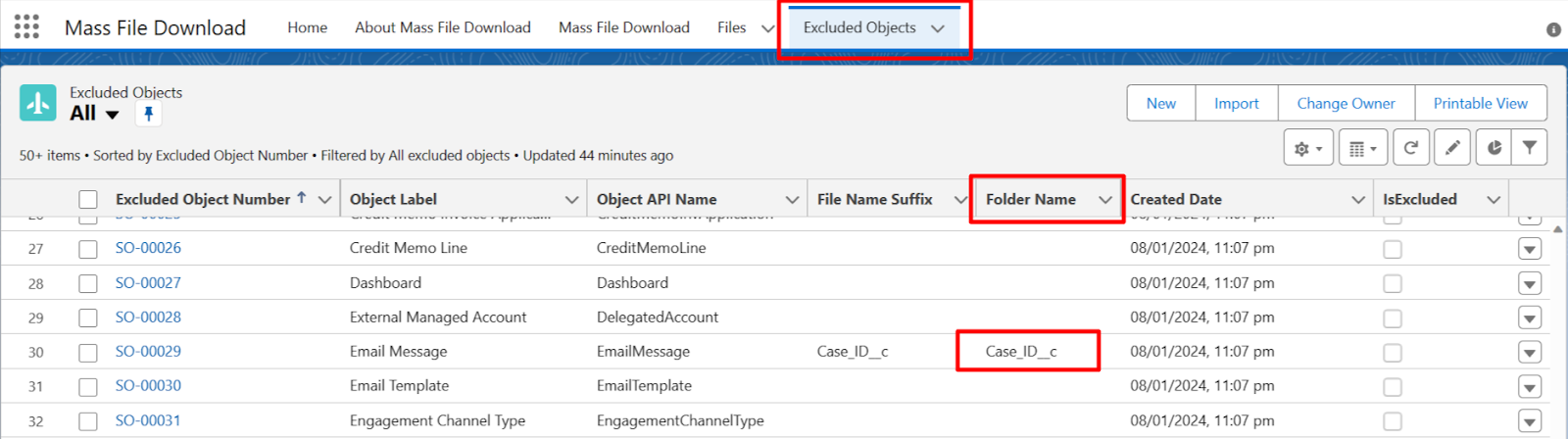
- If you want to append Case ID on the Downalod Folder Name then edit the field and add the same Case_ID__c API Name on the Email Message Folder Name Section as shown in the below image.
About Mass File Download Tab
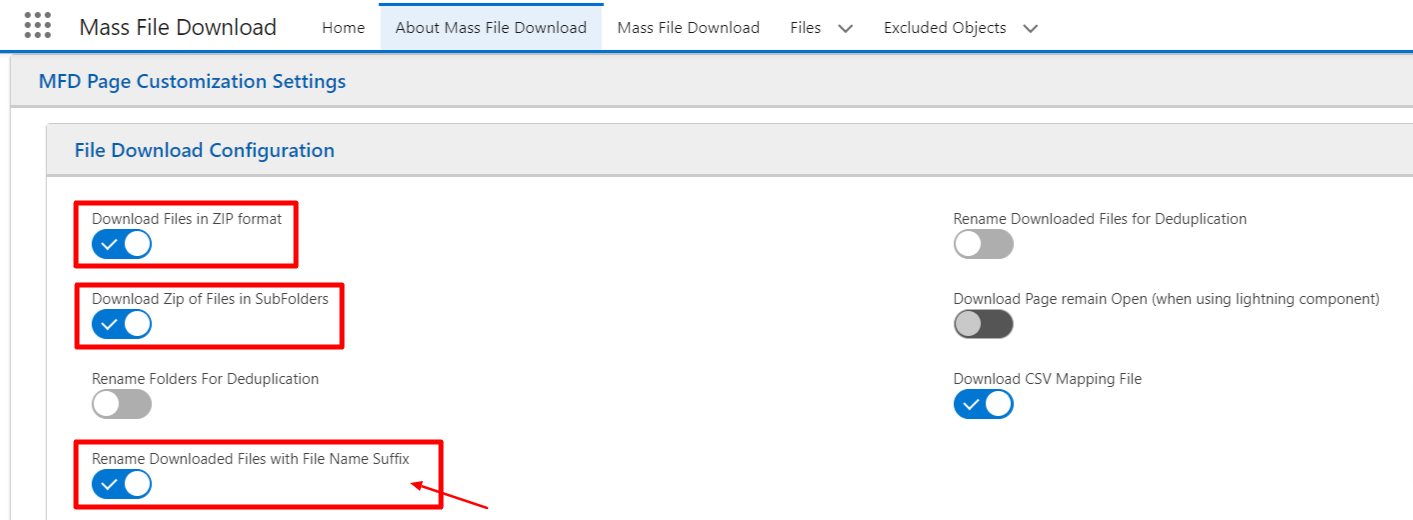
- Open the Mass File Download App and go to the About Mass File Download Tab
- Turn ON the Download Files in ZIP format, 'Download Zip of Files in SubFolders, and "Rename Downloaded Files with File Name Suffix" Toggles and hit the "Save" Button.
Mass File Download Tab
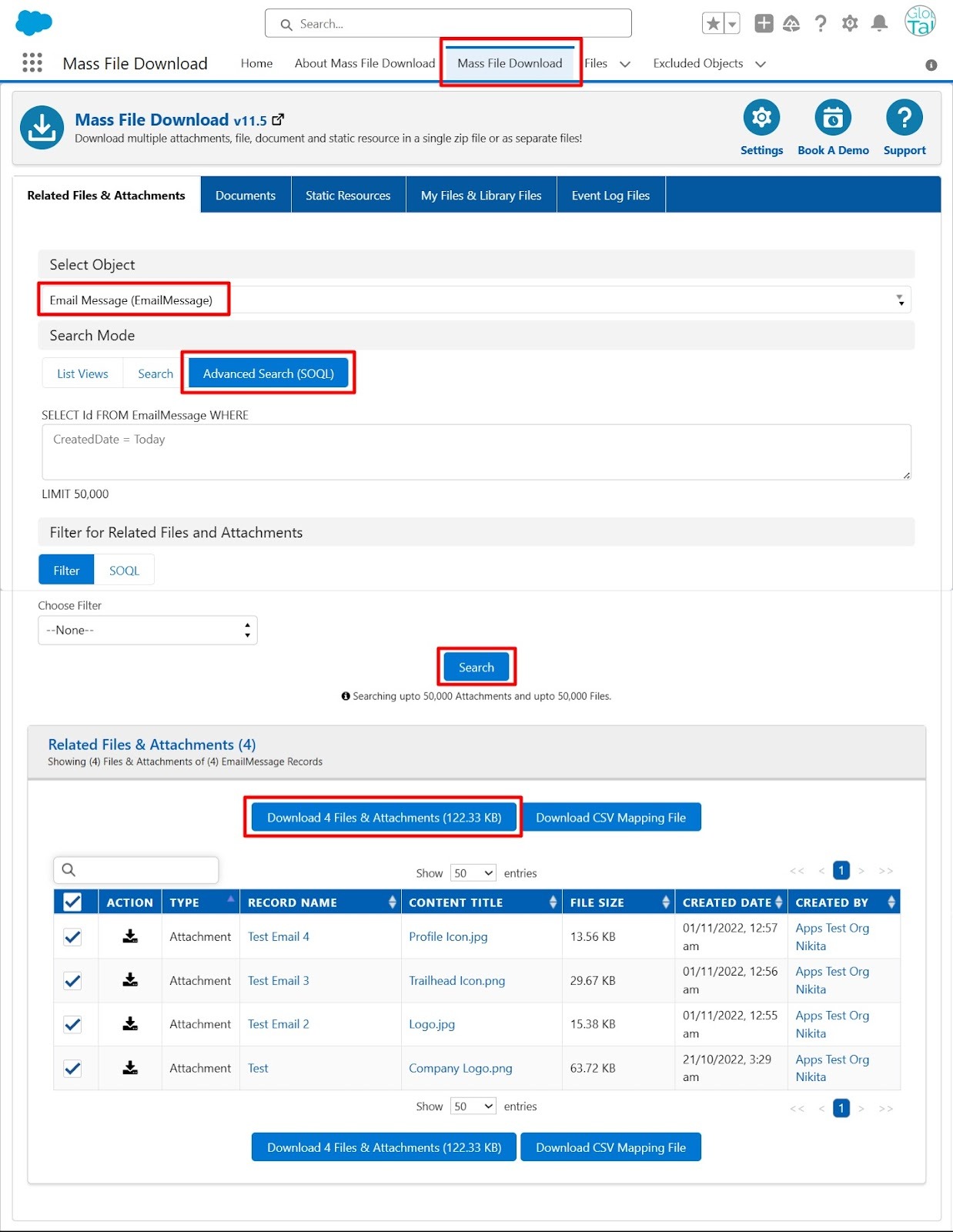
- Open the Mass file Download App and go to the Mass file Download Tab
- Click on Related Files & Attachments and select the Email Message object from the drop-down.
- Select Search mode as Advance Search(SOQL) and leave it blank.
- Hit the Search button and Download the Files and Attachments displayed on the table.
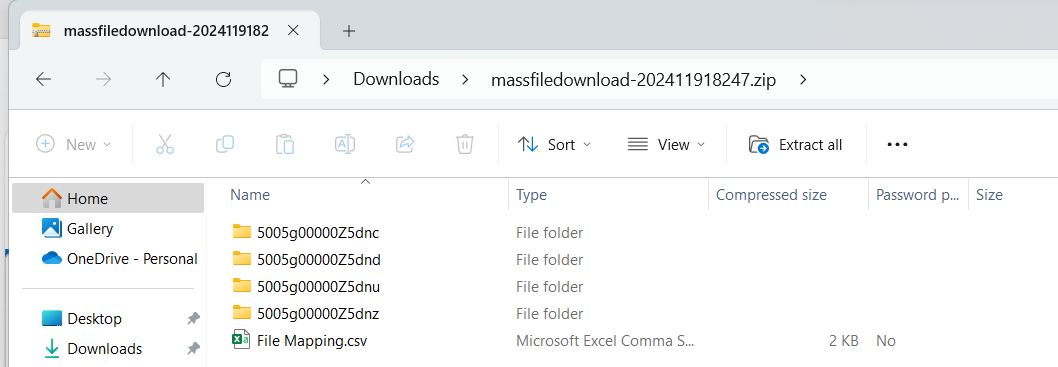
Open the Downloaded Zip File and go to the Sub-Folders, you will see the downloaded Folder Names as Case ID as shown in the below image.
Now go to the Open the SubFolder and check File here you will see the downloaded File Name in this syntax - "fileName - Case ID.extension" as shown in the below image.

PS: View Mass File Download, Salesforce file download app on Salesforce AppExchange: https://appexchange.salesforce.com/appxListingDetail?listingId=a0N3A00000EcsAOUAZ