
You can filter files and attachments by multiple file extensions at once using SOQL on the 'Related Files & Attachments' subtab.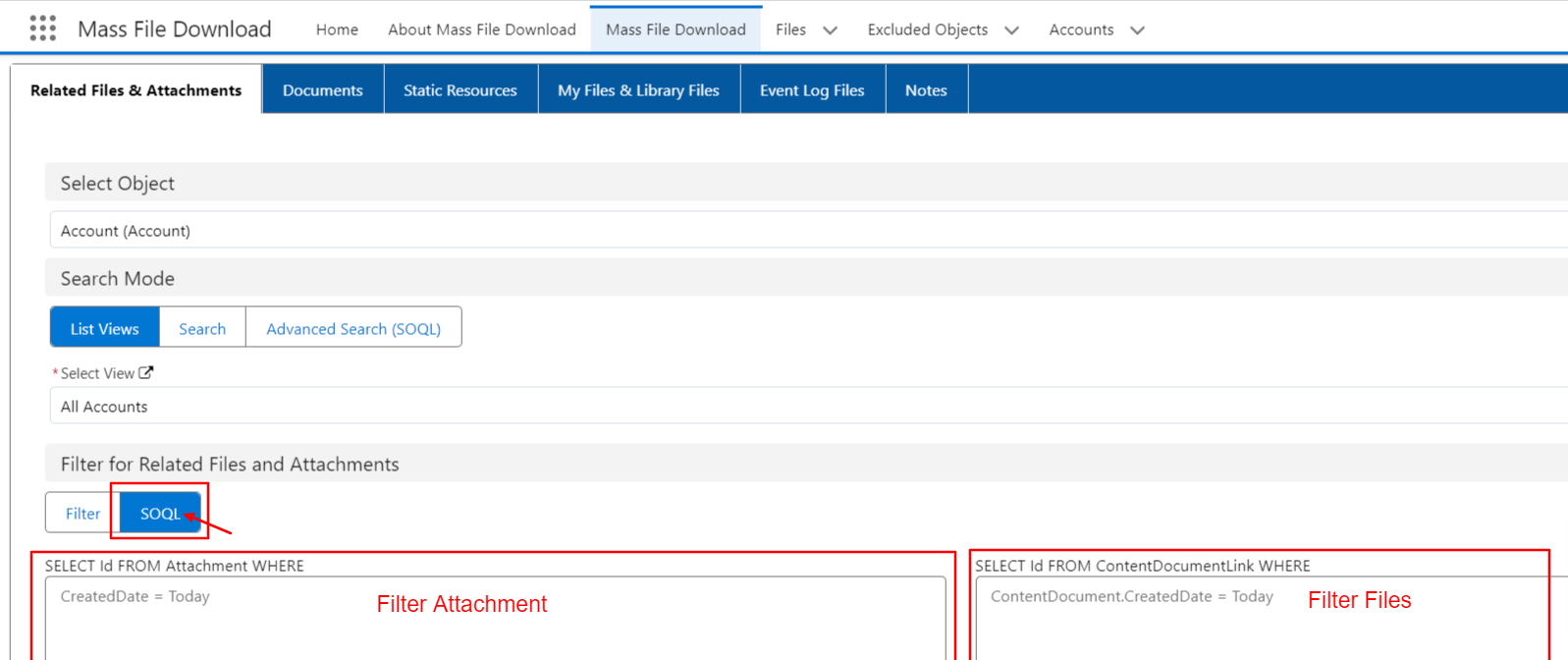
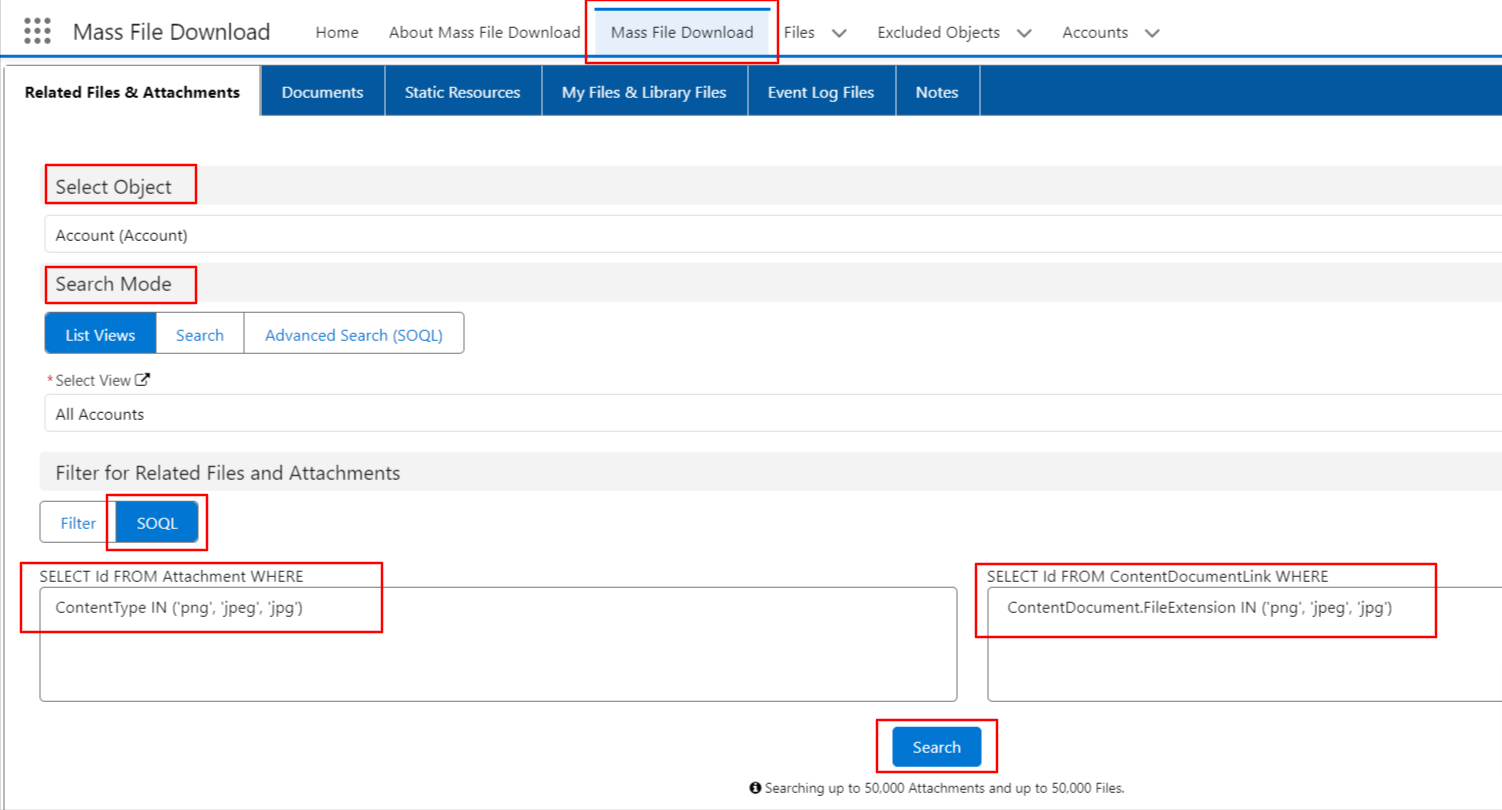
If you want to filter both files and attachments by multiple extensions simultaneously, follow these steps:
- Go to the 'Mass File Download' Tab.
- Select Object and Search Mode as per your requirements.
- Click on the SOQL option of "Filter for Related Files and Attachments"
- To filter the attachments, you need to put the following query here you can add multiple extensions as per your need - ContentType IN ('png', 'jpeg', 'jpg')
- To filter the files, you need to put the following query, here you can add multiple extensions as per your need - ContentDocument.FileExtension IN ('png', 'jpeg', 'jpg')
- Click on the Search button.
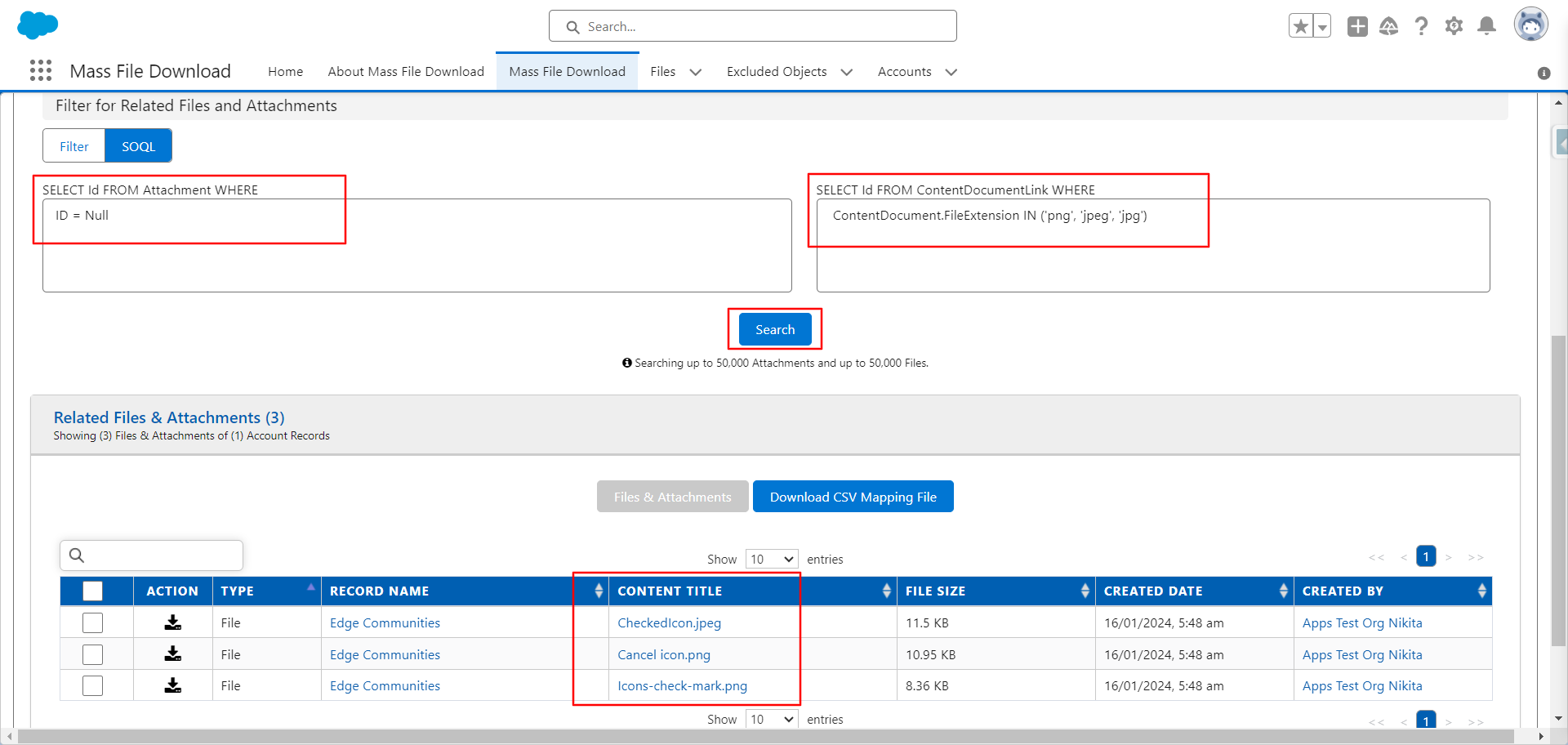
If you only want to filter files by multiple file extensions, follow these steps:
- Go to the 'Mass File Download' Tab.
- Select Object and Search Mode as per your requirements.
- Click on the SOQL option of "Filter for Related Files and Attachments"
- In the First Box - You need to put the following query: ID = Null
- In the Second Box - You need to put the following query, here you can add multiple extensions as per your need -: ContentDocument.FileExtension IN ('png', 'jpeg', 'jpg')
- Click on the Search button.
You can reverse the steps if needed, depending on whether you are filtering files or attachments.
PS: View Mass File Download, Salesforce file download app on Salesforce AppExchange: https://appexchange.salesforce.com/appxListingDetail?listingId=a0N3A00000EcsAOUAZ