
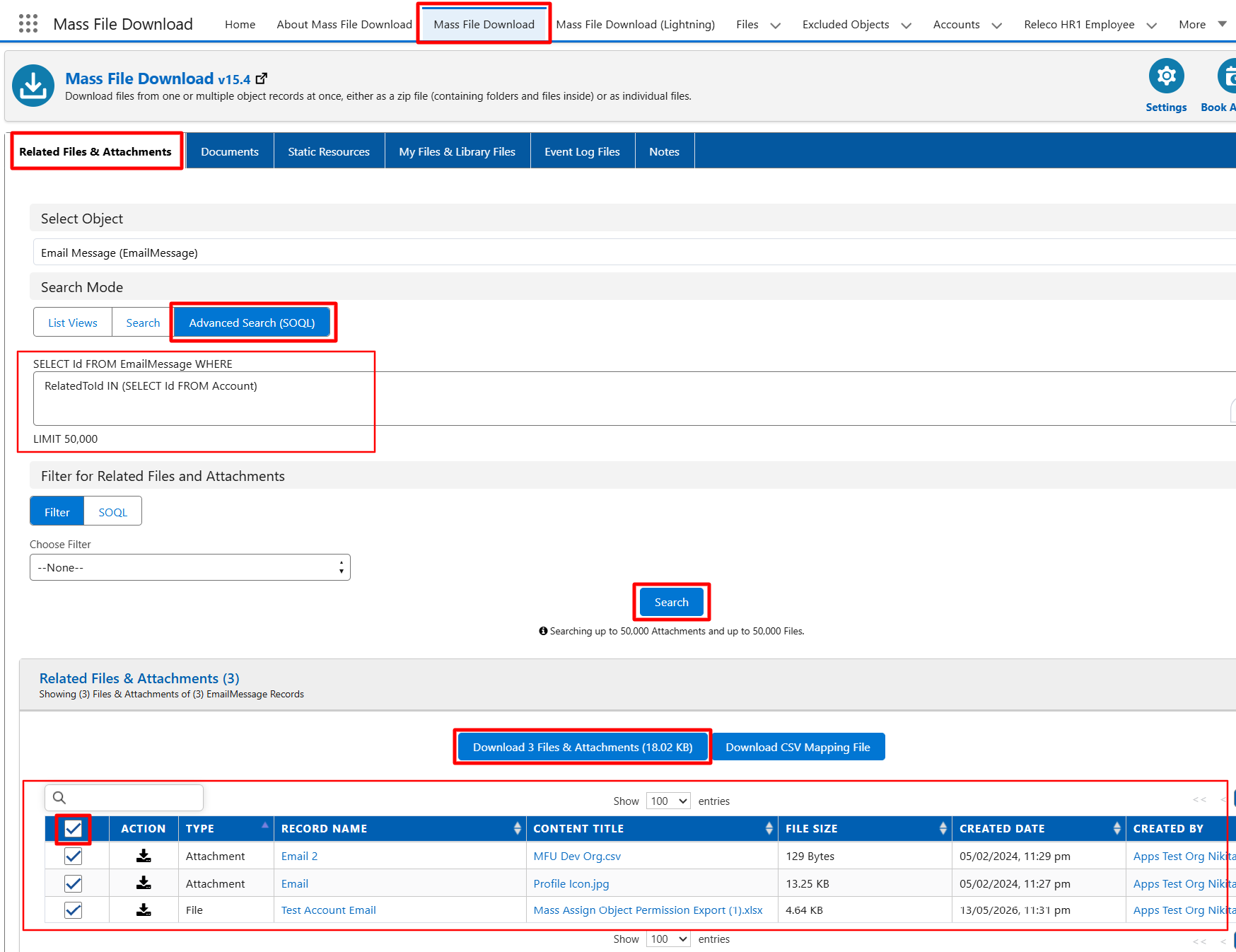
Follow the steps below to download files & attachments from "Email Message" in bulk.
- Open the "Mass File Download" Tab and Click on "Related Files & Attachments."
- Now select the "Email Message" from the Select Object drop-down
- Select Advanced Search (SOQL) search mode and write a query based on your search criteria. You can try the following SOQL queries -
- For all the account records - RelatedToId IN (SELECT Id FROM Account)
- For account records as per 1 owner - RelatedToId IN (SELECT Id FROM Account where OwnerId = 'OWNER_ID') (Replace OWNER_ID with the ID of the Owner)
- For account records for more than 1 owner - RelatedToId IN (SELECT Id FROM Account where OwnerId IN ('OWNER_ID1','OWNER_ID2')) (Replace OWNER_ID1 and OWNER_ID2 with the ID of the Owners)
4. Click the Search Button and make the downloads accordingly.
PS: View Mass File Download, Salesforce file download app on Salesforce AppExchange: https://appexchange.salesforce.com/appxListingDetail?listingId=a0N3A00000EcsAOUAZ