
To append the Account ID to the downloaded Account Email Attachments' file names, you need to use the RelatedToId field from the EmailMessage object in the Excluded Object settings.
Please follow the steps below -
- Go to the App Launcher(by clicking on the 9 dots in the top left) and search for the "Excluded Objects" tab.
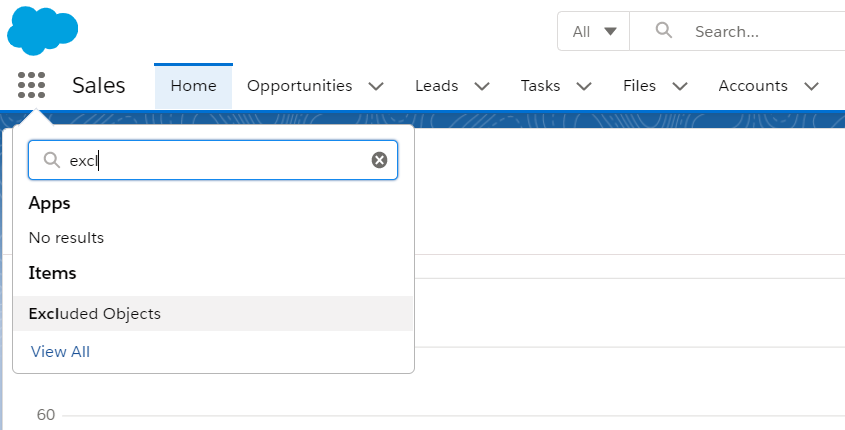
- If no results were found for the "Excluded Object", then you have to create a tab for the Excluded Object. Follow this article to create a custom object tab - Salesforce Help to Create a Custom Object Tab
- On the Excluded Object tab, choose the All List view -> Search for the Email Message and edit the File Name Suffix as RelatedToId API Name.
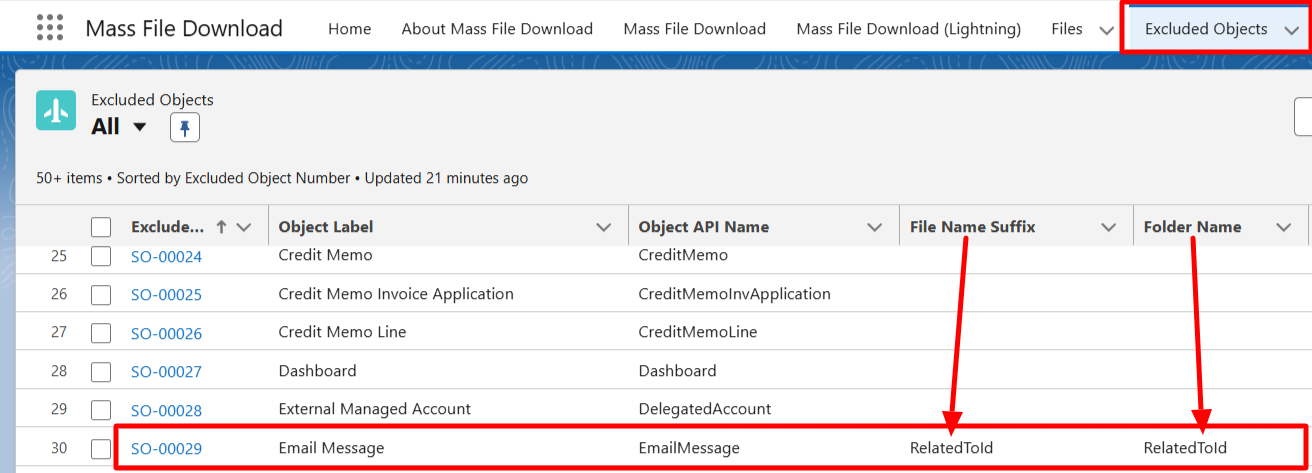
Now, to confirm the working -
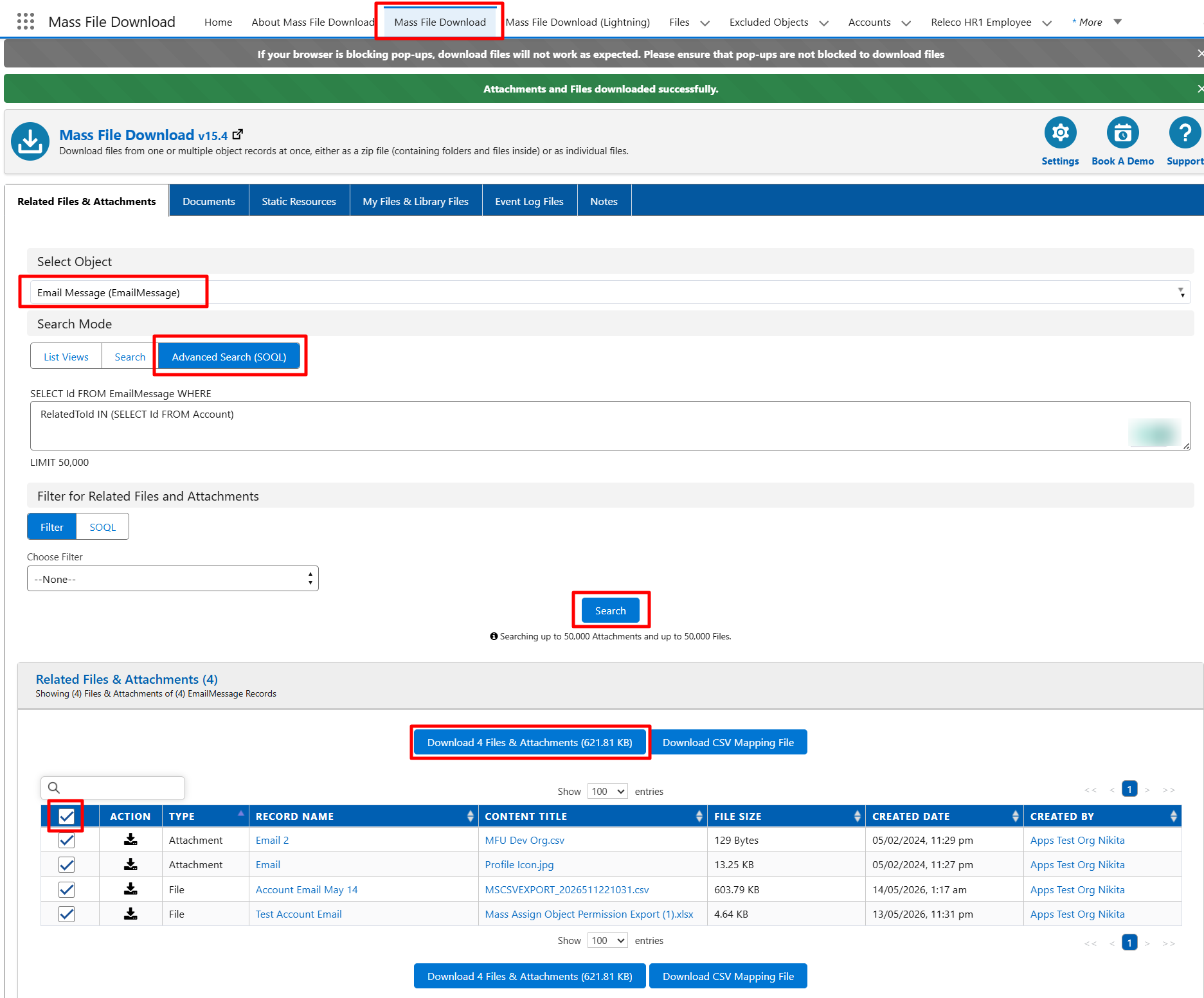
- Go to the Mass file Download Tab
- Click on Related Files & Attachments and select the Email Message object from the drop-down.
- Select Search mode as Advanced Search(SOQL) and leave it blank, or use the RelatedToId IN (SELECT Id FROM Account) SOQL query to search only Account's Email Messages.
- Hit the Search button and download the Files and Attachments displayed on the table.
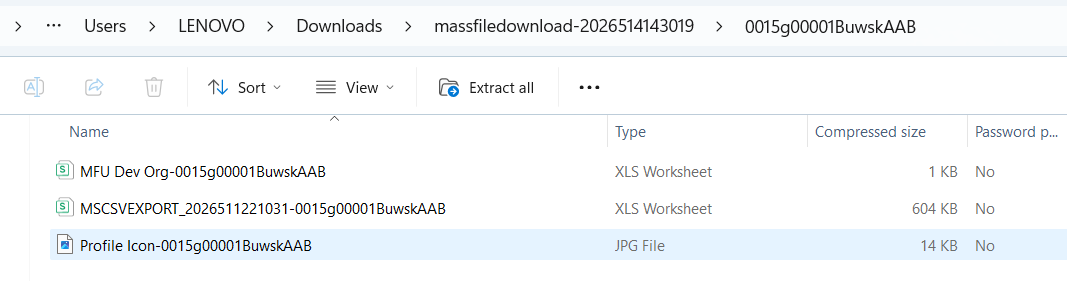
- Open the Downloaded Zip File and then the sub-folders and check all the related files inside it, you will see the downloaded File Name in this syntax - "fileName - Account ID" as shown in the image below.
PS: View Mass File Download, Salesforce file download app on Salesforce AppExchange: https://appexchange.salesforce.com/appxListingDetail?listingId=a0N3A00000EcsAOUAZ